


PostgreSQL Account
Overview
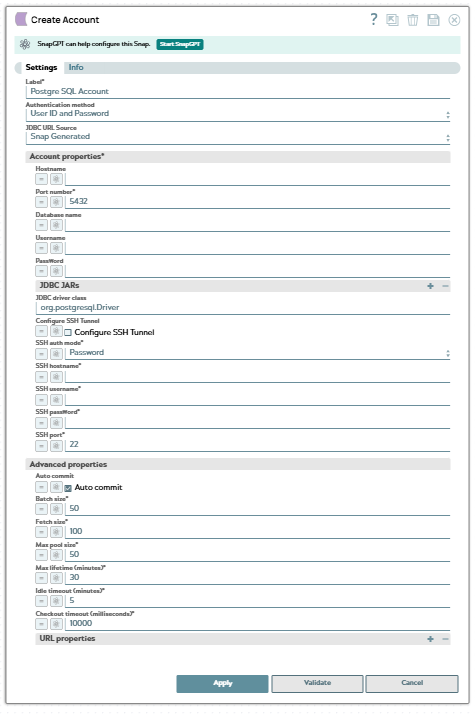
You can also connect to a PostgreSQL high-availability (HA) cluster. Select User Provided for the JDBC URL Source and specify a multi-host JDBC URL in the Custom JDBC URL field. The JDBC driver then fails over to the next available host when the primary host is unavailable, so your pipelines continue to run. Accounts that use Snap Generated JDBC URLs continue to work without any changes.
Prerequisites
PostgreSQL instance in Postgres.
Account settings
| Field/Field set | Type | Description |
|---|---|---|
| Label
|
Required. Unique name for the account. Default value: N/A Example: PostgreSQL_Account_Type |
|
| Authentication method
|
Select the authentication method to create your Postgres Account. The available options are:
Default value: User ID and password Example: IAM Auth |
|
| JDBC URL Source
|
Select the source of the JDBC URL that
the account uses to connect to your PostgreSQL instance. The available
options are:
Existing accounts continue to use Snap Generated, so single-host accounts that you created before this field was introduced work without any changes. Default value: Snap Generated Example: User Provided |
|
| Account properties | Required. Enter here the information needed to create a connection to the database. | |
| Hostname
|
Required. The address of the PostgreSQL server to which you want to connect. Default value: N/A Example: acc-postgresql-us-test-rsd.amazonaws.com |
|
| Port number
|
Required. The port number that you want to use to connect to the PostgreSQL database. Default value: 5432 Example: 1212 |
|
| Database name
|
Required. The name of the database to which you want to connect. Default value: N/A Example: TestDB |
|
| Username
|
The username that is allowed to connect to the database. This will be used as the default username when retrieving connections.
The Username is mandatory for both the authentication types:
Default value: N/A Example: snapuser |
|
| Password
|
The password associated with the
username that you want to use to connect to your account. This
password will be used as the default password when retrieving
connections. Default value: <Encrypted> |
|
| Custom JDBC URL
|
Appears when you select User
Provided for the JDBC URL Source.
Required. Specify the JDBC URL that you want
to use to connect to your PostgreSQL instance.
Use this field when you want to use a complex JDBC URL that involves multiple hosts and advanced connection options. To connect to a PostgreSQL high-availability cluster, specify the hosts as a comma-separated list and add the PostgreSQL HA parameters that you want to apply. For example:
With a multi-host URL, the JDBC driver tries each host in the order
that you list them and connects to the first host that satisfies
the The Note: Use the
jdbc:postgresql: scheme and ensure that
the URL is valid for the driver that the account loads. The account
displays a validation error if the URL format is invalid. Learn
more: PostgreSQL
JDBC driver FAQ.Default value: N/A Example: jdbc:postgresql://host1.example.com:5432,host2.example.com:5432/TestDB?targetServerType=primary |
|
| JDBC JARs | The list of JDBC jar files that must be loaded for the account to work. | |
| JDBC driver
|
The JDBC driver must be loaded for
the account to work. The default Postgres driver is used when you do
not provide a driver. (Default driver: postgres 42.7.2.jar). Learn more. Default value: N/A Example: postgresql-9.4.1207.jar |
|
| JDBC driver class
|
The JDBC driver class that you want
to use with the account. Default value: org.postgresql.Driver |
|
| IAM properties | Appears when you select the IAM Auth for the Authentication method. Configure the IAM-related properties for IAM authentication. | |
| IAM role
|
Appears when you select the IAM
Auth for the Authentication method.
Select this checkbox to use the IAM role stored in the Groundplex EC2 instance. Note:
Default status: Deselected |
|
| AWS access key ID
|
Appears when you select the IAM Auth for the Authentication method and deselect IAM role checkbox.
Specify the AWS access key ID associated with your AWS account. Default value: N/A Example: AKIAZOHOHNF1MFOAJJUI |
|
| AWS secret access key
|
Appears when you select the IAM
Auth for the Authentication method
and deselect IAM role checkbox. Specify the Secret Key associated with your AWS authentication. Default value: N/A Example: CABoDpQMzkYuUeH/hZJfEMdY0IroTKO7859Ww2qd |
|
| AWS security token
|
Appears when you select the IAM
Auth for the Authentication method
and deselect IAM role checkbox. Specify the Security Token used to authenticate your requests to AWS services. Only global Security Token Service (STS) regions are supported. Default value: N/A Example: FQoGZXIvYXdzEFYaDO/7V77y1HTi1a0B7CK4AQpd KsNC65mM/N4X8e |
|
| AWS region
|
Appears when you select the IAM Auth for the Authentication method.
Specify the AWS region where the application is running. Default value: N/A Example: us-east-1 |
|
| Cross account IAM properties | Appears when you select IAM Auth for Authentication method. Use this field set to configure the cross-account access. | |
| Role ARN
|
Appears when you select IAM Auth for Authentication method.
Specify the Amazon Resource Name (ARN) of the role to assume. Default value: N/A Example: arn:aws:iam::61286491850:role/EC2_assume_role |
|
| External ID
|
Appears when you select IAM
Auth for Authentication method.
Specify an External ID that might be required by the role to assume. Default value: N/A Example: 7542158 |
|
| Configure SSH Tunnel
|
Select this checkbox if Snap needs
to create an SSH tunnel for connecting the Snaplex to the PostgreSQL
server. After the operation is completed, the tunnel is closed.
Note: This Account supports SSH-2 RSA / Ed25519 keys If you select this checkbox, you must provide the configuration details on the SSH tunnel. Learn more about Setting Up SSH Tunneling with PostgreSQL. Default status: Deselected |
|
| SSH auth mode
|
Required.
Select an option to specify the mode for authenticating the user on
the SSH tunnel. This value is considered only if the
Configure SSH Tunnel checkbox is
selected. The available options are:
The PostgreSQL Account supports all popular Public-key cryptography algorithms.
We recommend that you use EdDSA for modern systems where both the client and server support it, since it offers better security. RSA with larger key sizes like 2048 and 4096 offers good security while being compatible with older systems. Default value: Password Example: KeyFile |
|
| SSH hostname
|
Required. Specify the IP address or the domain name of the SSH server to which you want to connect. Default value: None Example: 127.0.0.1 |
|
| SSH username
|
Required. Specify the SSH username for connecting to the tunnel. Default value: None Example: SSHUser |
|
| SSH password
|
Required.
Specify the password for the specified SSH username for connecting
to the SSH tunnel. This field is required if SSH Auth
Mode is Password. Default value: None Example: <Encrypted> |
|
| Private key file URL
|
Required.
Specify the location of the keystore file. This field is required if
SSH Auth Mode is KeyFile (Private Key
File). The file can be in SLDB, on the host machine that is hosting the JCC, or at any other remote location. For a local file, click to select the appropriate file using the file browser. You can also upload the file using any protocol such as https, ftp, sldb, and sftp. Default value: None Example: postgres-ssh.pem |
|
| Private key
|
Required. Specify the private key for authentication. This field is required if SSH Auth Mode is KeyFile (Private Key String). Default value: None Example: -----BEGIN RSA PRIVATE KEY----- ……………….. -----END RSA PRIVATE KEY----- |
|
| Private key passphrase
|
Specify the password that is to be
used to decrypt the private key. This field is required if
SSH Auth Mode is KeyFile. Default value: None Example: : y<>6[[]gMssb^rM |
|
| SSH Port
|
Required.
Specify the SSH port to connect to the PostgreSQL Server. Ensure that there are no port conflicts. Default value: None Example: 222 |
|
| Advanced Properties | Advanced properties associated with the PostgreSQL account type. Default value: N/A |
|
| Auto commit
|
Select this check box to commit each
batch of processed data immediately after execution. If the Snap
fails, only the batch being executed at that moment is rolled back.
Deselect this check box to commit processed data only after all the batches are executed. If the Snap fails, the entire transaction is rolled back, unless the Snap finds invalid input data before it sends the insert request to the server and routes the error documents to the Error view. Default status: Selected |
|
| Batch size
|
Required. The
number of statements to execute at a time. Select queries are not batched. Note: Using a large batch size could use up the JDBC
placeholder limit of 2100.
Default value: 50 Example: 20 |
|
| Fetch size
|
Required. The
number of rows to fetch at a time when executing a query.
Note: Large values could cause the server to run out of
memory.
Default value: 100 Example: 50 |
|
| Max pool size
|
Required. The
maximum number of connections that a pool will maintain at a
time. Default value: 50 Example: 30 |
|
| Max lifetime (minutes)
|
Required. The
maximum lifetime (in minutes) of a connection in the pool. Ensure
that the value you enter is a few seconds shorter than any database
or infrastructure-imposed connection time limit. A value of 0
indicates an infinite lifetime, subject to the Idle Timeout value.
An in-use connection is never retired. Connections are removed only
after they are closed. Default value: 30 Example: 50 |
|
| Idle timeout (minutes)
|
Required. The
maximum amount of time (in minutes) that a connection is allowed to
sit idle in the pool. A value of 0 indicates that idle connections
are never removed from the pool. Default value: 5 Example: 10 |
|
| Checkout timeout (milliseconds)
|
Required. The
number of milliseconds to wait for a connection to be available when
the pool is exhausted. Zero waits forever. The Snap throws an
exception after the wait time has expired. If you provide 0, the Snap waits infinitely until the connection is available. Therefore, we recommend you not to specify 0 for Checkout Timeout. Default value: 10000 Example: 8000 |
|
| URL properties | Use this fieldset to specify properties associated with the URL created to make the connection with your account. Default value: N/A |
|
| URL property name
|
The name of the URL property. Default value: N/A Example: socketTimeout |
|
| URL property value
|
The value associated with the URL property listed in the URL property name field. Default value: N/A Example: 10 |
|
Troubleshooting
| Error | Reason | Resolution |
|---|---|---|
|
When you set up a PostgreSQL 15.3 (RDS), with the default driver (9.4.1207), the Snap fails with the following fatal error:
|
The PostgreSQL server versions after 9.4.1207 may not be compatible with the default bundled PostgreSQL JAR in the Snap. |
Explicitly upload and use a recent JDBC driver. 42.5.2 or 42.6.0 You can download the latest JAR file from here: https://jdbc.postgresql.org/download |
|
Invalid IAM properties. |
Either the AWS access key ID or AWS secret key has an empty value. |
Provide valid values for AWS access key ID and AWS secret key. |
|
JDBC Driver Hangs in Case of Connection Error |
The default |
To overcome this, configure the URL properties in Account
settings with the following parameter and value: URL property
name: URL property
value: A SocketTimeout value of 10 ensures that the JDBC driver returns no connections after 10 seconds. |
| Timeout Issue |
A connection failure does not suspend the running PostgreSQL Pipelines if the timeout value is lesser than the time to process the query. |
To overcome this issue, set the URL property socketTimeout with a longer time period than that of the longest expected query.
|
SSL Connection - Validation Issue |
When connecting to an SSL enabled PostgreSQL account, the account fails in validation. |
To overcome this, configure the URL properties in Account settings to establish an SSL connection with the following parameter and value:
|
Auto Commit with Execute Snaps |
For a DB Execute Snap, assume that a stream of documents enters the input view of the Snap and the SQL statement property has JSON paths in the WHERE clause. If the number of documents is large, the Snap executes in more than one batches rather than executing one per each document. Each batch would contain a certain number of WHERE clause values. If Auto commit is turned on, a failure would only roll back the records in the current batch. If Auto commit is turned off, the entire operation would be rolled back. |
For a single execute statement (with no input view), the setting has no practical effect. |