


Managing Versions of Your APIs
How to create, edit, and delete API versions in the API Manager using design-first, existing project assets, empty versions, or Git repository checkout.
Overview
You can create and manage multiple versions of your APIs. A version of an API contains SnapLogic assets such as Pipelines, Tasks, and Open API Specification files. Clicking an API on the API Details page opens the Version Details page, where you can view details about the version and add API policies. You can also search through assets in a Version and view Permission sets.
When you are viewing an API version, you can navigate to the API Details and API Management landing page by clicking the respective folders in the folder path.
The following example illustrates the path of an API version:
API Manager - /apim/API_Test/1.1
From this view, you can click on any component in the path to navigate to that level of the API Management hierarchy:
- API Management > API Manager: Landing Page
- API: API_Test
- Version: 1.1
Prerequisites
- Your environment (Org) must have a subscription to the API Management feature; otherwise, the API Management UI is not enabled.
- You must have Write permissions to create an API.
- To create API version using Git, you need to be a Git-authenticated user.
API Manager
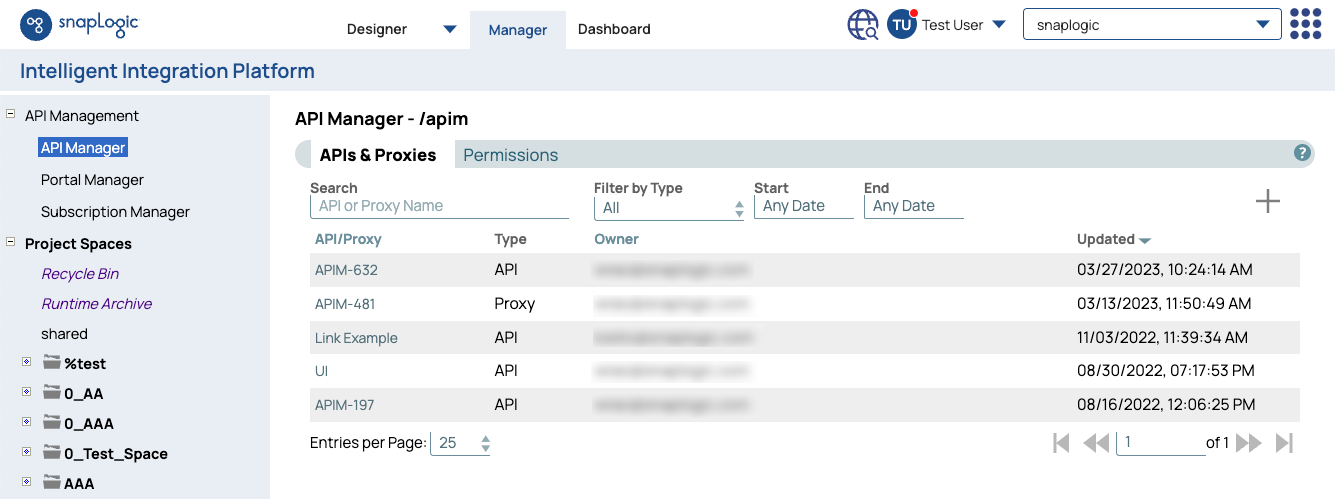
You can navigate to the API Manager console by opening Project Manager from the waffle menu and clicking .
Creating an API Version Using Design First
- Navigate to API Management > API Manager, and click the target API to display the API Details page.
- Click the Versions tab, then click the Add icon to display the
Create Version dialog window.

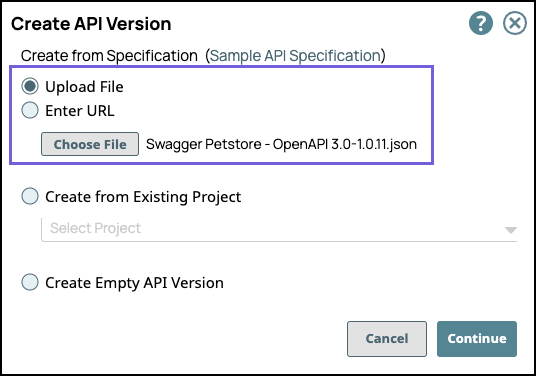
- In the Create API version dialog window, import the API
Specification by selecting one of the following options, then click
Continue:
- Select Upload File to choose a file from your local machine.
Both JSON and YAML file formats are supported.
- Select Enter URL to refer to the API specification by URL.
- Select Upload File to choose a file from your local machine.
Both JSON and YAML file formats are supported.
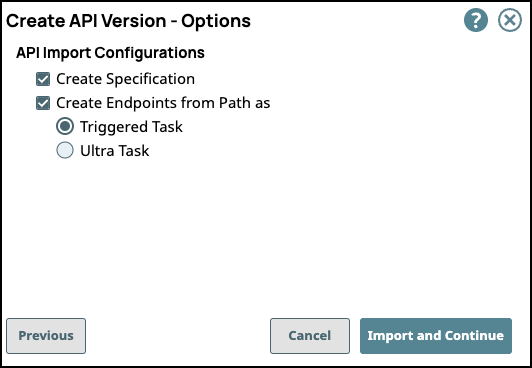
- Select/deselect the Import Configuration options, then click
Import and Continue. The options for import are selected by
default.
- Create Specification: Select to include the specification as a File Asset in the API. Deselect to omit the specification file you uploaded.
- Create Endpoints from Path: Select to include all default
Assets for this API. Deselect to leave the API an empty container for you to provide
the Assets later.
- Enter information about your Version, then click Create.
- General Info: Provide basic information about your API. The name is the API name plus the version number.
- Description: Enter a brief description.
- Version: Define the version. By default, the version is 1.0 when you create an API for the first time.
- Tags: Enter any tags associated with your API.
- Endpoint Configuration: The base path for the endpoint.
- Server Configuration: Enter the Snaplex associated with this API.
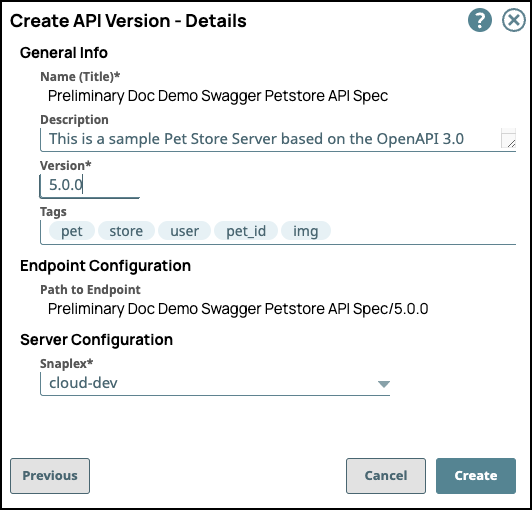
You must enter a name and Snaplex. You can also change the version from this dialog window, and therefore create another version of the API.
After you create a version of an API, the Version asset is displayed on the Version Details page. You can view information about the assets used in the API version by clicking it.
- General Info: Provide basic information about your API. The name is the API name plus the version number.
Creating an API Version from Existing Project Assets
- Navigate to API Management > API Manager, and click the target API to display the API Details page.
- Click the Versions tab, then click the Add icon to display the
Create Version dialog window.
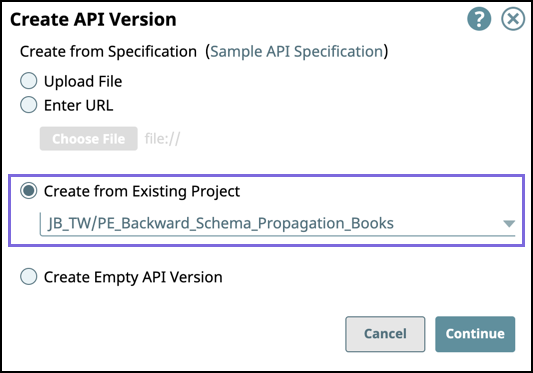
- In the Create API version dialog window, select Create
from Existing Project, then click Continue:
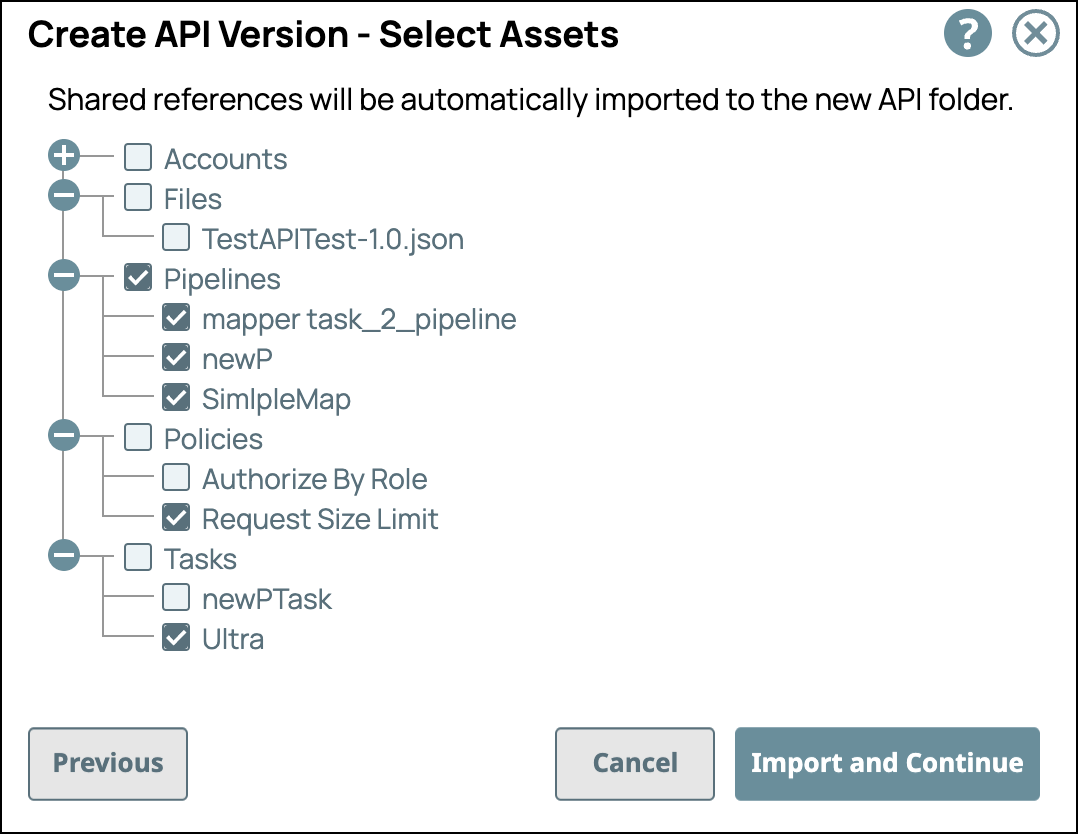
- In the Create API Version-Select Assets dialog window,
select/deselect the assets from the Project to use in the API Version, then click
Import and Continue. An Asset selected at the root level also
imports the leaf-level Assets.
- Enter information about your API Version, then click
Create.
- General Info: Provide basic information about your API. The name is the API name plus the version number.
- Description: Enter a brief description.
- Version: Define the version. By default, the version is 1.0 when you create an API for the first time.
- Tags: Enter any tags associated with your API.
- Endpoint Configuration: The base path for the endpoint.
- Server Configuration: Enter the Snaplex associated with this API.
You must enter a name and Snaplex. You can also change the version from this dialog window, and therefore create another version of the API.
After you create a version of an API, the Version asset is displayed on the Version Details page. You can view information about the assets used in the API version by clicking it.
- General Info: Provide basic information about your API. The name is the API name plus the version number.
Creating an Empty API Version
- Navigate to API Management > API Manager, and click the target API to display the API Details page.
- Click the Versions tab, then click the Add icon to display the
Create Version dialog window.
- In the Create API version dialog window, select Create Empty API Version, then click Continue.
- Enter information about your Version, then click
Create.
- General Info: Provide basic information about your API. The name is the API name plus the version number.
- Description: Enter a brief description.
- Version: Define the version. By default, the version is 1.0 when you create an API for the first time.
- Tags: Enter any tags associated with your API.
- Endpoint Configuration: The base path for the endpoint.
- Server Configuration: Enter the Snaplex associated with this API.
You must enter a name and Snaplex. You can also change the version from this dialog window, and therefore create another version of the API.
After you create a version of an API, the Version asset is displayed on the Version Details page. You can view information about the assets used in the API version by clicking it.
- General Info: Provide basic information about your API. The name is the API name plus the version number.
Create the API version from a Git repository
You can create the API version from the Git repository as shown below:
- In the API Manager page, click on the API:

- Click on the Versions tab:

- Click on the the add icon and a pop-up wizard Create API version is displayed:

- In Create API version wizard, select Create from Git
Checkout:
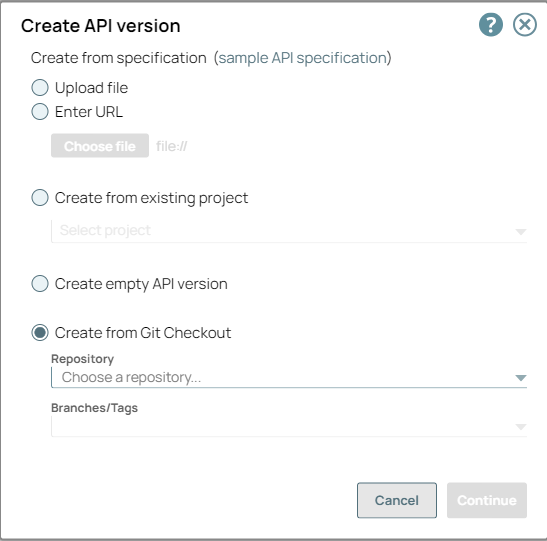
- Choose the Git Repository from field Repository and choose
the branch from the field Branches/Tags:
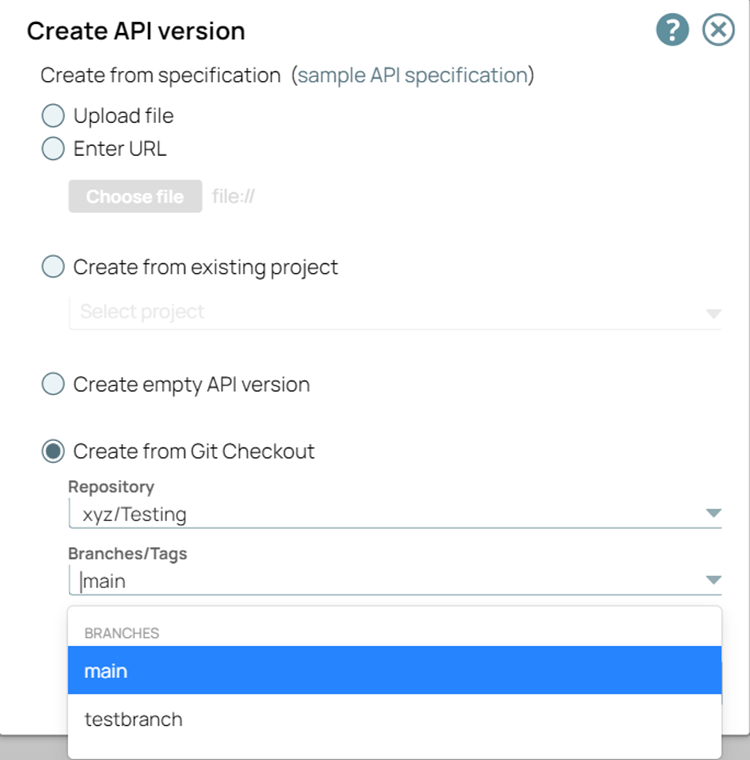
- Click Continue and enter in the rest of the details, then click
Create:
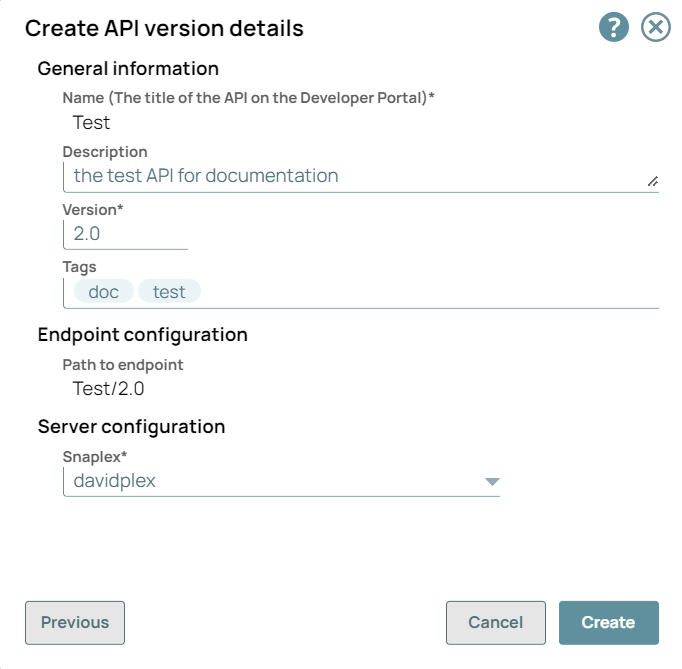
- Your API version is created from Git Repository:

Edit API Version
You can edit the API Version with the below steps:
- Navigate to API Manager > API > Versions:

- Click the Version you want to edit:
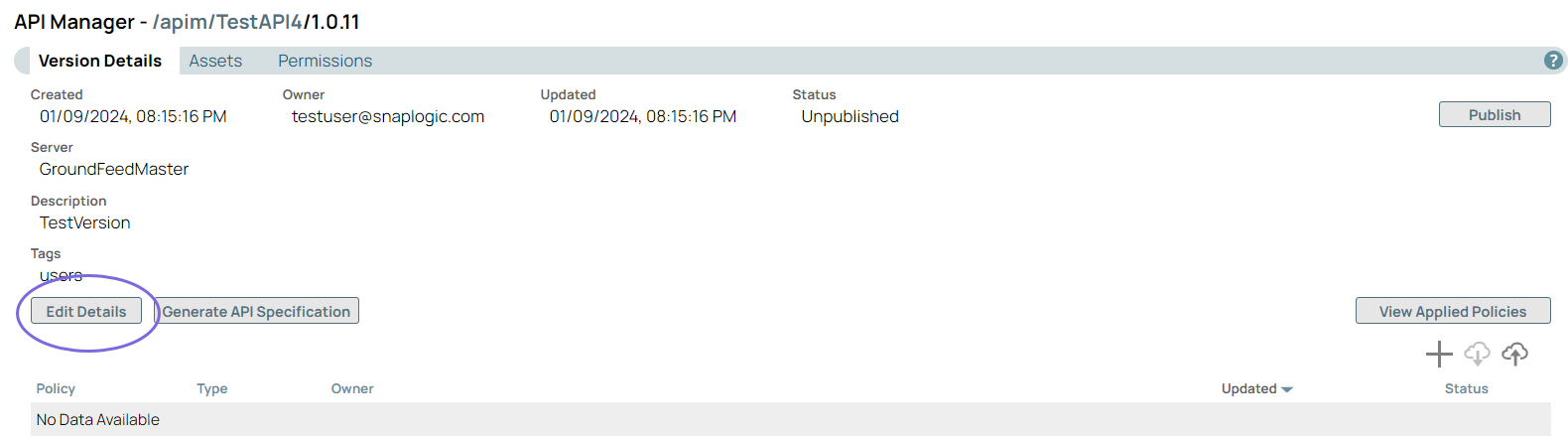
- Click Edit Details to update the Version:
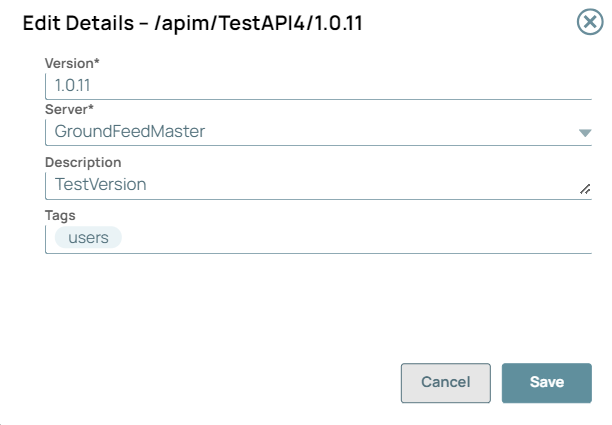
- Click Save. A message "Version details has been updated successfully" displays in the UI.
- You can only edit the Version of the unpublished APIs.
- Unpublish the API to edit the API Version.
- Special characters such as |, <, >, [, ], {, },#, ?, /, and \. cannot be used.
Deleting an API version
- Navigate to API Management > API Manager, click the target API to display the API details page.
- Click the Versions tab and point your cursor on the target Version. The delete icon is displayed.
- Click the Delete icon to delete the API Version, then click Delete on the confirmation prompt.
The API Version is deleted from the API Manager console.