


Salesforce Dynamic Account
Overview
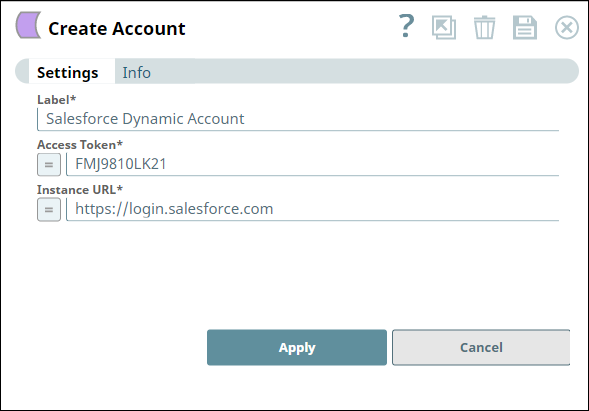
Account settings
- Expression icon (
 ): Allows using
JavaScript syntax to access SnapLogic Expressions to set field values dynamically (if
enabled). If disabled, you can provide a static value. Learn more.
): Allows using
JavaScript syntax to access SnapLogic Expressions to set field values dynamically (if
enabled). If disabled, you can provide a static value. Learn more. - SnapGPT (
 ): Generates SnapLogic Expressions
based on natural language using SnapGPT. Learn
more.
): Generates SnapLogic Expressions
based on natural language using SnapGPT. Learn
more. - Suggestion icon (
 ): Populates a
list of values dynamically based on your Snap configuration. You can select only one
attribute at a time using the icon. Type into the field if it supports a comma-separated
list of values.
): Populates a
list of values dynamically based on your Snap configuration. You can select only one
attribute at a time using the icon. Type into the field if it supports a comma-separated
list of values. - Upload
 : Uploads files. Learn more.
| Field/Field set | Description |
|---|---|
Label*
String |
Required. Unique name for the account. Default value: N/A |
Access token
String/Expression |
Required. Specify the access token for Salesforce.com.
Default value: N/A Example: FMJ9810LK21 |
Instance URL
String/Expression |
Required. Specify the instance URL to be used to access Salesforce.com.
Default value: N/A Example: https://login.salesforce.com |
Using a Dynamic Token in a Dynamic Account
To use a Dynamic Token from Salesforce with a dynamic account, you will need to create:
- A Pipeline to perform the desired Salesforce actions.
- A triggered task to call that pipeline.
- A REST Get Pipeline to query for the token information.
- A Salesforce Dynamic Account with values supplied by Pipeline parameters. You must use Pipeline parameters since accounts get initialized before Snaps.
Salesforce Pipeline
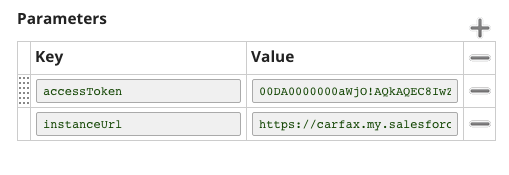
Create a Salesforce Pipeline (with any Salesforce Snaps) using the following Pipeline parameters:
- accessToken
- instanceURL
You will supply values for them in the triggered task. The necessary Salesforce Dynamic Account will be created later, so bypass that for now.
Triggered Task
Create a triggered task for the Salesforce Pipeline. Supply the instance_url and access_token values received from the grant_type POST to the Pipeline parameters.
REST Get Pipeline
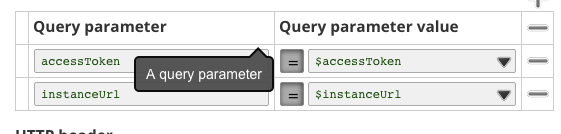
Create a REST Get pipeline that calls the Salesforce triggered task with the query parameters such as:
Salesforce Dynamic Account
In the Salesforce Pipeline, create a Salesforce Dynamic Account within the Salesforce Snap used.
Set the expression toggle on for both Access token and Instance URL.
Set Access token to _accessToken and Instance URL to _instanceURL.