


Salesforce Wave Analytics
Overview
The Salesforce Wave Analytics Snap enables you to load external data into Salesforce Wave Analytics.
This Snap converts a stream of input documents into CSV data and metadata and uploads them to Salesforce Wave Analytics as external data. It scans the first 50 documents and generates the metadata automatically, which can be overridden. The Snap uploads CSV data in multi parts with each not exceeding 10MB.
- This is a Write-type Snap.
 Works in Ultra Tasks
Supported Accounts
Snap views
| Type | Description | Examples of upstream and downstream Snaps |
|---|---|---|
| Input |
This Snap has exactly one document input view. Each input document should have a flat map data since it is converted to one row of CSV data. If this map data contains a value of another map or list object, the document is not used and passed to the error view. |
|
| Output |
This Snap has at most one document output view. If the Snap is in the Preview Action mode, it writes the metadata to the output view. |
|
| Learn more about Error handling. | ||
Snap settings
- Expression icon (
 ): Allows using
pipeline parameters to set field values dynamically (if enabled). SnapLogic Expressions
are not supported. If disabled, you can provide a static value.
): Allows using
pipeline parameters to set field values dynamically (if enabled). SnapLogic Expressions
are not supported. If disabled, you can provide a static value. - SnapGPT (
 ): Generates SnapLogic Expressions
based on natural language using SnapGPT. Learn
more.
): Generates SnapLogic Expressions
based on natural language using SnapGPT. Learn
more. - Suggestion icon (
 ): Populates a
list of values dynamically based on your Snap configuration. You can select only one
attribute at a time using the icon. Type into the field if it supports a comma-separated
list of values.
): Populates a
list of values dynamically based on your Snap configuration. You can select only one
attribute at a time using the icon. Type into the field if it supports a comma-separated
list of values. - Upload
 : Uploads files. Learn more.
| Field/Field set | Description |
|---|---|
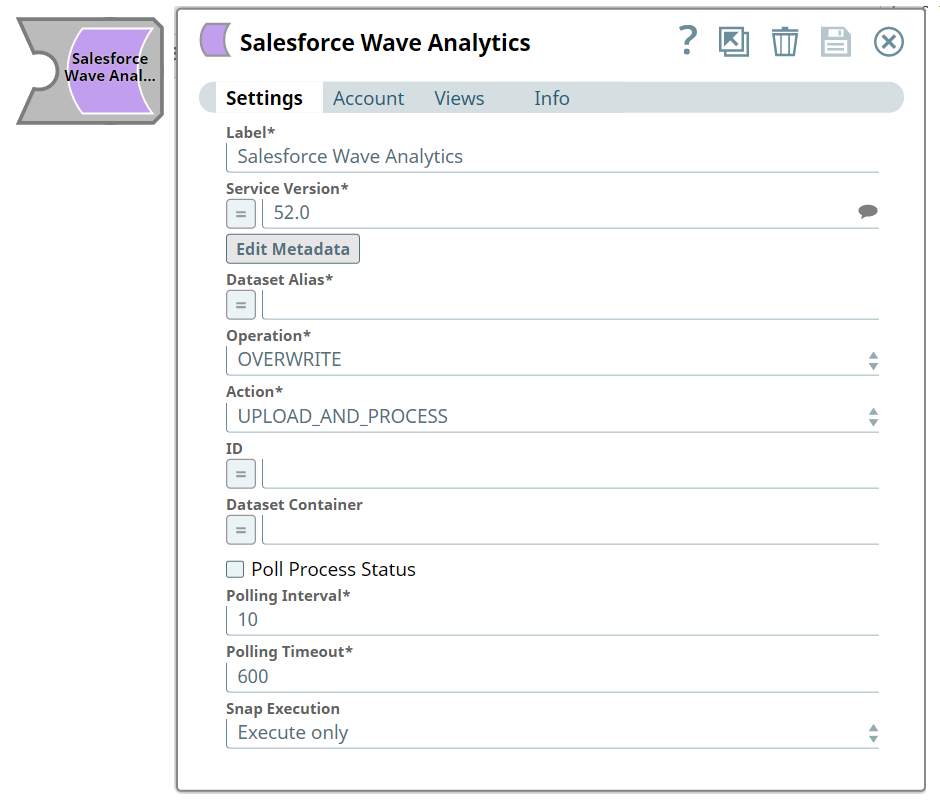
Label
String |
Specify a unique name for the Snap. Modify this to be more appropriate, especially if more than one of the same Snaps is in the pipeline. Default value: Salesforce Wave Analytics Example: Salesforce Wave Analytics |
Service Version
String/Expression/ Suggestion |
Required. Specify the version number associated with the Salesforce service that you want to connect to. Alternatively, click the Suggestion icon to fetch the list of versions and select the desired version. Default value: 52.0 Example: 41.0 |
Edit metadata
Button |
Allows you to edit metadata for the CSV data to be uploaded to Salesforce Analytics. Default value: N/A |
Dataset Alias
String/Expression |
Required. Alias of a dataset, which must be unique across an organization. Default value: N/A Example: MyDatasetAlias |
Operation
Dropdown list |
Required. The database operation to use when loading data into the dataset. The available options are:
Default value: OVERWRITE Example: APPEND |
Action
Dropdown list |
Required. Action to perform on the external data. The options available include:
Default value: UPLOAD_AND_PROCESS Example: UPLOAD |
ID
String/Expression |
The unique ID of the loaded external data. This field is required if the action is Process. Default value: N/A Example: 06V5w00000A1234EAS |
Dataset Container
String/Expression |
The folder name. If you do not specify a folder name when creating a new dataset, the Dataset container will be the user's private folder. If not specified for an existing Dataset, the Dataset container will be the folder that currently contains the Dataset. If you specify a Dataset container for an existing Dataset, it must match the current folder that contains the Dataset. Default value: N/A Example: MyFolder |
Poll Process Status
Checkbox |
If you select this checkbox, the Snap polls until the process status becomes Completed or Failed. If you deselect this checkbox, the Polling interval and the Polling timeout fields are ignored. Default value: Deselected |
Polling Interval
String |
Required. Specify the polling interval in seconds for the Bulk API batch job execution. At each polling interval, the Snap checks the status of the Bulk API batch processing. Maximum Value: 60 Default value: 10 Example: 5 |
Polling Timeout
String |
Required. Specify the polling timeout in seconds for the Bulk API batch job execution. If the timeout occurs while waiting for the completion of the batch job execution, the Snap throws a Maximum Value: 1800 Default value: 600 Example: 300 |
Snap execution
Dropdown list |
Choose one of the three modes in
which the Snap executes. Available options are:
|