


Proxies for APIs
SnapLogic's Proxies feature allows you to seamlessly integrate with your APIs and third-party APIs by providing API administration, monitoring, and security management in the API Manager.
Overview
SnapLogic's Proxies feature allows you to seamlessly integrate with your APIs and third-party APIs by providing API administration, monitoring, and security management in the API Manager. With Proxies, you can use industry-standard API specifications to design and share APIs. This enables the reusability and portability of your Proxy APIs. Proxies support OAS 2.0 and 3.0 API specifications in either JSON or YAML formats.
You can:
Prerequisites
- Environment admin permissions
Behavior Change
The Developer Portal no longer displays empty tags added during API Version or Proxy creation in the API details view.
Viewing the List of Proxies
To view the list of Proxies:
- In SnapLogic Project Manager, go to API Management > API Manager.
- In the API Manager, go to the APIs & Proxies tab.
- Set Filter by Type to Proxy and click Search.
Creating a Proxy
- Proxies support referencing OAS 2.0 and 3.0 API specifications. You can define the metadata for the proxy or overwrite the data from the specification. Proxies support referencing OAS 2.0 and 3.0 JSON and YAML API specifications. You can assign policies and other routing/mapping conditions to the proxy endpoints imported from the specification.
- You can provide Basic Authentication authorization support for Proxy by adding Basic Authentication security schema in the API specification file.
- When you upload an incorrect data Proxy specification file it displays error messages in the Create Proxy wizard and Swagger Editor of Publish Proxy wizard.
To create a proxy:
- In the API Manager, go to the APIs & Proxies tab.
- Click the plus icon (
 ), and select New Proxy from the dropdown.
 - In Create proxy dialog, choose the source of the OAS 2.0 or 3.0 file.
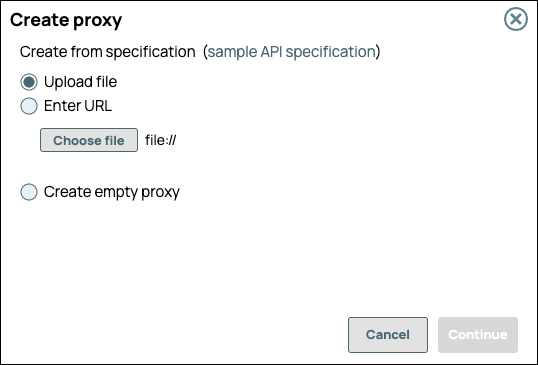
- Upload File. Click Choose File to specify the location of the specification file to upload.
- Enter URL. Enter a valid URL pointing to the location of the specification file.
- Create empty proxy: Do not reference a specification during proxy creation.
- Click Continue.
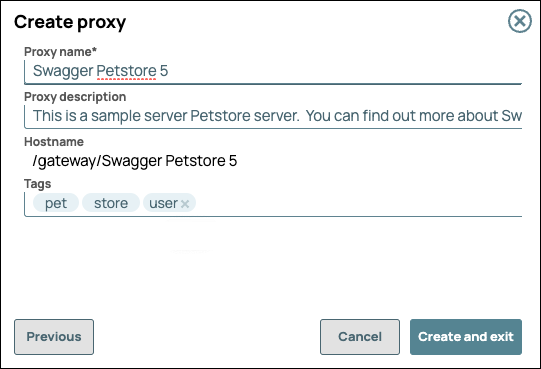
- Configure the new proxy, then click Create and exit.
| Field | Description |
|---|---|
| Proxy Name | The name for your Proxy.
The Proxy name is appended to the Hostname. |
| Proxy Description | (Optional) Information about the Proxy. |
| Hostname | The prefix /gateway/ is concatenated with the Proxy
Name. |
| Tags | (Optional) Tags you can use to organize your proxies. |
- API Proxies do not support versioning.
- Because a Proxy connects to an implementation of an API, you can simply create new Proxies and endpoints to connect to new implementations.
- You can create a Proxy for your Triggered and Ultra Tasks, then apply policies to it and publish it to your Developer Portal. This use case is commonly used. Learn more.
To associate endpoints with the new Proxy at this time, click Create with Endpoints. To do so at a later time, click Create and Exit.
Learn more about creating Proxy endpoints.
Edit Proxy name
To rename Proxy name for unpublished proxies:
- Navigate to API Manager > Proxy > Proxy details.
- Click Edit Details to rename the Proxy:
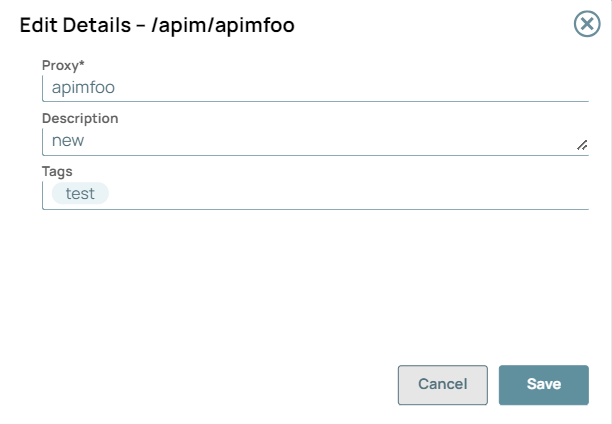
- Click Save. A message "Proxy details has been updated successfully" displays in the UI.
Edit Proxy endpoint
- Navigate to API Manager > API > Proxy endpoint details.
- Select the Proxy endpoint to be edited.
- Click Edit Details to edit the Proxy endpoint:
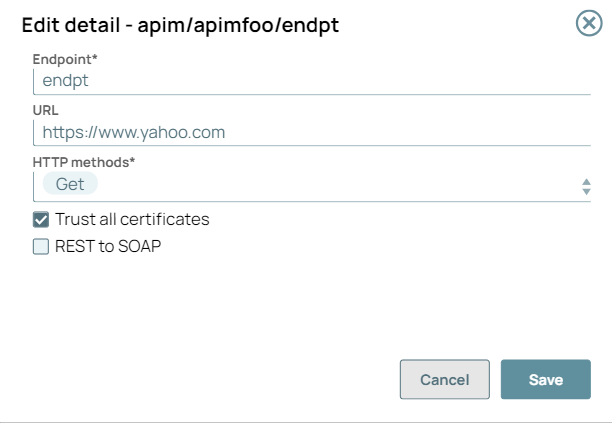
- Click Save. A message "Endpoint details has been updated successfully" displays in the UI.
- You can only edit the Proxy name or Proxy endpoint of the unpublished APIs.
- Unpublish the Proxy to edit the Proxy name or the Proxy endpoint.
- Special characters such as |, <, >, [, ], {, }, #, ?, /, and \. cannot be used.
Video: Create and Publish a Proxy to your Developer Portal
Watch the following video to learn how to create and publish a Proxy to the Developer Portal.
Deleting a Proxy
Prerequisite: If a Proxy has endpoints, delete the endpoints before deleting the Proxy.
To delete a Proxy:
- In the API Manager, go to the APIs & Proxies tab.
- Hover over the row of the Proxy.
- Click the trash icon (
 ) that appears at the end of the row.

The Delete confirmation prompt opens.
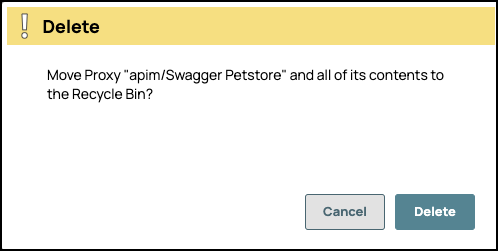
- Click Delete.
- Verify the deleted Assets by navigating to the Project Manager Recycle Bin for your environment (Org).
- To delete forever:
- Select the Proxy.
- Click
 to delete it permanently from the Project Manager Recycle
Bin.
to delete it permanently from the Project Manager Recycle
Bin.
