


Tc Update With Item
This Snap update any existing Teamcenter revision and its item of type item or derived types, such as document, part, design or ME Process.
Supported Accounts
- This is a Write-type Snap.
 Works in Ultra Tasks
Prerequisites
- A valid Teamcenter account with the required permissions.
Snap views
| Type | Description | Examples of upstream and downstream Snaps |
|---|---|---|
| Input |
Optional.This Snap has at the most one document input view. The required input of the snap is the object ID, object type and attributes of the revision object and dedicated item object that needs to be updated in Teamcenter. |
|
| Output |
This Snap has exactly one document output view. The output of the snap is the updated object from Teamcenter. |
|
| Learn more about Error handling. | ||
Examples
Update Part Revision and ItemSnap settings
| Field/Field set | Description |
|---|---|
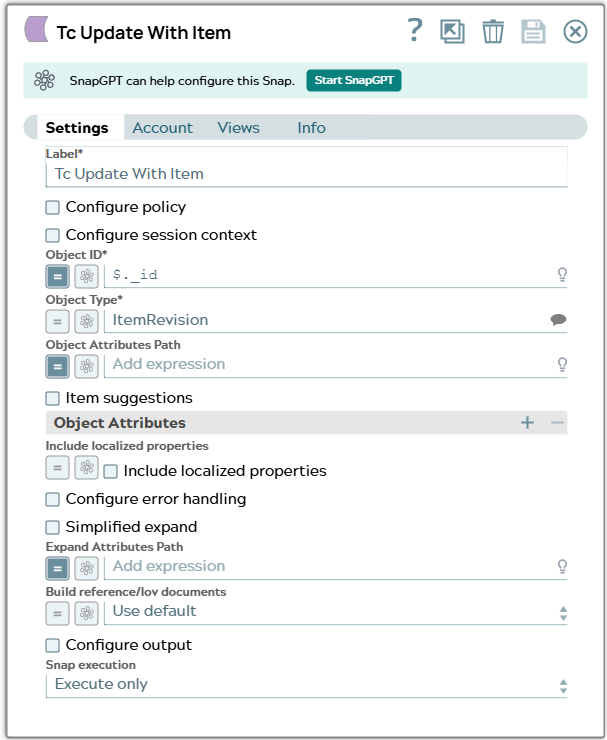
Label
String |
Specify a unique name for the Snap. Modify this to
be more appropriate, especially if there are more than one of the same Snap in the
pipeline.
Default value: Tc Update With Item |
Configure policy
Checkbox |
Select this checkbox to run the Snap with a specific named Teamcenter policy. A policy determines the set of object properties that Teamcenter returns. Learn more: Configure policy. Default status: Deselected |
Configure session context
Checkbox |
Select this checkbox to run the Snap with a group, role, or project other than the one configured in the account. Learn more: Configure session context. Default status: Deselected |
Object ID*
String/Expression |
Select the UID (unique identifier) or the Teamcenter adapter ID of the object. Default value: $._id Example: $.UID |
Object Type*
String/Expression/ Suggestion |
Specify the type of the object to be updated in the Teamcenter software. In JSON document the content for path can look like this: Name of the JSON property has to be the technical name of a valid type for the given Object in Teamcenter datamodel. Default value: ItemRevision Example: ItemRevision |
Object Attributes Path
String/Expression |
Specify the list of attributes and values for the object from JSON input of the Snap. In JSON document the content for path can look like this: Name of the JSON property has to be the technical name of a valid property in Teamcenter datamodel for the given Object. To update attributes of Item object information has to be stored in “items_tag” in input document. An example is: Default value: N/A Example: $.updateAttributes |
Item suggestions
Checkbox |
Checkbox to signal Snap to make attribute suggestions for Item object type. Default value: Unselected Example: Unselected |
| Object Attributes |
Specify the table of attributes to set on the Object you want the Snap to create in Teamcenter. Each attribute must be specified as a new row. Click :add: to add a row. In case Object Attributes Path is configured to use attributes given in JSON input document these Object Attributes are used additionally. If an attribute is in the input document and the list given in Snap, the value of Snap attribute is taken. |
Name*
String/Expression/ Suggestion |
Specify the name of the attribute. Default value: N/A Example: items_tag.object_name, object_name |
Value*
String/Expression |
Specify the value of the attribute. Default value: N/A Example: New Item Name, New ItemRev. Name |
Include localized properties
Checkbox/Expression |
Include localized properties. |
Configure error handling
Checkbox |
Select this checkbox to define how the Snap behaves when Teamcenter returns an error. Use these settings for analysis and debugging. Learn more: Configure error handling. Default status: Deselected |
Simplified expand
Checkbox |
Select this checkbox to make the Snap look for the name given in
Expand Attributes Path in the input document (for example,
When deselected, configure Expand Attributes Path as a string or an expression. Default status: Deselected |
Expand Attributes Path
String/Expression |
Specify the JSON path to the expand attributes in the input document. Expand attributes are the list of attributes that the Teamcenter response must contain. Each name must be the technical name of a valid property in the Teamcenter data model for the expected objects. For example: Learn more: Configuring Expand Attributes. Default value: N/A Example: $.expandAttributes |
Build reference/lov documents
Dropdown list/Expression |
Select how the Snap represents references and lists of values (LOVs) that
Teamcenter returns. The Snap can return them as nested JSON objects instead of
flattened IDs and internal values with additional
The available options are:
Default value: Use Default Example: Yes |
Configure output
Checkbox |
Select this checkbox to specify the Teamcenter properties that the Snap includes in the output. This Snap offers the output settings described in Variant: reference related fields for suggestion. Default status: Deselected |
Snap execution
Dropdown list |
Choose one of the three modes in
which the Snap executes. Available options are:
|