


SAP S/4HANA Cloud Read Custom Query
Overview
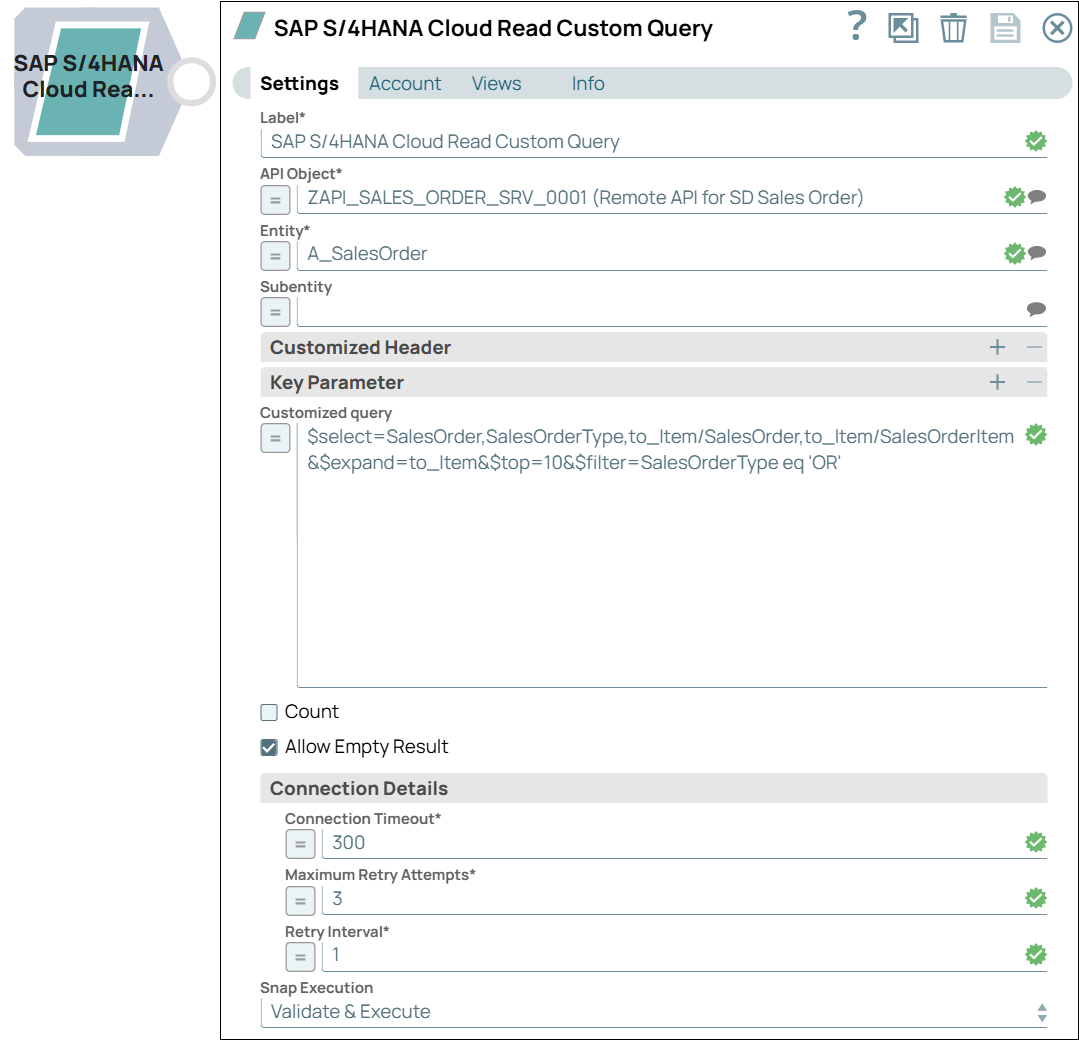
The SAP S/4HANA Cloud Read Custom Query Snap retrieves multiple data objects from an entity in SAP S/4HANA applications using custom OData queries.
Supported Accounts
- This is a Read-type Snap.
 Works in Ultra Tasks
Prerequisites
- A valid account that supports SAP S/4HANA, with appropriate access permissions. See SAP S/4HANA Cloud Accounts.
Limitations
- SAP S/4HANA Cloud instance does not support server-side pagination. As a result, the
$skiptokenis not supported.
Snap views
| Type | Description | Examples of upstream and downstream Snaps |
|---|---|---|
| Input |
This Snap has at most one document input view. A document containing data that can be used to filter entities that need to be retrieved in SAP S/4HANA server. |
|
| Output |
This Snap has exactly one document output view. A document containing the data retrieved from an SAP S/4HANA entity. |
|
| Learn more about Error handling. | ||
Snap settings
| Field/Field set | Description |
|---|---|
| Label*
|
Specify a unique name for the Snap. Modify this to be more appropriate, especially if more than one of the same Snaps is in the pipeline. Default value: SAP S/4HANA Cloud Read Custom Query Example: SAP S/4HANA Cloud Read Custom Query |
| API Object*
|
Select the API that you want to access in SAP S/4HANA Cloud instance. This
drop-down list contains APIs available for the S/4HANA account configured in the
Snap, each with a short description. Default value: N/A Example: ZCRM_BUPA_OData_0001 (OData Services for Business Partner) |
| Entity*
|
Select a business object (the Entity or Endpoint) for the API Object chosen
above. Default value: N/A Example: AccountCollection |
| Subentity
|
Specify or select a subentity corresponding to the entity chosen above. Default value: N/A Example: MainContact |
| Customized Header | Use this field set to add customized HTTP request headers for implementing specific HTTP requests other than the ones listed in the Using Customized Headers section of SAP S/4HANA Read Snap. Only one customized header can be specified in each row. |
| Field Name
|
The field name of the customized HTTP request header. Default value: N/A Example: If-Match |
| Field Value
|
The field value for the above field in the customized HTTP request header.
Default value: N/A Example: W/"'82F636DC08F14D22260CE67E505C231D0D2ACD95'" |
| Key Parameter | Use this field set to specify the key parameters for a specific entity. Providing values for all key parameters in the drop-down list enables SAP S/4HANA to identify a unique record.
Note: Key parameters are NOT the same as filters, which can return multiple records. To use a filter like a normal select, use the parameters in the Filter records section instead.
|
| Field Name
|
Specify the reference parameter in this field. Default value: N/A Example: accountID |
| Field Value
|
Specify the value for the reference parameter in this field. Default value: N/A Example: TEST_001 |
| Customized query
|
This field enables you to enter your OData query. SAP S/4HANA APIs follow the OData 2.0 protocol. To make the query request for API calls, the API query should obey the OData 2.0 protocol rules. For more information, see OData 2.0 Documentation. Default value: N/A Example: |
| Count
|
Select this checkbox to return the total number of records retrieved in the API
response. Note: No records retrieved: For all entities specified with this
checkbox selected, the Snap returns ONLY the count of records matching the
respective (query) entity criteria and DOES NOT return any records from the SAP
S/4HANA instance (for those entities). If this check box is not selected for one
or more entities, records matching each entity's criteria are
returned. Default value: Deselected |
| Allow Empty Result
|
Select this checkbox to define whether output views can show empty result. If
this checkbox is not selected, an error will be thrown when the output has no
records (response is empty or no records match the query). Default value: Selected |
| Connection Details | Use this field set to specify the connectivity parameters: timeout, retry count, and retry interval. |
| Connection Timeout*
|
Specify the duration (in seconds) for which the Snap should attempt to connect
to the SAP S/4HANA Cloud instance. If the connection fails within this duration, the
Snap times out, logs the event, and waits for the defined Retry Interval before
retrying. Default value: 300 Example: 120 |
| Maximum Retry Attempts*
|
Specify the maximum number of reconnection attempts the Snap must perform in
case of a connection failure or timeout. Default value: 3 Example: 5 |
| Retry Interval*
|
Specify the duration (in seconds) the Snap must wait between reconnection
attempts, until the maximum number of retries is reached. Default value: 1 Example: 10 |
| Snap execution
|
Choose one of the three modes in
which the Snap executes. Available options are:
Default value: Validate & Execute Example: Execute only |
Snap General Behavior
The SAP S/4HANA Read Custom Query Snap supports the following:
- GET operation to read data from the SAP S/4HANA server.
- OData querying operations:
$filter(Filter records),$select(Output field selection),$orderby(Order by),$top(Output entry limit), and$skip(Output entry offset). - OData operation
$count(Count check box). - Connection-failed-retry mechanism.
- Client-side pagination through
$top(Output entry limit) and$skip(Output entry offset) mechanisms. - Customized HTTP Headers.
- Dynamic loading of API metadata with a Parent-child dependency structure. This means that you can:
- Select an API object from the API Object field to view only entities that are related to the API object and support GET queries (read operations).
- And then, select an entity to view and specify values for only read-compatible parameters related to this entity in Key parameter field.
Pagination
Client-side pagination is supported through the use of the $top (Output entry limit), and $skip (Output entry offset) OData 2.0 operations. You can add $top and $skip system parameters to the Customized query field. $skiptoken is not supported for this release. For details of OData 2.0 query operation, see OData 2.0 Documentation.
Examples
| Snap output setting | Pagination result |
|---|---|
| Output entry limit: 100 |
|
| Output entry offset: 50 |
|
| Output entry offset: 100 Output entry limit: 100 |
|
Accessing Related Entities from Snap Outputs for an Entity
Records in SAP S/4HANA Read Custom Query Snap output may contain navigation properties, typically uri fields, pertaining to some entities related to the entity specified in Snap Settings.
For example, the SAP S/4HANA Read Custom Query Snap output for the ZCRM_BUPA_OData_0001 (OData Services for Business Partner) API object and the AccountCollection entity contains navigation properties (of entities) like Contacts, Addresses, Logo, Attachments.
- The navigation properties can be used to access specific details of these related entities.
- In the API response, the navigation property values are displayed as URLs.
You can use one of the following methods to retrieve the details of each related entity returned in the output:
- Pass the value (URL) from the Snap output as input to one of the three SAP S/4HANA Read Snaps to navigate to or access details of these related entities.
- Parse the value (URL) from the Snap output and use it as input to the Service URL field of a REST Get Snap.
Example: Accessing related entities
While querying for AccountCollection entity in the API object ZCRM_BUPA_OData_0001 (OData Services for Business Partner), you can navigate to the Contacts property by connecting any one of the three Read Snaps from this Snap Pack in the downstream to call the ContactCollection entity in the API object ZCRM_BUPA_OData_0001 (OData Services for Business Partner) and filter with a specific accountId.
If using the SAP S/4HANA Read Custom Query Snap in the downstream, enhance the customized query by adding $expand=Contacts,Addresses to display the contents of these two properties in the API response of the entity AccountCollection.
Troubleshooting
| Field/Field set | Type | Description |
|---|---|---|
| You have an empty value in the Field name field for the Key parameter. | The Field name field must not be empty for the Key parameter. | Enter a valid Field name for the Key parameter. |
| You have an empty field in the Field name/value field for the customized header. | The Field name/value field must not be empty for the Customized header. | Enter a valid Field name/value for the Customized header. |
| ResponseCode: 500; ErrorCode: SY/530;Draft 2.0 object <Service~Entity> requires selection condition on IsActiveEntity. | Draft 2.0 object requires selection condition on IsActiveEntity. For backend administrators: run transaction /IWFND/ERROR_LOG on SAP Gateway hub system and search for entries with the timestamp above for more details. See SAP Note 1797736 for error analysis. | Add the following query into the Customized query field: $filter=IsActiveEntity eq true or $filter=IsActiveEntity eq false. |
| Empty result found. | There is no data coming back from the API call. Possible reasons:
|
Select the Allow empty result check box. |
| API object does not exist. | Allowed API object format is <API ID>(Description). | Locate and select an API Object from the drop-down list. |
| Entity does not exist. | The entered Entity is not found in the server. | Locate and select the Entity from the drop-down list. |