


API Policy Manager Access and Operations
How to apply, manage, import, export, and delete API policies across different SnapLogic asset levels using the API Policy Manager.
API Policy Manager Asset Support
You can use the API Policy Manager to apply API policies to the following SnapLogic assets.
- Environment: Select the Shared folder under your environment (Org) to apply API policies at the environment level (only Environment admins have this access).
- API: Apply API policies at the API level in the API Manager console.
- Version: Apply API policies at the version level in the API Manager console.
- Project Space: Select the shared folder in your Project Space to apply API policies at the Project Space level in Project Manager.
- Project: Select the Project to apply API policies at the Project level in Project Manager.
Applying Policies at the Environment Level
Prerequisite: You must be an Environment admin to apply policies to the global
shared folder.
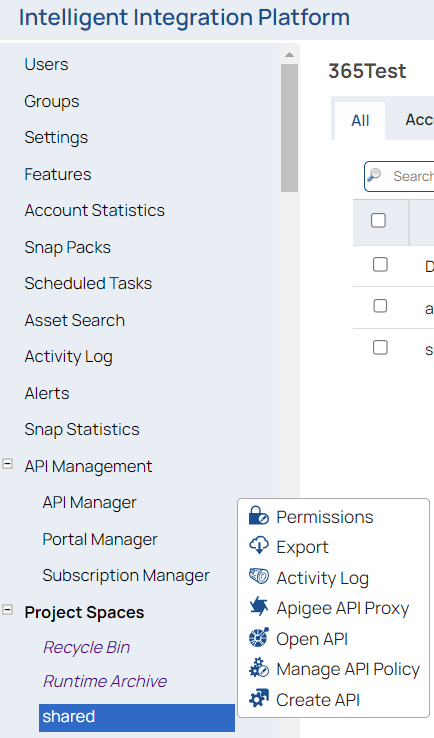
- In Project Manager, click the shared folder for
your environment (also known as the global shared folder), then click Manage API
Policy to view the API Policy Manager -shared dialog
window, which displays a list of existing API policies and their status.
- In the API Policy Manager -shared dialog window, click
Add Policy to view a list of policies.
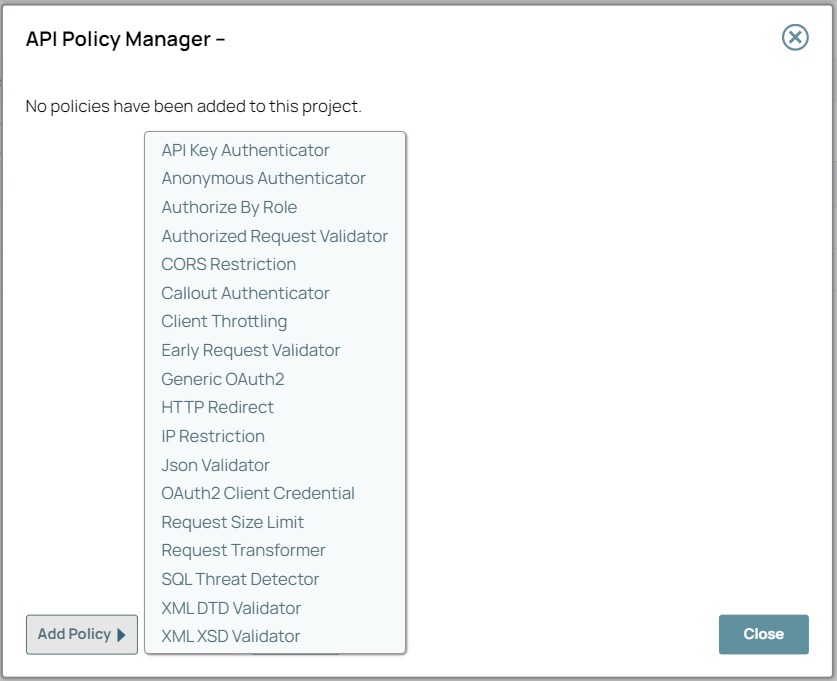
- Select a policy from the list of policies to open the settings dialog window.
- Enter/modify the fields to configure the policy as required, then click
Validate and Save.
The policy settings dialog window closes, and your policy is displayed in the API Policy Manager-shared dialog window.
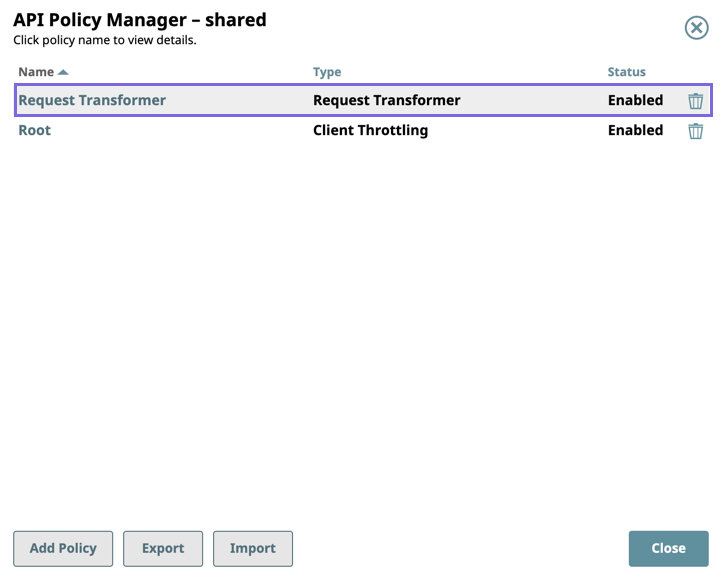
You can also import and export policies in the API Policy Manager-shared dialog window.
Applying Policies in the API Manager Console
You can apply policies at the API and API version level.
Adding API Policies to APIs
- In the SnapLogic Project Manager navigation pane under API
Management, click API Manager.
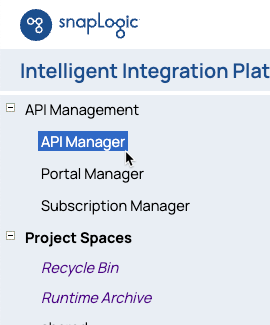
The API Manager page opens.
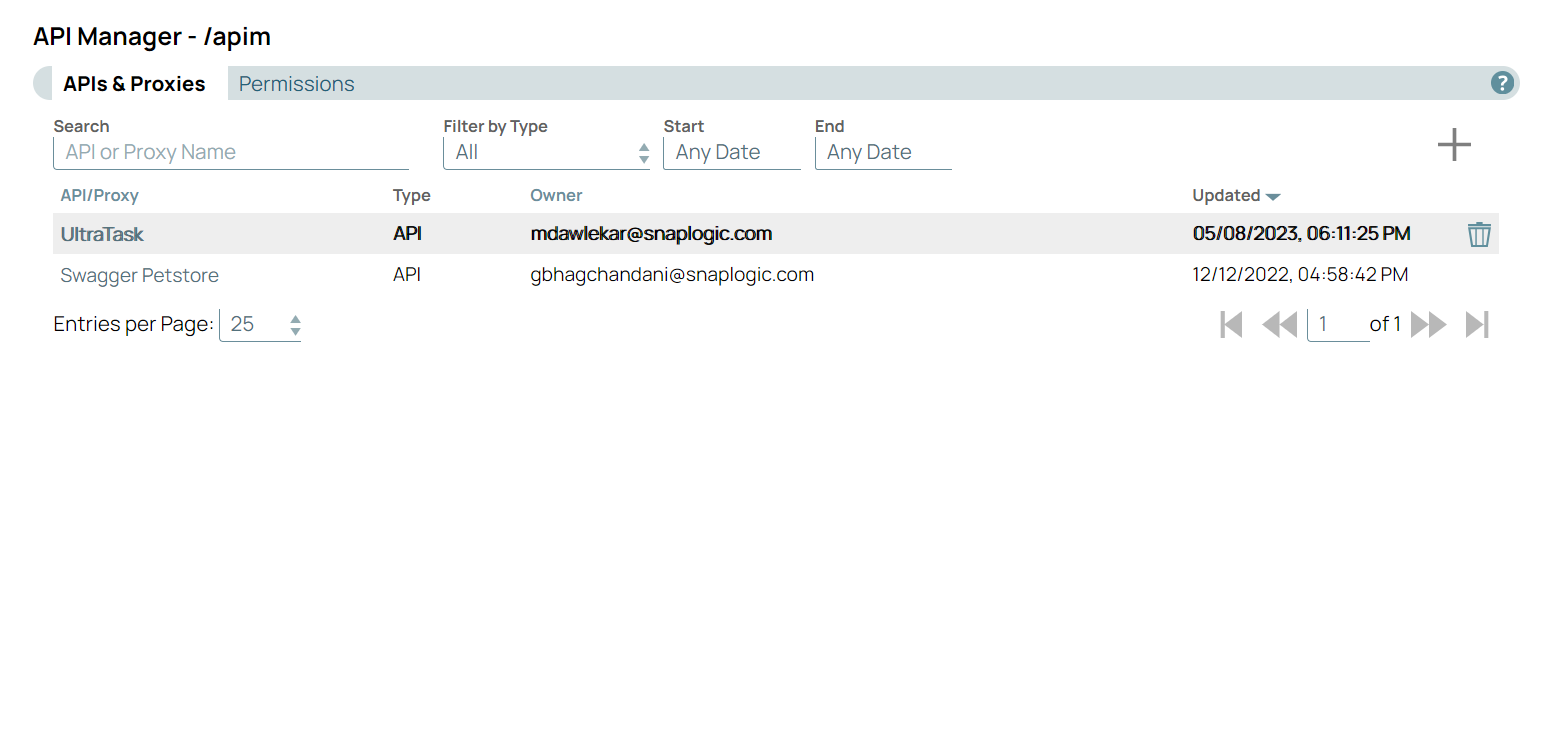
- Click the target API to open the API Details page, and click the
Add icon to display the list of API policies.
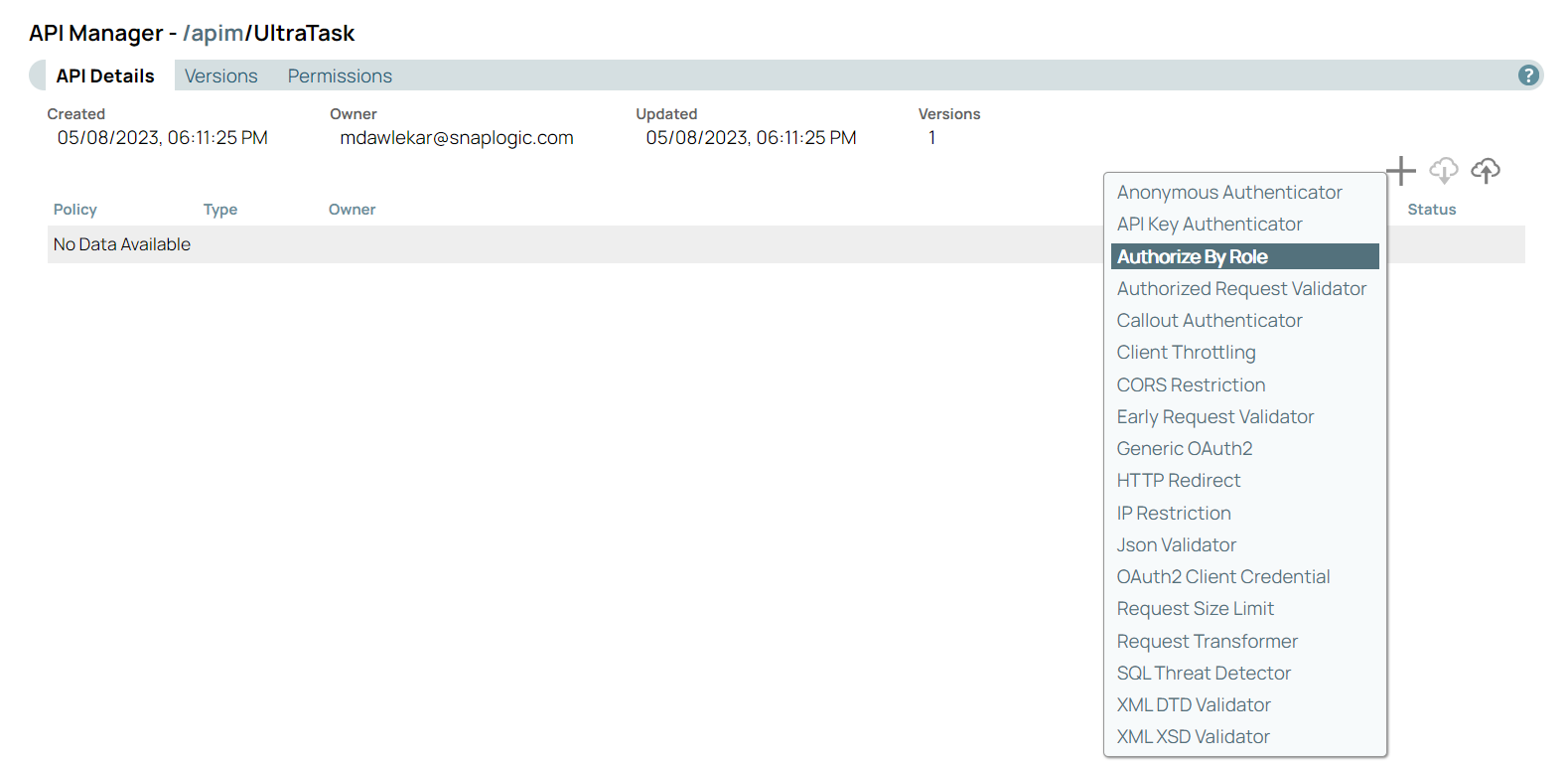
- Enter or modify the fields as required to configure the policy.
- Click Validate and Save.
The policy settings dialog window closes, and your policy is displayed on the API Details page.

Adding API Policies to API Versions
- In the SnapLogic Project Manager navigation pane under API
Management, click API Manager.
The API Manager page opens.
- Click the target API to view the API Details page.
- In the API Details page, click the Versions
tab, then click the target API version to view the Version Details
page.

- In the Version Details page, click the target to view the
API Details page, and click the Add icon to display the
list of API policies.
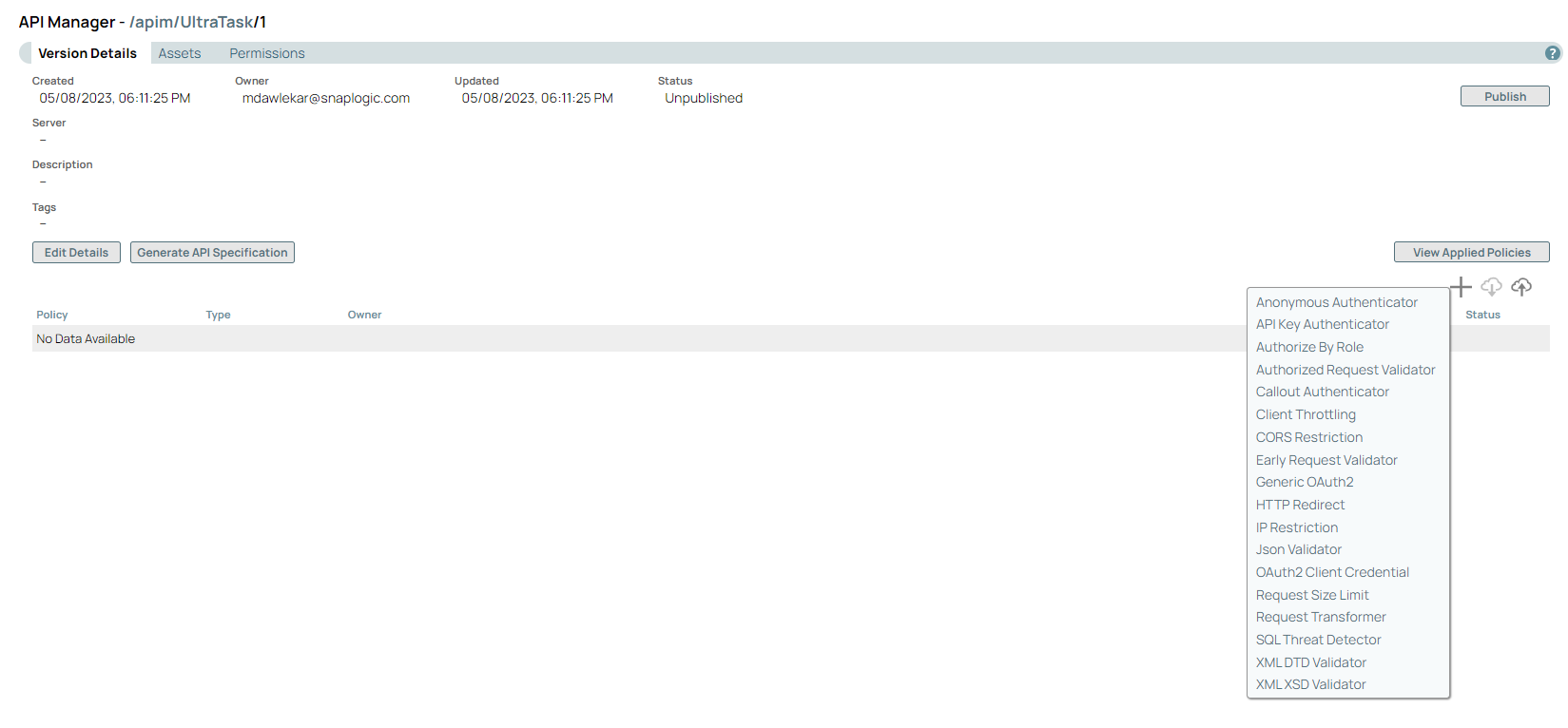
- Enter or modify the fields as required to configure the policy.
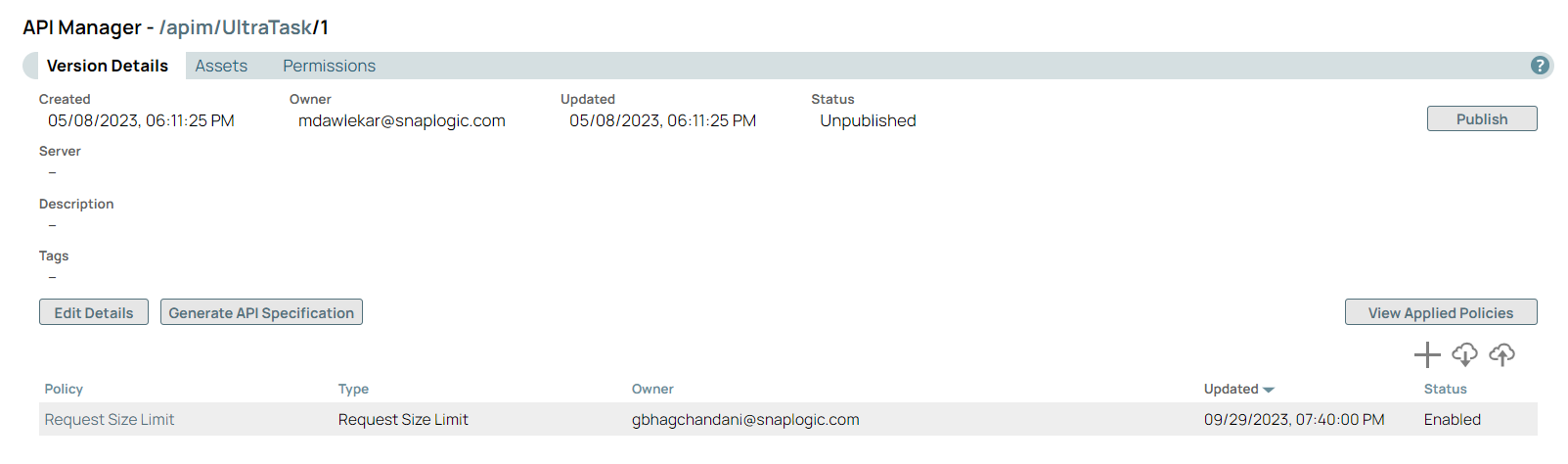
- Click Validate and Save.
The policy settings dialog window closes, and your policy is displayed in the API Details page.
Adding API Policies to Projects and Project Space Shared Folders
You can apply API policies to the projects and Project Space
shared folders that you have access to. Previously, only Environment admins could
see the Add API Policy option in the dropdown.
- In Project Manager, select the target Project Space/Project, click the
asset dropdown to open the dropdown list, and select Manage API
Policy to open the API Policy Manager dialog window.
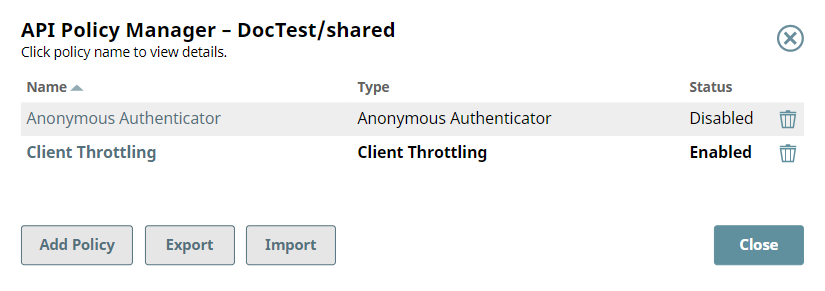
- Click Add Policy. A list of all the API policy types appears.
- Click the API policy that you want to add. The settings dialog window for that policy is
displayed.
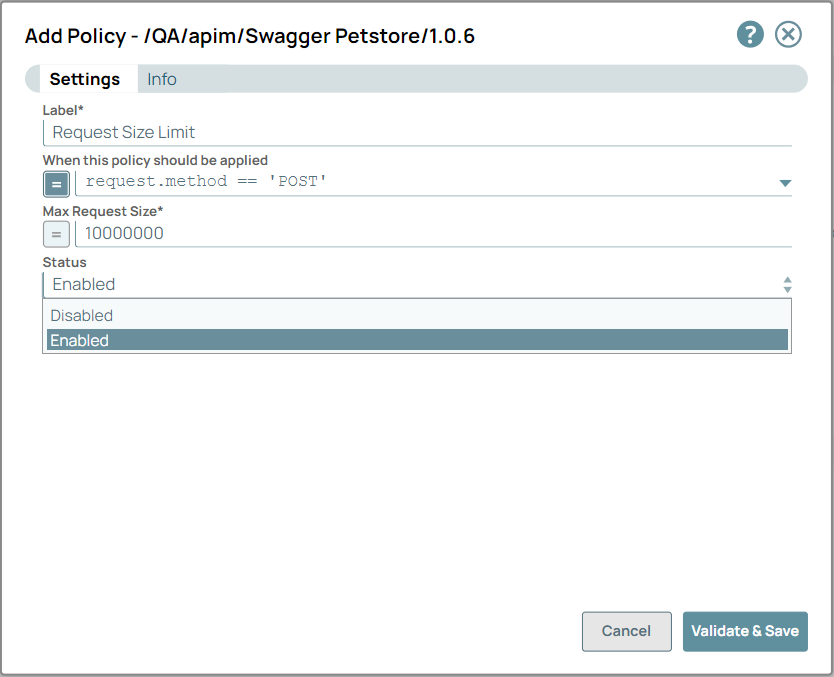
- Enter/modify the field values to configure the policy, then click Validate & Save. The API policy is added to the list of API policies.
- Click Close to close the API Policy Manager dialog.
Enabling/Disabling Policies at the environment and Project Level
- Open the API Policy Manager dialog.
- Click the target API policy to open its settings.
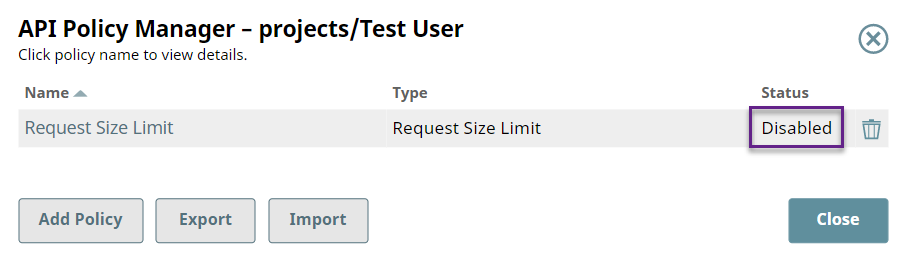
- Change the value of the Status field.
- Click Validate & Save. You can confirm the
Status of the API policy is updated. To enable the API policy,
repeat steps 2 through 4.
Viewing Policies for a Task
- In Project Manager, navigate to the target task.
- Point the cursor at the target task and click the asset dropdown to open the dropdown,
and select Related API Policy.
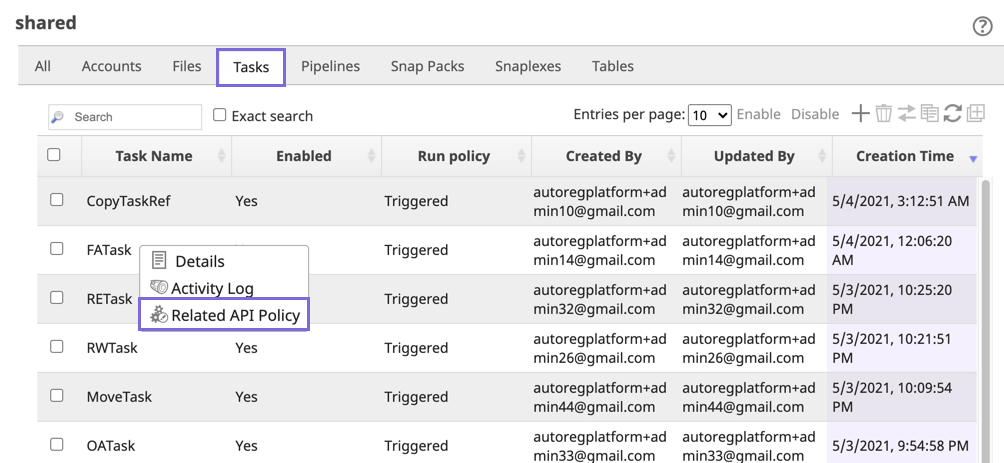
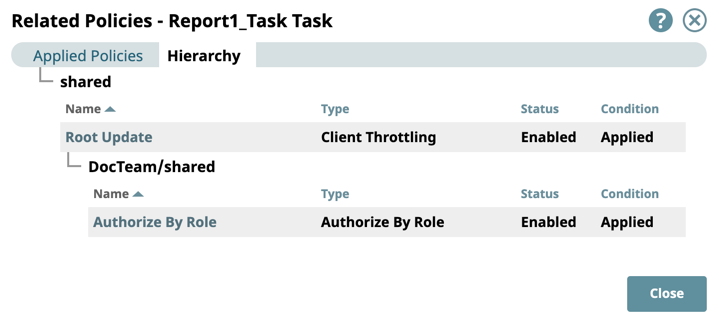
The Related Policies dialog window for the target Task is displayed.
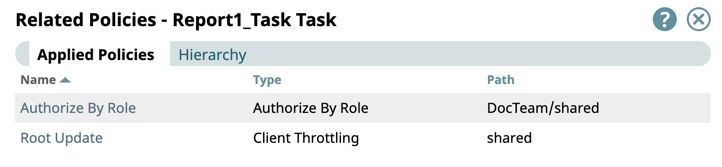
- Click the Hierarchy tab to open the policy hierarchy.
Editing Policies in Project Manager
You can edit an API Policy by clicking on it to view its settings.
- Depending on the asset associated with the API policy, choose one of the following
methods to view the settings dialog window for an API policy.
- For an environment:
- Navigate to the environment-level shared folder in Project Manager, and place the cursor over the target Project Space/Project.
- Click the asset dropdown to view the dropdown list and select Manage API Policy.
- For a Project Space or Project:
- Navigate to the target asset in Project Manager, and place the cursor over the target Project Space/Project.
- Click the asset dropdown to view the dropdown list and select Manage API Policy.
- For the API Management space, click the target API policy at one of the following
levels:
- environment-level shared folder.
- API Details page
- Version Details page
- For an environment:
- Edit/update the API policy and click Validate & Save.
Policy Import and Export in API Manager
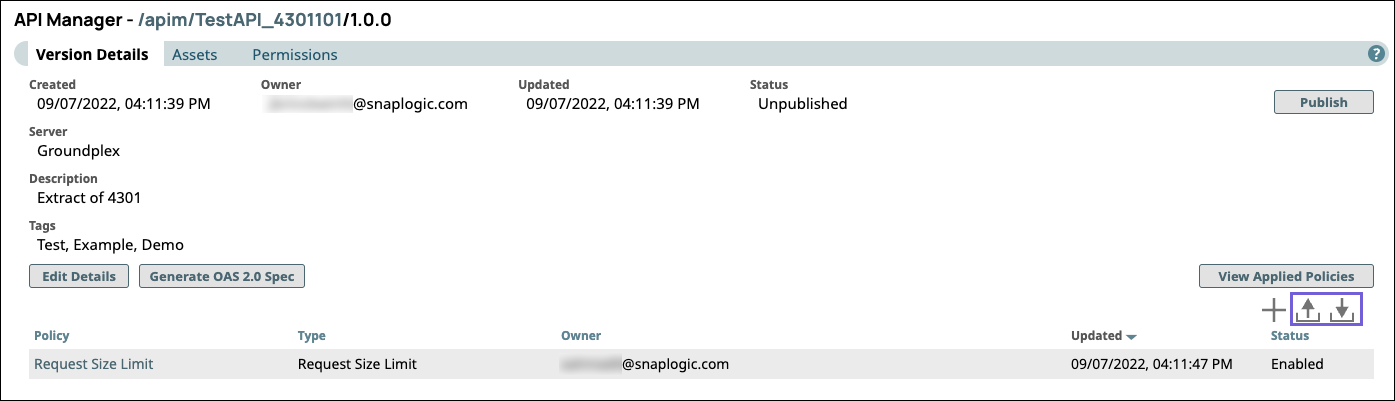
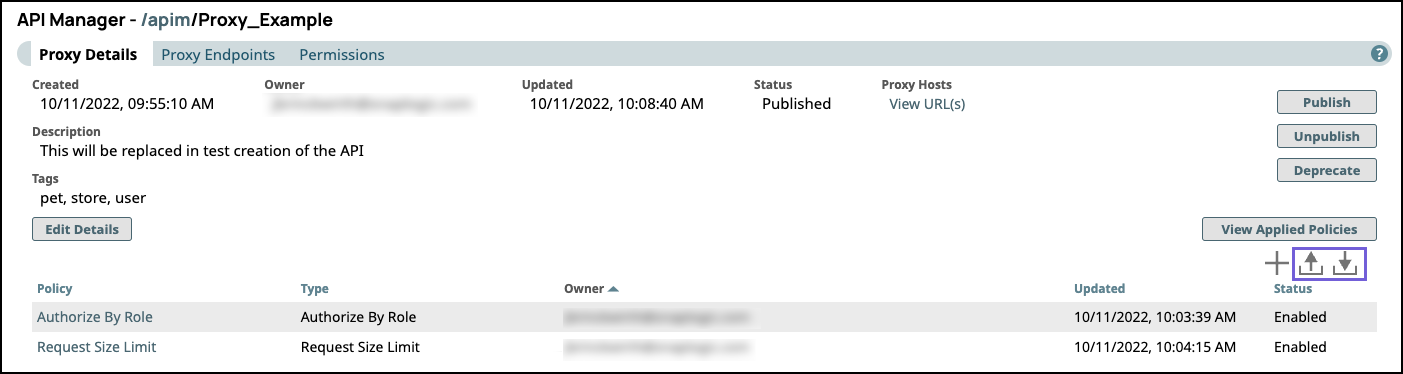
You can import and export API policies in an API, API Version, or Proxy.
You can find the import and export controls in the same place regardless of the APIM Asset.
API Manager > API Details

API Manager > Version > Version Details
API Proxy > Proxy Details
Importing Policies in API Manager
- Navigate to the destination API Asset in API Manager.
- Click the Import icon to open the Import Policy dialog.
- Select Choose File and go to the policy file on your machine.
- Select an import option.
- Import non-existent only: (Default) Only uploads the API policies in the selected file that do not already exist in the target API, API Version, or Proxy.
- Import all policies: Imports all API policies in the selected file.
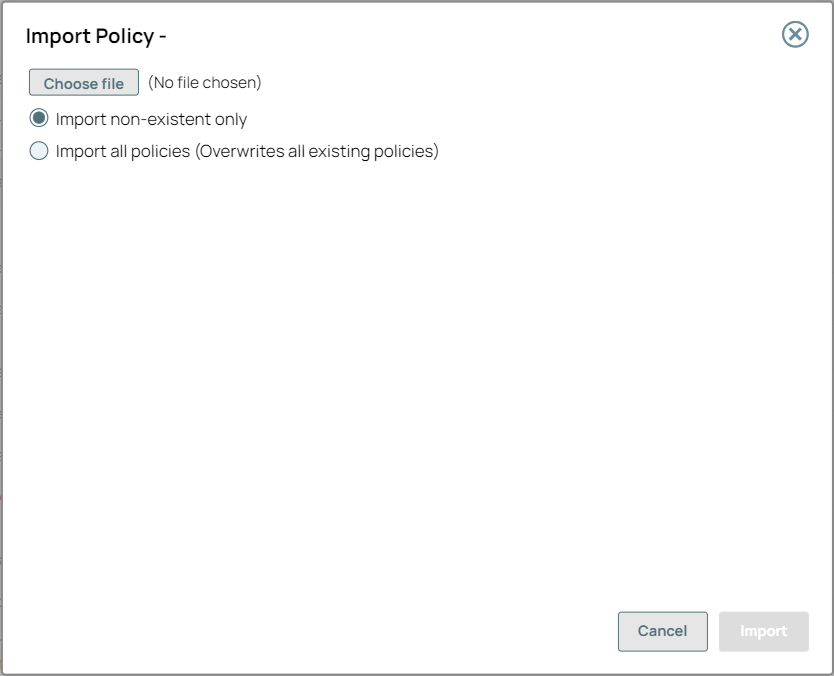
- Click Import. The Import Policy Result popup
appears with the following options:
- Added: The API policies added to the Project Folder.
- Overwritten: The existing API policies overwritten by the imported ones.
- Ignored: The existing API policies not overwritten by the imported ones.
Exporting Policies in API Manager
- Go to the destination API Asset in API Manager.
- Click the Export icon to export API policies to your local machine. The API policies are downloaded to the specified folder (the default is the Downloads folder on your machine).
Policy Import and Export in Project Manager
You can access the UI options for importing and exporting API policies at the Project Space, Project level, or shared folder levels in SnapLogic Project Manager.
Importing Policies in Project Manager
- Navigate to the target Project or shared folder in the Project Space in SnapLogic Project Manager.
- Right-click to open the dropdown list, and click Manage API Policy. The API Policy Manager dialog appears.
- Select Choose File and navigate to the target file.
- Import non-existent only: (Default) Only uploads API policies in the selected file that do not already exist in the Project or shared folder.
- Import all policies: Imports all API policies in the selected file.
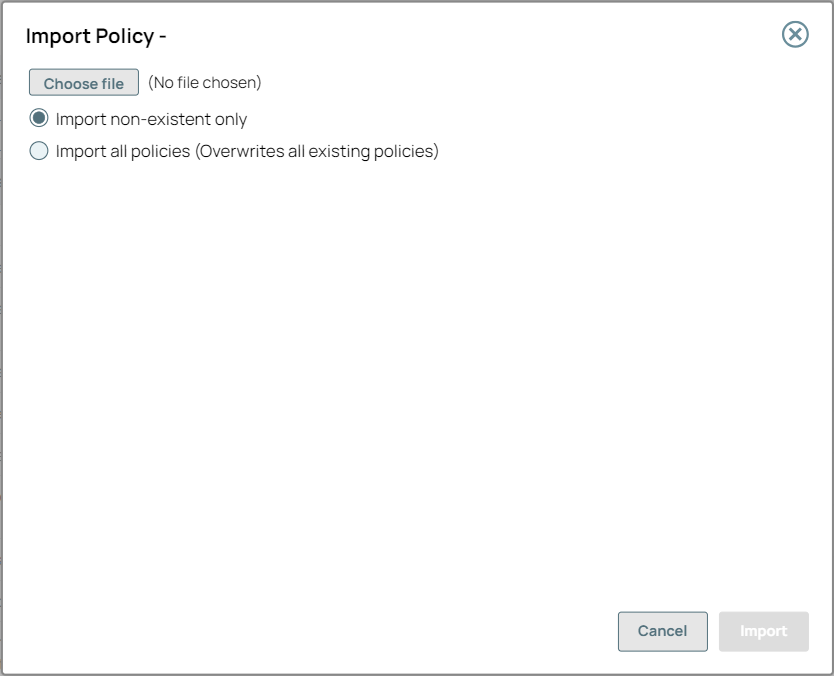
- Click Import. The Import Policy Result popup appears with the
following Status:
- Added: The API policies added to the Project Folder.
- Overwritten: The existing API policies overwritten by the imported ones.
- Ignored: The existing API policies not overwritten by the imported ones.
Exporting Policies in Project Manager
- In Project Manager, navigate to the target Project or shared folder in the Project Space.
- Right-click on the Project or shared folder to open the dropdown menu, and click Manage API Policy.
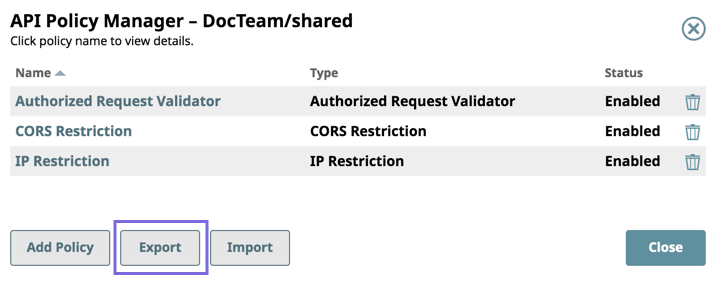
- When the API Policy Manager dialog appears, click
Export. The API policies are downloaded to the specified folder
(the default is the Downloads folder on your machine).
Deleting Policies in Project Manager
- Open the API Policy Manager dialog.
- Point the cursor on the right side of the target API policy and click the Delete icon to delete it.
- In the confirmation prompt, click Delete. The API policy is deleted.