


Developer Portal User Access Management
User access to the Developer Portal is managed via Groups, with Environment admins able to approve or create new users and manage access requests in the Subscription Manager.
Overview
User access is managed via Groups. Existing SnapLogic users of an environment (Org) can be added as environment members to the DevPortal group using Project Manager. For Developer Portal users who are not part of the environment, the Portal member assignation gives access to the Developer Portal. New user accounts must be approved by an Environment admin in the User Access tab of the Subscription Manager. Environment admins can also create users directly in the User Access tab. To add or remove users from a group, refer to Adding Users to a Group.
User Sign Up and Profile Management
You can navigate to the User Access tab by clicking Manager > API Management > Subscription Manager > User Access.

Managing Actions
The Actions column of the User Access tab allows you to Review new applications or Remove existing users.
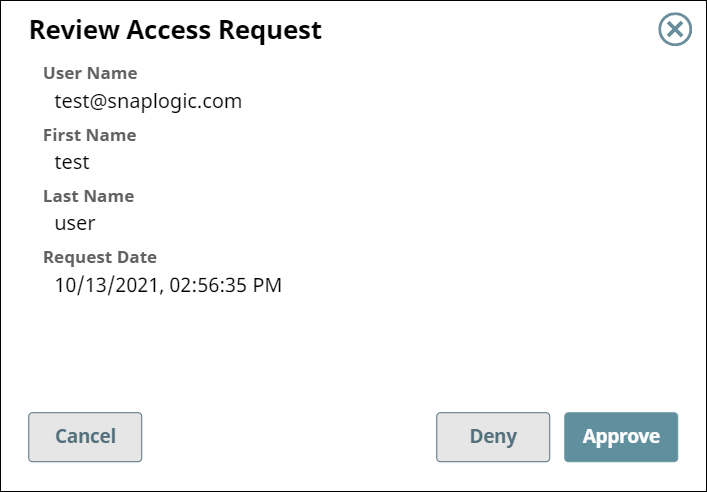
- To review new user requests, click Review. In the
Review Access Request dialog, you can
Deny or Approve the request. After
approving a request, the user's profile is created and the user receives a confirmation
email.
- To remove approved users, click Remove.
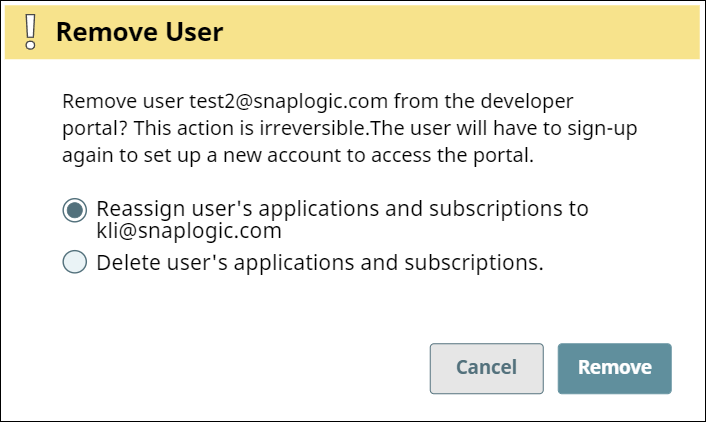
- You can reassign the user's applications and subscriptions to yourself, or you can delete the user and all their applications and subscriptions. Click Remove to confirm your choice.
Create New Portal User
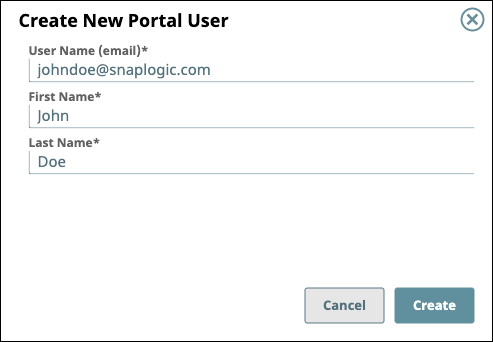
- In the User Access tab of the Subscription
Manager, click the Add icon to open the Create New Portal
User dialog.

- Enter the first and last names of the new user and their email. Click
Create. The user gets an email notification with steps to log in
to the Developer Portal.
When you add a new user to the Developer Portal, you will receive a message if the user already exists.
Search for user
To search for users:
- Enter the user name in the Search field, and click Search.
- Optionally, apply the following filters
- Filter by Type:
- All: both user types (no filter applied)
- Portal: only Developer Portal users
- Org: only environment members of SnapLogic IIP who use the Developer Portal
- Filter by Status:
- All: Both status types (no filter applied)
- Approved: only users whose subscriptions are approved.
- Created: only users requesting a subscription but have not been approved.
- Filter by Type: