


SuccessFactors Update
Overview
The SuccessFactors Update Snap updates data in the SuccessFactors Data Center.
For more information about SuccessFactors APIs, refer to SuccessFactors Documentation.
- This is a Write-type Snap.
 Works in Ultra Tasks
Supported Accounts
Prerequisites
- A valid SuccessFactors host server.
- A valid account with the roles required to perform the Update operation on the selected entity.
Snap views
| Type | Description | Examples of upstream and downstream Snaps |
|---|---|---|
| Input |
This Snap has exactly one document input view. A document containing data that must be updated and written into the SuccessFactors Data Center for the selected entity. |
|
| Output |
This Snap has at most one document output view. A document containing data that confirms whether the update was successful or not. |
|
| Learn more about Error handling. | ||
Snap settings
| Field/Field set | Description |
|---|---|
| Label
|
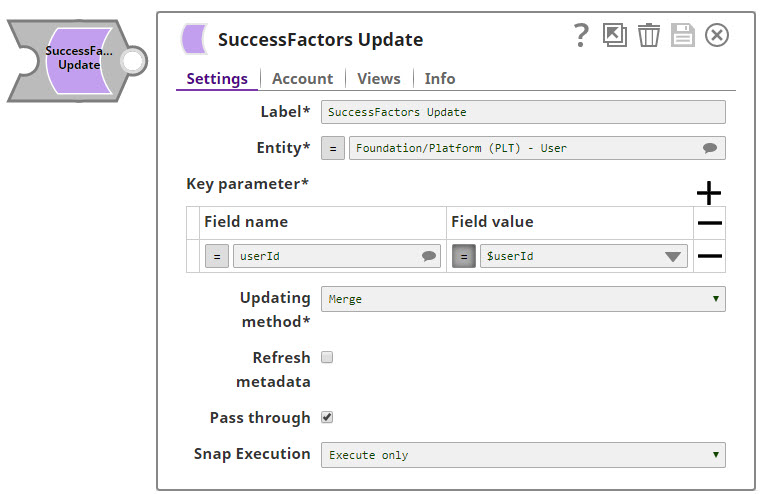
Specify a unique name for the Snap. Modify this to be more appropriate, especially if more than one of the same Snaps is in the pipeline. Default value: SuccessFactors Update |
| Entity
|
Required. Lets you define an entity (business object) of the API. You can either choose an entity from the suggestion drop-down or type an entity manually. The values in the suggestion drop-down are displayed dynamically based on the users' accounts.
The entity is shown as Default value: N/A Example: Foundation/Platform (PLT) - User or User |
| Key parameter | Required. Lets you specify the key fields for a specific entity such as userId for the Foundation/Platform (PLT) - User entity. |
| Field name
|
Required. The name of the key parameter (reference parameter) field.
Default value: N/A Example: userId |
| Field value
|
Required. The value of the key parameter (reference parameter) field. The data type of this field depends on the data type of the field name, such as String, Integer, or Boolean.
Default value: N/A Example: test_id |
| Updating method
|
Required. Lets you specify if a Replace or Merge method should be used while performing the update operation.
Note:
Replace enables you to replace the existing (matching) data in an entity. All the property values in the entity either take the values provided in the request body or are reset to their default value if no data is provided in the request. Merge enables you to update only the properties provided in the request body and the data not mentioned in the request body remain as is. Default value: Replace Example: Replace |
| Refresh metadata
|
If selected, the Snap refreshes the cache and shows the refreshed metadata results including any entities/parameters that were added or deleted. This is useful in cases where changes are made to the dataset outside of SnapLogic, such as when a dataset has been created or deleted, or when there are changes in the metadata of SuccessFactors.
Note:
Default value: Deselected |
| Pass through
|
If selected, lets the data from an incoming document "pass through" and merge into the new document being written to the output. The input document is passed through to the output view under the key original.
Default value: Selected |
| Snap execution
| Choose one of the three modes in
which the Snap executes. Available options are:
|
For more information about the OData based API, see OData Version 4.0 Documentation.
Troubleshooting
| Error | Cause | Resolution |
|---|---|---|
| The input entity does not exist. | An invalid entity has been entered. | Click the suggestion drop-down in the Entity field and select the entity. |
| You have an empty value in the Key/Value field. | Key/value parameters must not be empty. | Enter a valid value for key/value parameters. |
| <Entity> with key ('<key>') not found! | The input key parameters entered for a specific entity do not exist in the system. | Specify key parameters that exist in the system. |