


Browse the Discovery Hub catalog
The Catalog page lists every MCP Server your organization has published. All org members see all published servers. Use it to find an existing server before building a new one.
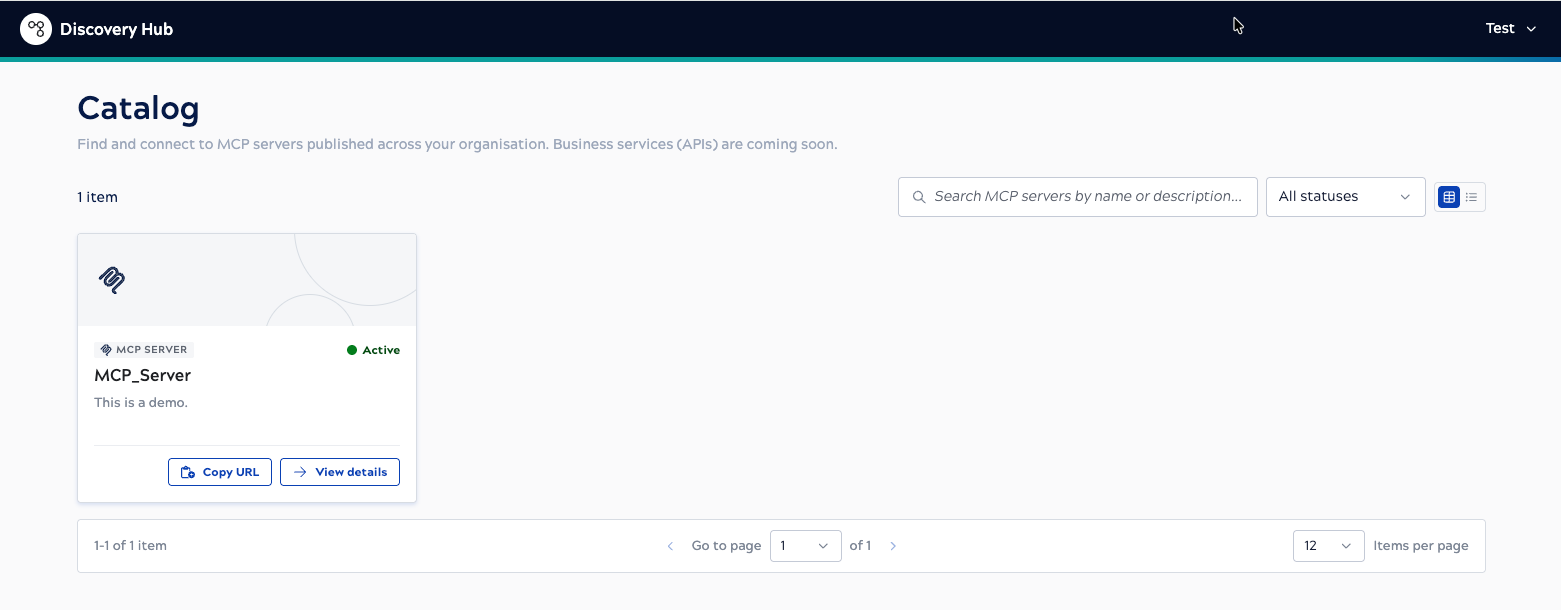
Card and list views
Use the view toggle in the upper right to switch between a card layout, for scanning servers at a glance, and a list layout, for comparing servers more densely. Each server's card or row shows its type (MCP SERVER), status (for example, Active), name, and description.
The list layout shows these columns: Name, Authentication, Owner, and Status. You can sort by any column except Authentication.
Search and filter
- Use the search bar (Search MCP servers by name or description...) to find a server by name or description.
- Use the status dropdown to filter by All statuses, Active, or Disabled.
When the catalog has more servers than fit on one page, use the page controls at the bottom of the list to move between pages and change how many items are shown per page.
Quick actions
Click Copy URL on any card or row to copy that server's endpoint without opening its detail page. Click View details to open the server's detail page for connection details, authentication requirements, or client setup instructions. See View server details and connect a client.
Disabled servers
A server can appear in the catalog with a Disabled badge if its owner chose to keep it listed after disabling it, rather than unpublishing it outright. This gives developers a clear diagnostic — the server is still visible, but not currently available — instead of the server silently disappearing from the catalog. Copy URL isn't available on a disabled server. See Manage MCP Server Assets for how publishing, unpublishing, and disabling interact.