


Salesforce Bulk Create
Overview
The Salesforce Bulk Create Snap adds new Salesforce records in bulk to Salesforce.com by using Bulk API 2.0. The Snap submits the insert requests in batches.
- This is a Write-type Snap.
 Works in Ultra Tasks when the Batch size is set to 1.
Supported Accounts
Limitations
- This Snap performs batch processing, that is, a batch of input documents are processed for each HTTP request sent to Salesforce. Values of all the expression-enabled fields must remain constant during the Snap execution or validation. Hence, all expression fields can support Pipeline parameters only when they are expression-enabled. The input data parameters are not supported for expression fields, for example, $serviceVersion.
Snap views
| Type | Description | Examples of upstream and downstream Snaps |
|---|---|---|
| Input |
This Snap has exactly one input view and receives documents in the view. Each document contains one Salesforce record. |
|
| Output |
This Snap has at most one output view and produces documents in the view. |
|
| Error |
The error view contains error, reason, resolution, and stack trace. For more information, see Handling Errors with an Error Pipeline. Note: Because the error messages can be potentially large, the
Reason for the Salesforce error message in the error document field may be truncated. The complete error is available in the field full_error under the original object containing copies of the failed input records or in the logs. |
|
Snap settings
- Expression icon (
 ): Allows using
pipeline parameters to set field values dynamically (if enabled). SnapLogic Expressions
are not supported. If disabled, you can provide a static value.
): Allows using
pipeline parameters to set field values dynamically (if enabled). SnapLogic Expressions
are not supported. If disabled, you can provide a static value. - SnapGPT (
 ): Generates SnapLogic Expressions
based on natural language using SnapGPT. Learn
more.
): Generates SnapLogic Expressions
based on natural language using SnapGPT. Learn
more. - Suggestion icon (
 ): Populates a
list of values dynamically based on your Snap configuration. You can select only one
attribute at a time using the icon. Type into the field if it supports a comma-separated
list of values.
): Populates a
list of values dynamically based on your Snap configuration. You can select only one
attribute at a time using the icon. Type into the field if it supports a comma-separated
list of values. - Upload
 : Uploads files. Learn more.
| Field/Field set | Description |
|---|---|
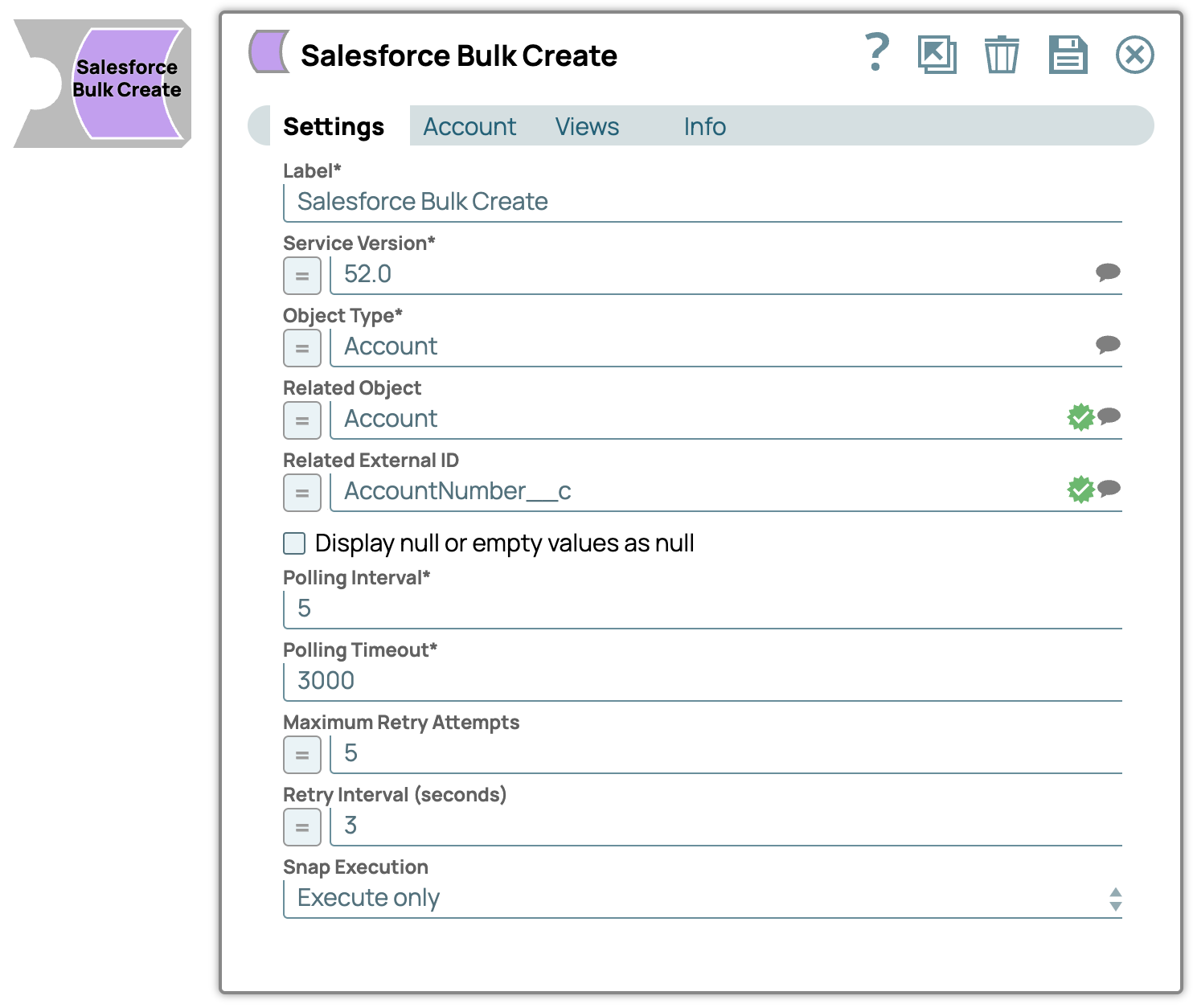
Label
String |
Required. Specify the name for the Snap. Update the Snap name if there are two or more Snaps of the same type in your Pipeline.
Default value: Salesforce Bulk Create Example: Salesforce Bulk Create |
Service Version
String/Expression/ Suggestion |
Required. Specify the version number associated with the Salesforce service you want to connect to. Alternatively, click the Suggestion icon to fetch the list of versions and select the desired version.
Default value: 52.0 Example: 41.0 |
Object Type
String |
Required. Specify the name of the Salesforce object or select one from the suggested list.
Note: This Snap does not support Net Zero Cloud Salesforce objects.
Default value: Account Example: Account |
Related Object
String |
Enter or select a related object. This property does not affect the Snap operation on records in Salesforce. It is provided for the property suggestion and the input schema suggestion only.
Default value: N/A Example: Account |
Related External ID
String |
Enter or select an external ID of the selected related object. This property does not affect the Snap operation on records in Salesforce. It is provided for the property suggestion and the input schema suggestion only.
Default value: N/A Example: AccountNumber__c |
Display null or empty values as null
Checkbox |
This checkbox controls how empty strings or null data coming from Salesforce are displayed in the output preview.
When you select this checkbox, the empty strings or null data from Salesforce is displayed as When you deselect this checkbox, the Snap displays an empty string or null data as blank in the output preview. The null/empty-string values are always displayed as empty ('') string in the output preview. Note: The output in the Salesforce application remains unaffected. Whether the checkbox is selected or deselected, the Salesforce record and its corresponding output continues to appear empty.
Default value: Deselected |
Polling Interval
Integer |
Required. Define polling interval in seconds.
Default value: 5 Example: 5 |
Polling Timeout
Integer |
Required. Specify the maximum time in seconds to wait for the query execution to complete.
Default value: 3000 Example: 300 |
Maximum Retry Attempts
Integer |
Specify the maximum number of retries to attempt in case of connection failure.
Note:
This Snap retries all retryable HTTP status codes, including 401, 403, and 5XX, and connection-related errors. Default value: 5 Example: 5 |
Retry Interval (seconds)
Integer |
Specify the interval between retries in seconds.
Default value: 3 Example: 3 |
Snap execution
Dropdown list |
Choose one of the three modes in
which the Snap executes. Available options are:
|
Temporary files
During execution, data processing on Snaplex nodes occurs principally in-memory as streaming and is unencrypted. When processing larger datasets that exceed the available compute memory, the Snap writes unencrypted pipeline data to local storage to optimize the performance. These temporary files are deleted when the pipeline execution completes. You can configure the temporary data's location in the Global properties table of the Snaplex node properties, which can also help avoid pipeline errors because of the unavailability of space. Learn more about Temporary Folder in Configuration Options.
Troubleshooting
| Error | Cause | Resolution |
|---|---|---|
| Invalid value: 201 | The Maximum thread value is larger than the required maximum, which is 200. | Provide 200 or a value lesser than 200 (maximum value) in the Maximum threads field. |