


Dropbox Paper Write
This Snap writes content to Dropbox Paper documents.
Supported Accounts
- This is a Write-type Snap.
 Works in Ultra Tasks
Prerequisites
None.
Limitations and known issues
None.
Snap views
| Type | Description | Examples of upstream and downstream Snaps |
|---|---|---|
| Input | This Snap accepts the content to write to a Dropbox Paper document. |
|
| Output | This Snap outputs the result of the write operation including document metadata. |
|
| Learn more about Error handling. | ||
Snap settings
Note: Learn about
the common controls in the Snap settings dialog.
| Field/Field set | Description |
|---|---|
|
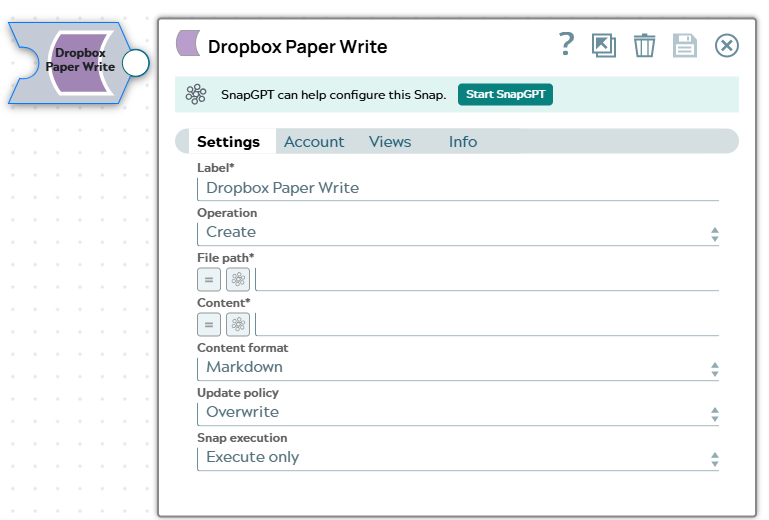
Label
|
Specify a unique name for the Snap. Modify this to
be more appropriate, especially if there are more than one of the same Snap in the
pipeline.
Default value: Dropbox Paper Write |
| Operation*
|
Select the operation to perform on the Dropbox Paper document:
Default value: Create |
| File path*
|
The path where the Dropbox Paper document should be created or updated. The path should start with a forward slash (/).
Example: Default value: None |
| Content*
|
The content to write to the Dropbox Paper document. The content format is determined by the Content format field.
Example: Default value: None |
| Content format
|
Select the format of the content to write:
Default value: Markdown |
| Update policy
|
Choose the policy to update an existing document:
Default value: Overwrite |
| Snap execution
|
Choose one of the three modes in
which the Snap executes. Available options are:
Default value: Validate & Execute |