


Create an Instant Task
-
Write permissions for the project space.
-
A valid pipeline using Snaps that support Instant Task mode. Refer to Pipeline requirements for Instant Tasks for details.
-
From Designer or Manager,
open the Create Task dialog:
-
In Designer, with the pipeline open, in the
toolbar, click More Tools.
Click Create Task and select Instant Task.
-
In Manager, from the left navigation, select
the Project containing the pipeline.
In the toolbar, click Create Task > Instant Task.
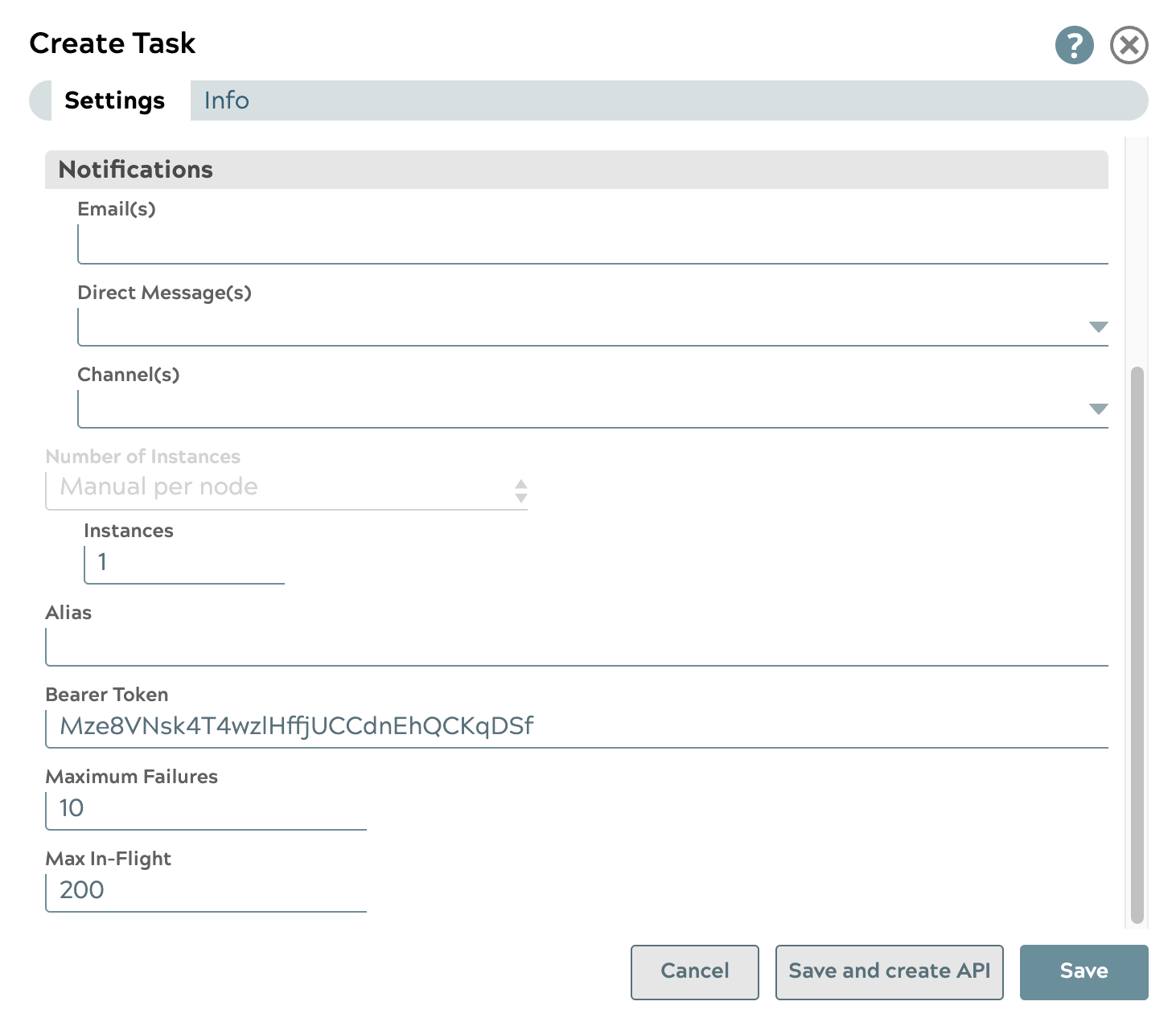
The Create Task dialog opens.
-
In Designer, with the pipeline open, in the
toolbar, click More Tools.
-
Edit the required fields:
-
Enter a name. This name is used in the URL when invoking the task.
The names of assets, projects, or project spaces are limited to UTF-8
alphanumeric characters and these special characters:
!" $%&'()*+-.:;<=>@[]^_`{|}~ -
If not already selected, click the dropdown menu and select the
pipeline to be run by the Instant Task.
If the pipeline contains parameters, they display in the Create Task dialog and can be modified here.
- From the dropdown menu, select a Snaplex.
-
Modify the applicable optional fields as described in the
table below.
Field Description Notifications Enables email notifications based on the status of the Instant Task. If your Org supports Slack notifications, you can add Slack channels or recipients. To use notifications: - In Notifications, enter each recipient's email address, separated by commas.
- If Slack notifications are configured for
your Org, the following fields display. You can
select from the dropdown list or start typing a
name to find it in the list:
- Direct Message(s): Select individuals to receive notifications.
- Channels: Select channels to receive notifications.
- Select the status that triggers
notifications from the
When Task has selector:
- Started: The Task is activated.
- Completed: The Task is completed.
- Failed: The associated pipeline did not execute.
- Stopped: The associated pipeline has stopped abruptly and the Task is no longer running.
Number of Instances In this release, only Manual per Node is supported. Specifies the number of instances per node. The total number of instances is based on available nodes. Note: The input value does not guarantee the exact number of instances at all times, but the running instances will converge on the configured number.By default, the instance value is set to 1.Alias An optional alias for the task endpoint. Use an alias to invoke the Instant Task using a stable, descriptive URL instead of the task name.
To configure high availability across multiple Snaplexes, create the same Instant Task on each Snaplex in the same project folder using the same alias value. Place an external load balancer in front of the Snaplex nodes and configure it to route alias-based requests to available nodes.
Important: The alias must be unique within a given project on a given Snaplex. The system rejects duplicate aliases in the same project and Snaplex at task creation time.Refer to Invoke Instant Tasks for the alias endpoint URL pattern.
Bearer Token An automatically generated token for the HTTP Authorization header. If you clear this field, authentication is not required. You can also set the value yourself. Note: To authenticate the application successfully, ensure that the token does not contain special characters when adding or updating the value.Maximum Failures Specifies an optional threshold for pipeline failures. The count is cumulative across every Snaplex node running an instance of the task, and includes both failures to start and failures that occur after the pipeline has started running. When the count reaches the threshold, the Snaplex disables the Instant Task.
- Default: 10
- Maximum: 1000
Set the value to 0 to remove the limit on pipeline failures. During development, when the pipeline may be in an invalid state, setting this value to 0 is recommended until the pipeline is ready for production.
Max In-Flight Specifies the maximum number of concurrent requests that a single pipeline instance can process. When all instances on a node reach this limit, that node returns HTTP 503 (Service Unavailable) for any additional incoming requests until capacity is available.
- Default: 200
- Minimum: 1
- Maximum: 1000
Set this value based on the throughput characteristics of your pipeline and the capacity of your Snaplex nodes. Use an external load balancer to distribute requests across nodes and handle 503 responses from nodes at capacity. Refer to Invoke Instant Tasks for details.
- Click Save.
The task is saved. In the task details panel, the Run Policy field displays Instant.
-
Enter a name. This name is used in the URL when invoking the task.
The names of assets, projects, or project spaces are limited to UTF-8
alphanumeric characters and these special characters: