


Workday Read
Overview
The Workday Read Snap reads Workday data using the Workday service name, object, and optionally output fields.
The output fields are the Include and Exclude fields typically defined by Workday in the request's Response_Group section. Output fields prefixed with include add additional fields to the output document, whereas the output fields prefixed with exclude exclude fields from the output document.
For more information, refer to the Workday Web Services (WWS) Directory for information on the Workday output section to specifically determine the nature and effect that each output field has on the output document.
- You can configure this Snap to query data specific to your requirements. This is especially useful when looking for data modifications in specific objects, such as Name_Data, Birth_Date, etc. You can use Workday's Transaction Logs service to do so. Refer to this example to see how this works.
- The Workday Read Snap automatically sends multiple SOAP pagination requests to provide the complete set of Workday objects with no additional coding effort.
ETL Transformations and Data Flow
This Snap enables the following ETL operations/flows:
- Extract data from Workday
- Transform Workday SOAP XML response(s) to JSON output
Here is how it works:
- For the Snap to successfully receive data from Workday, you must provide at least the following information:
- The user account information needed to log into Workday
- The name of the Workday web service that must be used to access the data needed
- The name of the object containing the required data, and
- Output fields that the Workday server must use to populate the returned data
- The Snap evaluates any defined property expressions and then creates and submits a SOAP request with authentication.
- On successful Workday server response, the Snap converts the returned SOAP XML response into JSON for the output view.
- If there is an exception or error, the Snap performs the task specified for error management.
- This is a Read-type Snap.
 Works in Ultra Tasks when the Batch size is set to 1.
Prerequisites
- You must have a Workday Account, data to query, and Workday security access to the objects concerned. Contact your organization's Workday Security Administrator for appropriate access.
- Workday recommends using an Integration System User (ISU) with APIs.
Snap views
| Type | Description | Examples of upstream and downstream Snaps |
|---|---|---|
| Input |
This Snap has at most one document input view. A document that conforms to the input view schema of the Snap. The input view schema is provided to an upstream Mapper Snap based on the selected service object. |
|
| Output |
This Snap has exactly one document output view. A document that represents the record structure of the retrieved Workday service object. Each record is represented as one document on the output view. |
|
| Learn more about Error handling. | ||
Snap settings
- Expression icon (
 ): Allows using
pipeline parameters to set field values dynamically (if enabled). SnapLogic Expressions
are not supported. If disabled, you can provide a static value.
): Allows using
pipeline parameters to set field values dynamically (if enabled). SnapLogic Expressions
are not supported. If disabled, you can provide a static value. - SnapGPT (
 ): Generates SnapLogic Expressions
based on natural language using SnapGPT. Learn
more.
): Generates SnapLogic Expressions
based on natural language using SnapGPT. Learn
more. - Suggestion icon (
 ): Populates a
list of values dynamically based on your Snap configuration. You can select only one
attribute at a time using the icon. Type into the field if it supports a comma-separated
list of values.
): Populates a
list of values dynamically based on your Snap configuration. You can select only one
attribute at a time using the icon. Type into the field if it supports a comma-separated
list of values. - Upload
 : Uploads files. Learn more.
| Field/Field set | Description |
|---|---|
Label
String |
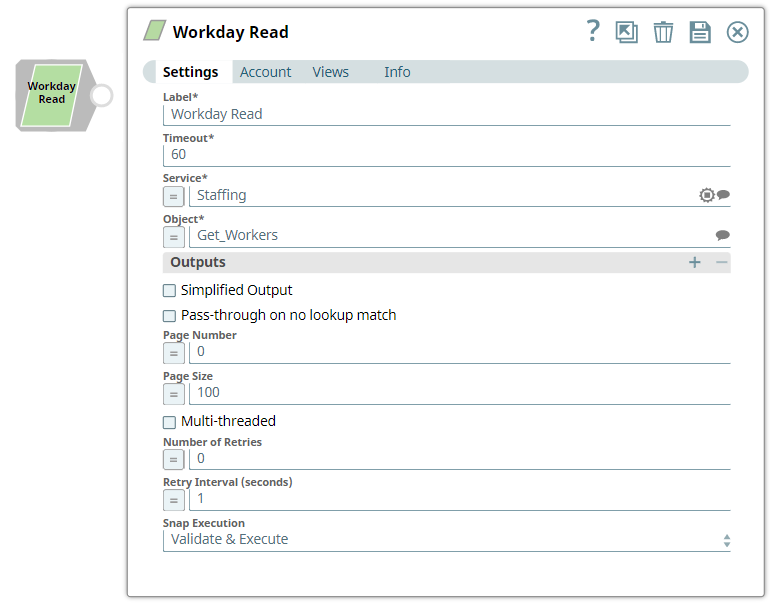
Required. Specify the name of the Snap. You can modify this text to indicate what the Snap does. This is especially useful if you have more than one Workday Read Snap in your Pipeline. Default value: Workday Read Example: Get Cost Center List from Workday |
Timeout
Integer |
Required. Specify the timeout value for each Workday SOAP request. The value of 0 means no timeout. Because Workday Read supports Workday SOAP pagination, multiple SOAP requests can occur for one execution. Consequently, the timeout can be less than the time it takes to complete writing documents to the output view. Default value: 60 Example: 0 |
Service
String/Expression/ Suggestion |
Required. Specify the name of the web service that you want to use. Default value: N/A Example: Staffing |
Object
String/Expression/ Suggestion |
Required. Specify the name of the object from which you want to retrieve data. Select the object from the list of objects returned by the web service you selected in the Service field. For example, if you selected the Payroll Service, the Object field displays all the objects that were retrievable under the Payroll service from Workday. Default value: N/A Example: Get_Workers |
Outputs
Fieldset |
Use this field set to indicate the data you want the query to return from Workday. Add each output in a separate row. This field set contains Path and Value fields.
Note: The Outputs field set limits the kind and amount of information returned by your query. Excluding unnecessary fields increases Snap throughput and simplifies downstream Snap pipeline development. For more information, refer to the Workday Web Services Directory for additional information on the Workday Web Services API.
|
Path
String/Suggestion |
Specify the output to be returned by the request. These work with the include and exclude fields defined by Workday in the request's Response_Group section and include or exclude fields in the output document. For example, the command 'Response_Group.Include_Worker_Documents' includes worker document details in the output. Default value: N/A Example: Include_Reference |
Value
Dropdown list |
Specify the value to be set for the path on the request. Default value: True Example: False |
Simplified Output
Checkbox |
Select this checkbox to simplify output documents by removing Workday namespace attributes from key names. It also converts the nested ID collection to a simple map data. You can use a JSON Splitter Snap to simplify the output document data structure further. If not selected, the Snap produces an output in a tree structure with nested levels of information. Default value: Deselected |
Pass-through on no lookup match
Checkbox |
Select this checkbox to allow the input document to pass through to the output view when there are no records matching an input document. Otherwise, the input document is written to the error view as an error condition. Default value: Deselected |
Page Number
Integer/Expression |
Enter the specific page number from which you want to retrieve data. Retain 0 to retrieve data from all the pages. Default value: 0 Example: 2 |
Page Size
Integer/Expression |
Specify the number of records to fetch per page. Note: This Snap submits a SOAP request to Workday with an output page size and converts the Workday SOAP XML response to JSON in the output view. If the Snap page setting is 0, and the Workday SOAP response indicates that more pages of data are available, it submits additional SOAP requests, collects all the pages of data, and transforms them into JSON.
Default value: 100 Example: 100 |
Multi-threaded
Checkbox |
Select this checkbox to enable the Snap to expedite reading the requests by using multiple threads. Warning: This feature may yield inconsistent results.
Default value: Deselected |
Max Pool Size
Integer |
Activates when the Multi-threaded checkbox is selected. Specify the value for pool size to control the maximum number of threads in the pool for the instance. Default value: 10 Example: 5 |
Number of Retries
Integer |
Enter the integer value to specify the number of attempts the Snap should make to perform the selected operation in case of connection failure or timeout. Minimum value: 0 Default value: 0 Example: 3 |
Retry Interval (seconds)
Integer |
Enter the time interval in seconds between retry attempts. Minimum value: 1 Default value: 1 Example: 3 |
Snap execution
Dropdown list |
Choose one of the three modes in
which the Snap executes. Available options are:
|
Troubleshooting
| Error | Cause | Resolution |
|---|---|---|
| HTTP/1.1 407 Proxy Authentication required. | The Snap is unable to tunnel through proxy. | Add the following key-value pair values to your Groundplex configuration and restart the plex to reflect the changes.
Key: Value: |
| When you retrieve objects by enabling the Multi-threaded checkbox, you may experience high memory or CPU usage if your object is of a large size. | Based on the Max Pool Size, the threads start concurrent execution simultaneously using the available resources, and when the memory usage reaches its peak (that is, heap memory is equal to the available node memory), the memory hanging issue occurs.
Note: Objects with small size do not have any issues with the large Max Pool Size.
|
We recommend that you reduce the values for the Max Pool Size and Page Size fields. |