


Behavior of Pivot Snap when the Treat selected fields as static checkbox is selected
Scenario -1
This example pipeline demonstrates the behavior of the Pivot Snap on the selected fields when you apply Substitute empty strings and Null values on the target fields, but the selected fields exist in the input document.

- Configure the CSV Generator Snap
First, configure the CSV Generator Snap with the data as shown in the image.
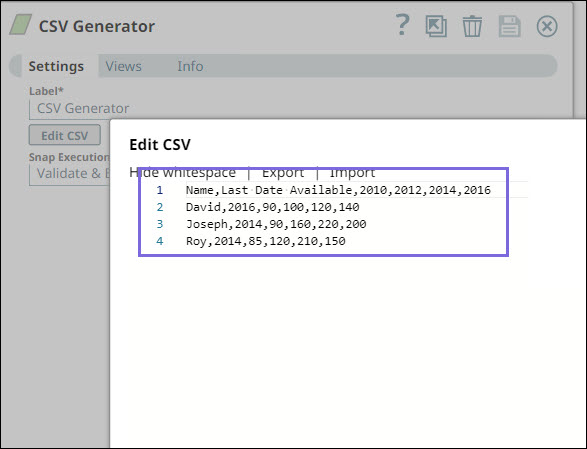
- On validating, the Snap generates the output as follows.

- Configure the Pivot Snap and select the checkbox
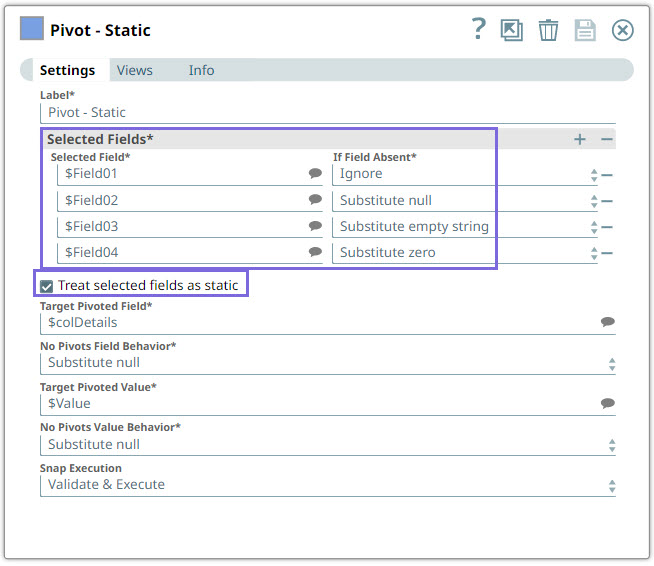
Next, configure the Pivot Snap as follows:
$Name: If this field does not exist, the Snap substitutes an empty string for this field in the output.$['Last Date Available']: If this field does not exist, the Snap substitutes a null value for this field in the output.
Select the Treat selected fields as static checkbox.
- Validate and view the output.
On validating, the Snap generates the output as per the configured behavior for the Selected fields. That is, the Snap generates values for all the fields because the selected fields exist originally in the input document.

Scenario -2
This example pipeline demonstrates the behavior of the Pivot Snap on the selected fields when you apply all the available options (Ignore, Substitute null, Substitute empty string, Substitute zero) on the target fields, and the selected fields do not exist in the input document.
- Configure the CSV Generator Snap.
- First, configure the CSV Generator Snap with the data as shown in the
image.
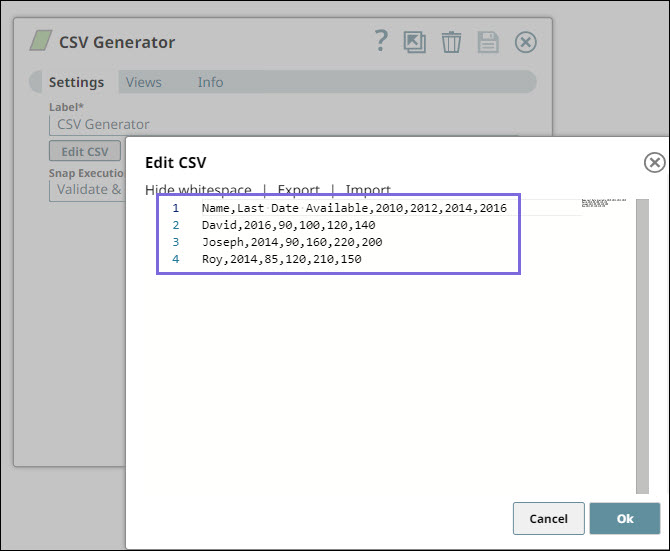
- On validating, the Snap generates the output as follows.
- Configure the Pivot Snap with field behavior and select checkbox.
Next, configure the Pivot Snap with the following selected fields:
$Field01— If this field does not exist, the Snap ignores and does not return anything in the output.$Field02— If this field does not exist, the Snap substitutes null value in the output.$Field03— If this field does not exist, the Snap substitutes an empty string in the output.$Field04— If this field does not exist, the Snap substitutes zero in the output.
Select the Treat selected fields as static checkbox.
- Validate and view the output.
- On validating the Snap, the Snap generates the output as per the configured
behavior for the Selected fields.

Scenario -3
This example Pipeline demonstrates the behavior of the Pivot Snap on the selected fields when they are nested in the input document.
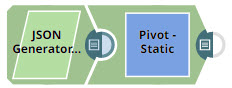
- Configure the JSON Generator Snap.
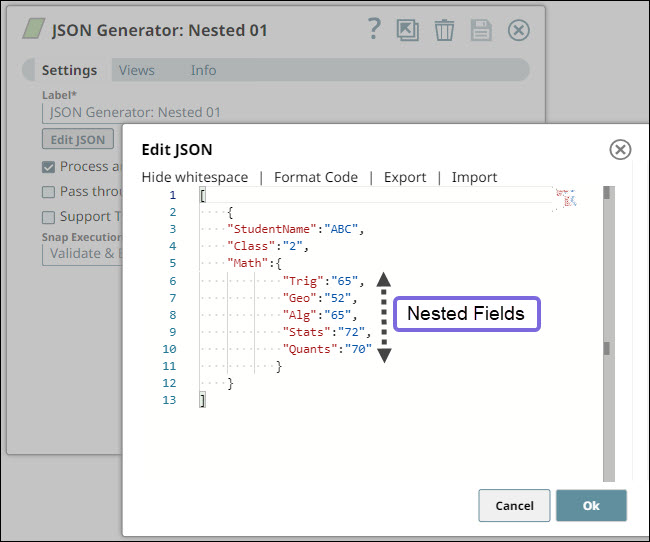
First, configure the JSON Generator Snap with the data as shown in the image.
- Configure the Pivot Snap with nested fields and select checkbox.
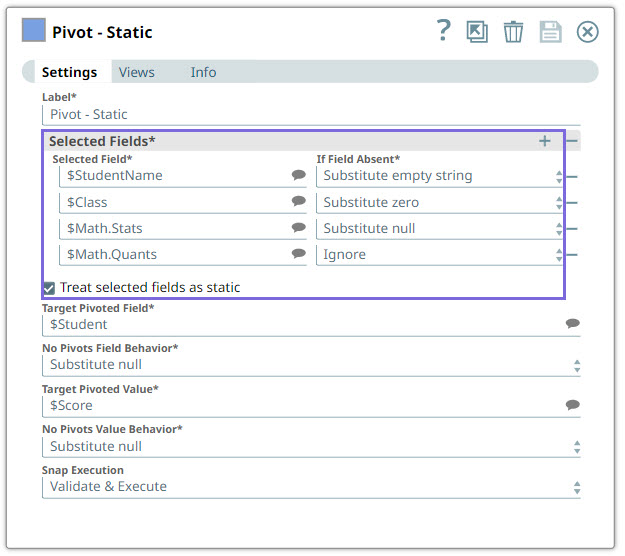
Next, configure the Pivot Snap with the following selected fields:
$StudentName: If this field is absent, the Snap substitutes an empty string in the output.$Class: If this field is absent, the Snap substitutes zero in the output.$Math.Stats: This is a nested field and the Snap substitutes a null value in the output.$Math.Quants: This is a nested field and the Snap ignores it.
Select the Treat selected fields as static checkbox.
- Validate and view the output.
On validating the Snap, the Snap extracts the nested fields (that were included in the selected fields) to the root level and leaves the remaining nested fields outside the root level.

- Select the Treat selected fields as static checkbox in the Pivot Snap for all scenarios.
- Ensure correct configuration of selected fields based on the scenario.
- Observe the output to verify the substitution or omission behavior for existing, missing, or nested fields.