


Importing a PBIX File
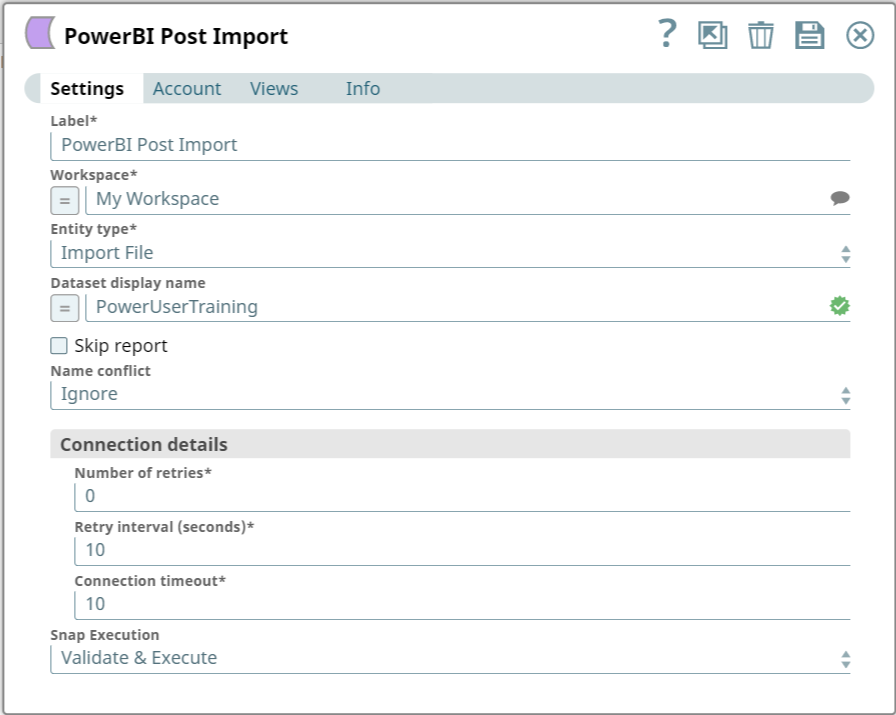
This example demonstrates how to use the Power BI Post Import Snap to import a PBIX file from the SnapLogic Database (SLDB) into a specified workspace. This example assumes that you have configured and authorized a valid Power BI OAuth2 account (see Configure Microsoft Power BI Accounts).

Download this pipeline.
-
Connect the Power BI Post Import Snap to the
File Reader Snap's output and configure it as shown below.
-
Run the pipeline.
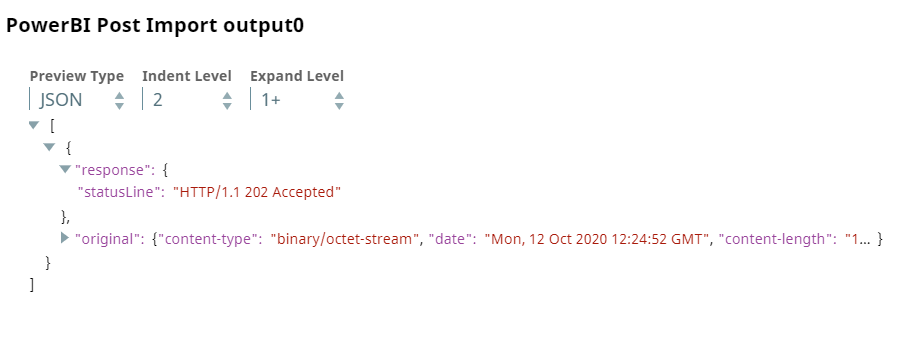
The Power BI Post Import Snap imports the PBIX file into the workspace and outputs a confirmation of the successful import.
To reuse this pipeline in your environment:
- Download and import the pipeline into SnapLogic.
- Configure Snap accounts as applicable.
- Provide pipeline parameters as applicable.