


Salesforce Download
Overview
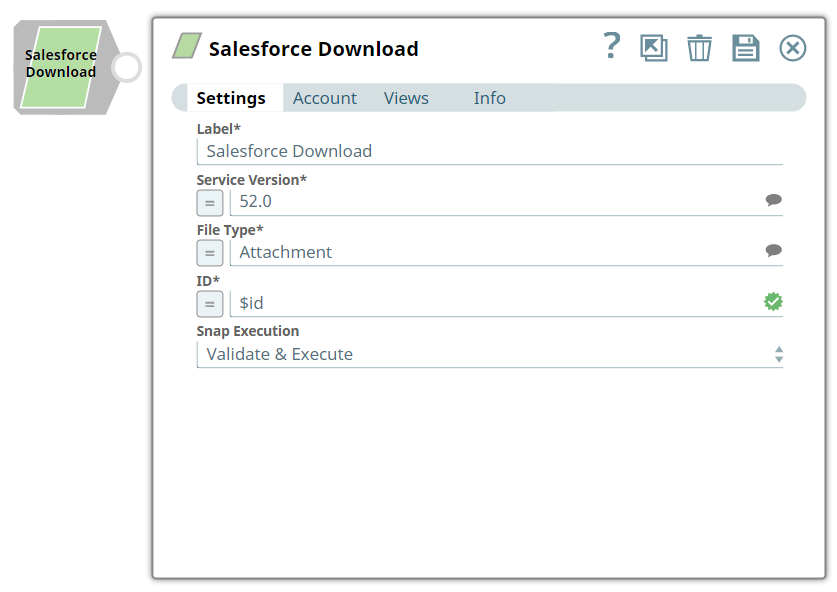
The Salesforce Download Snap downloads a file attached to a Salesforce object record by passing an Attachment ID or Content Data ID.
- This is a Read-type Snap.
 Works in Ultra Tasks
Supported Accounts
Prerequisites
- A valid account with the required permissions.
Snap views
| Type | Description | Examples of upstream and downstream Snaps |
|---|---|---|
| Input |
This Snap has at most one document input view. A stream of documents which supply values to evaluate the ID expression. |
|
| Output |
This Snap has exactly one document output view. Document data with a byte array value for the |
|
| Learn more about Error handling. | ||
Snap settings
- Expression icon (
 ): Allows using
pipeline parameters to set field values dynamically (if enabled). SnapLogic Expressions
are not supported. If disabled, you can provide a static value.
): Allows using
pipeline parameters to set field values dynamically (if enabled). SnapLogic Expressions
are not supported. If disabled, you can provide a static value. - SnapGPT (
 ): Generates SnapLogic Expressions
based on natural language using SnapGPT. Learn
more.
): Generates SnapLogic Expressions
based on natural language using SnapGPT. Learn
more. - Suggestion icon (
 ): Populates a
list of values dynamically based on your Snap configuration. You can select only one
attribute at a time using the icon. Type into the field if it supports a comma-separated
list of values.
): Populates a
list of values dynamically based on your Snap configuration. You can select only one
attribute at a time using the icon. Type into the field if it supports a comma-separated
list of values. - Upload
 : Uploads files. Learn more.
| Field/Field set | Description |
|---|---|
Label
String |
Specify a unique name for the Snap. Modify this to be more appropriate, especially if more than one of the same Snaps is in the pipeline. Default value: Salesforce Download |
Service Version
String/Suggestion |
Required. Specify the version number associated with the Salesforce service that you want to connect to. Alternatively, click the Suggestion icon to fetch the list of versions and select the desired version.
Default value: 52.0 Example: 52.0 |
File Type
String/Expression/ Suggestion |
Required. Specify the type of file you want to download. Alternatively, click the Suggestion icon to fetch the list of associated files.
Note: You can also specify an expression that will be evaluated into an attachment ID or content data ID, from each input document. The ID is found at the end of the URL of the file.
The available options are:
Default value: Attachment Example: Document |
ID
String/Expression |
Required. Specify the ID of the object that you want to download.
Default value: N/A Example: $id |
Snap execution
Dropdown list |
Choose one of the three modes in
which the Snap executes. Available options are:
|
Troubleshooting
| Error | Cause | Resolution |
|---|---|---|
| 404 Error: The requested resource could not be found. | The ID field does not exist or is not accessible. | The input data should be valid. Check if your input data is valid. |