


Managing API Version Assets
You can manage SnapLogic assets such as Accounts, Directories, Files, Pipelines, and Tasks in your API Version on the Assets tab.
Managing API Version Assets
You can manage the following SnapLogic assets in your API Version on the Assets tab:
- Accounts
- Directories
- Files
- Pipelines
- Tasks
Clicking an asset opens up a dropdown that contains the same options in the Assets table view in Project Manager.
Adding an Asset
- In Project Manager > API Management > API Manager, navigate to the target version and click to display the Version Details page.
- Click the Add icon to open the assets menu:
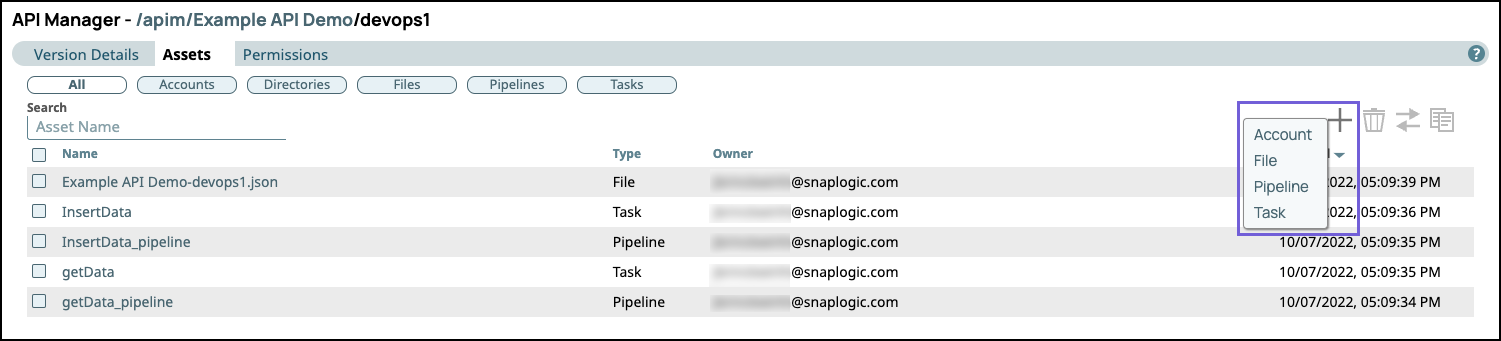
- Select one of the following choices:
- Accounts. Opens the Create Account dialog where you make Account selections.
- File. Opens the Upload File dialog.
- Pipeline. Opens the blank Designer canvas where you build your Pipeline.
- Task. Opens the Create Task dialog where you create your Task.
- Complete the required dialogs associated with the type of Asset.
Moving an Asset
You can move your API version Assets from one version to another version in the same API or to another version in a different API.
To move an Asset:
- In Project Manager > API Management > API Manager, navigate to the target version and click to display the Version Details page.
- Click the Assets tab.
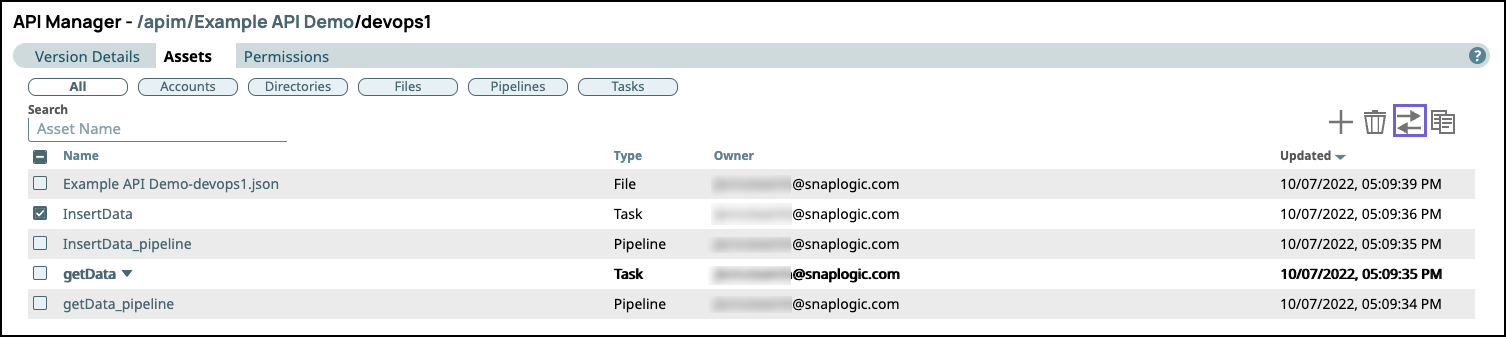
You can filter by Asset type by clicking one of the following pills.
- All. Click to display all Assets.
- Accounts. Click to filter by Accounts.
- Directories. Click to filter by directories created with Task debug details from your Task.
- Files. Click to filter by files.
- Pipeline. Click to filter by Pipelines.
- Task. Click to filter by Tasks.
- Click the Move icon to display the APIM project tree, then select the destination API
version.
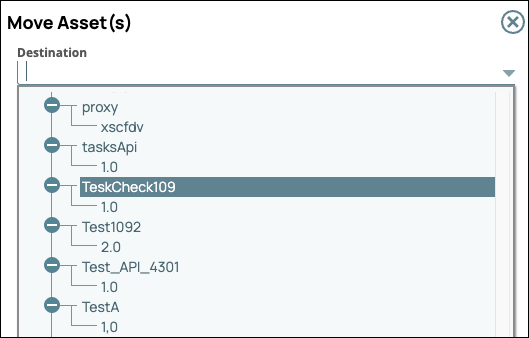
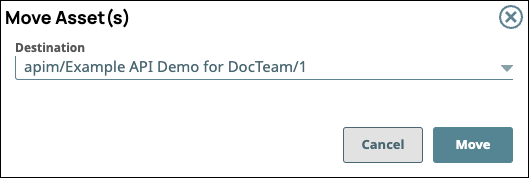
- Click Move on the Move Asset(s)
confirmation prompt.
- If one or more Assets with the same name exist in the API version, the Error
occurred while moving Asset(s) prompt appears.
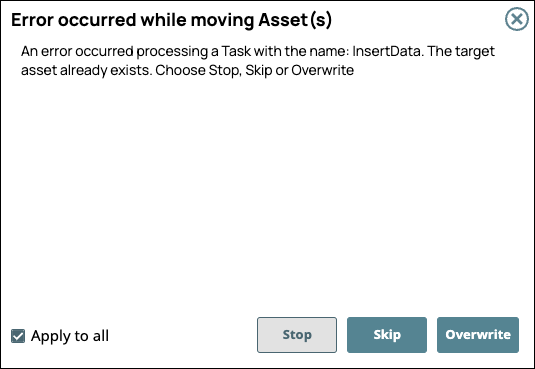
Choose one of the following options:
- Stop: Cancels the entire operation, and the specified Assets are not moved to the destination version.
- Skip: Does not move the selected Asset if an existing Asset in the destination version has the same name.
- Overwrite: Replaces the asset with the same name in the destination version with the specified Asset.
Select Apply to all to skip moving or to overwrite the Assets in the destination version.
Copying an Asset
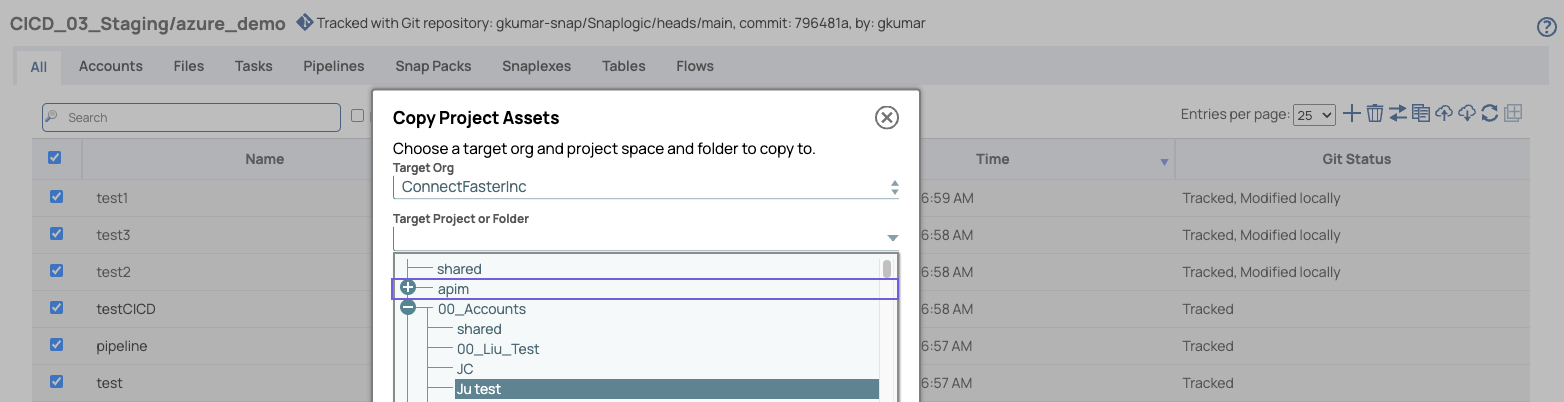
- To copy from assets from Project Manager, navigate to the target project folder, select your
assets, and click the Copy icon to copy:
- In the Copy Projects Assets dialog, select the target API
Versions:
- Click Continue.
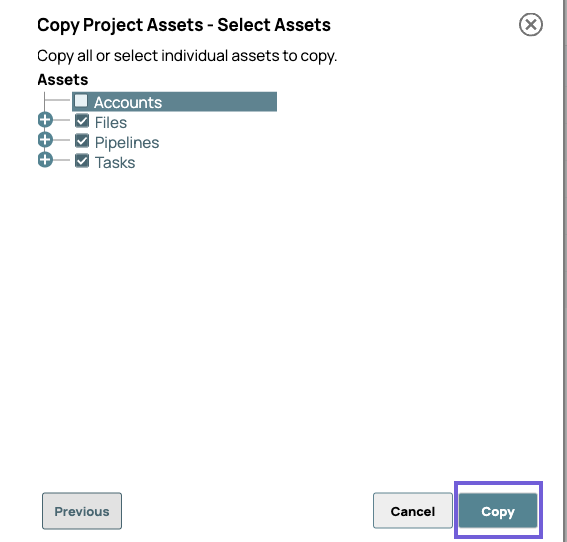
- Select Asset types, then click Copy.
- In the Copy Projects Assets dialog, select the target API
Versions:
- To copy assets from an existing API Version, navigate to the target API Version and
click it to display the Version Details page.
- Click the Assets tab:
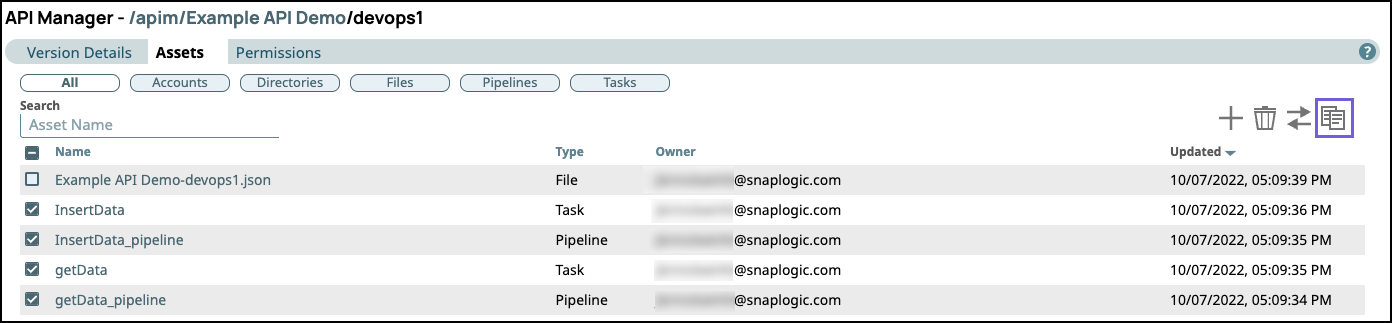
- Select the target assets and click the Copy icon to copy. You cannot copy Directories or Snap Packs.
- When the Copy Assets dialog appears, select a destination API version. If Files are selected, the Destination picker does not display the same folder.
- Click Copy.
- Click the Assets tab:
- If one or more Assets with the same name exist in the API version, the Error
occurred while copying Asset(s) dialog appears.
Choose one of the following options:
- Stop: Cancels the entire operation, and the specified Assets are not moved to the destination version.
- Skip: Does not copy the selected Asset if an existing Asset in the destination version has the same name.
- Overwrite: Replaces the Asset with the same name in the destination version with the specified Asset.
Select Apply to all to skip moving or to overwrite the Assets in the destination Version.
When Pipelines are copied to the same destination Version, the copied Pipeline is added with the following name:
Copy of pipeline_name
The original Pipeline remains in the destination Version.
Deleting an Asset
Expecting type of asset asset_name to be ApiVersion but was Dir
- In Project Manager > API Management > API Manager, navigate to the target API Version and click it to display the Version Details page.
- Click the Assets tab.
- Select the Asset to delete and click the trash icon. You can select multiple Version
Assets.
The Delete confirmation message appears:
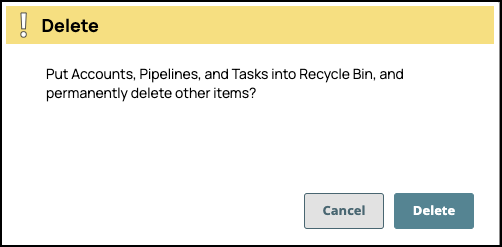
- Click Delete.
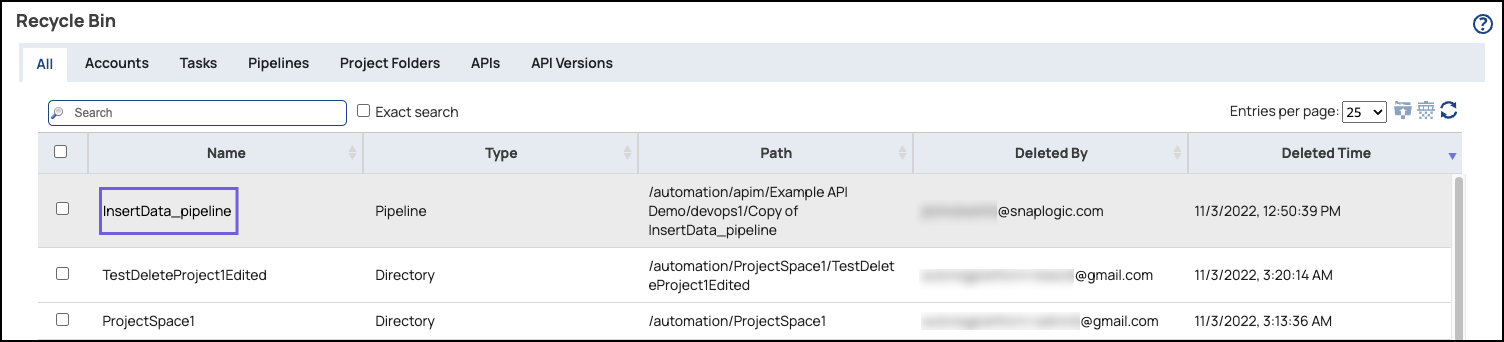
- Verify the deleted Assets by navigating to the Project Manager Recycle Bin for your environment (Org):
Changing the Snaplex of a Task inside an Unpublished API
You can change the Snaplex a Task runs on if the API Version is unpublished. You cannot change the Snaplex of a Task if the API is already published.
- In Project Manager > API Management > API Manager, navigate to the target API Version and click it to display the Version Details page.
- Click the Assets tab.
- Click the target Task to open the Update Task dialog.
- In the Snaplex field, click the dropdown arrow to open the dropdown list of Snaplexes
available in the environment's global
sharedfolder: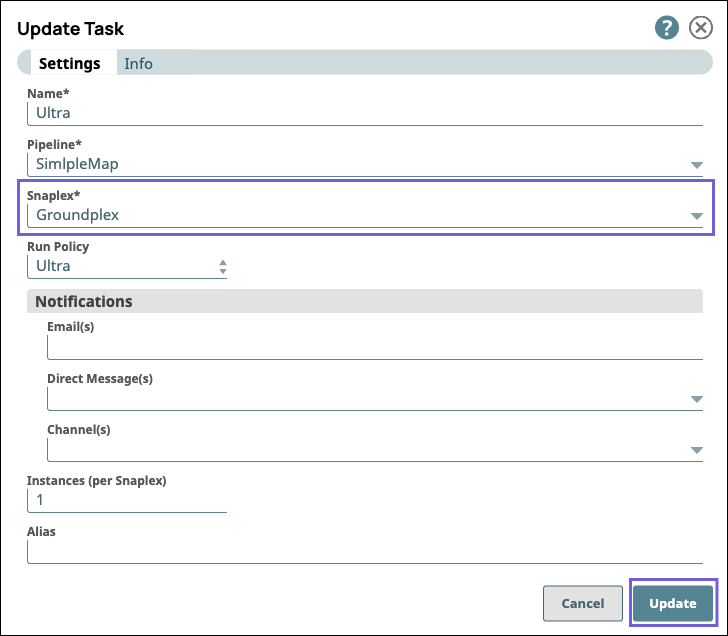
- Select the target Snaplex and click Update.
Editing the Run Policy for a Task inside a Version
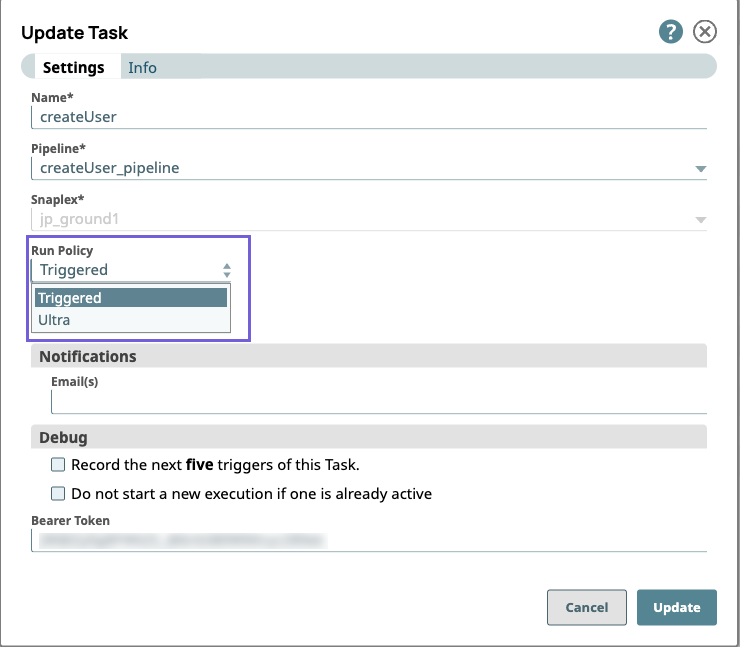
You can open the Update Task dialog from the Version > Assets tab of an API to change its configuration. You can also change the Run Policy.
- In Project Manager > API Management > API Manager, navigate to the target API Version and click it to display the Version Details page.
- Click the Assets tab.
- Click on the target Task to open the Update Task dialog.
- In the Run Policy field, click the toggle to select a different
Task type:
Downloading a Specification File
You can download the specification file from the Assets tab. Both JSON and YAML file formats are supported for download.
- In Project Manager > API Management > API Manager, navigate to the target API Version and click it to display the Version Details page.
- Click the Assets tab.
- Point the cursor as the File, and click the dropdown menu icon to open the dropdown
menu.
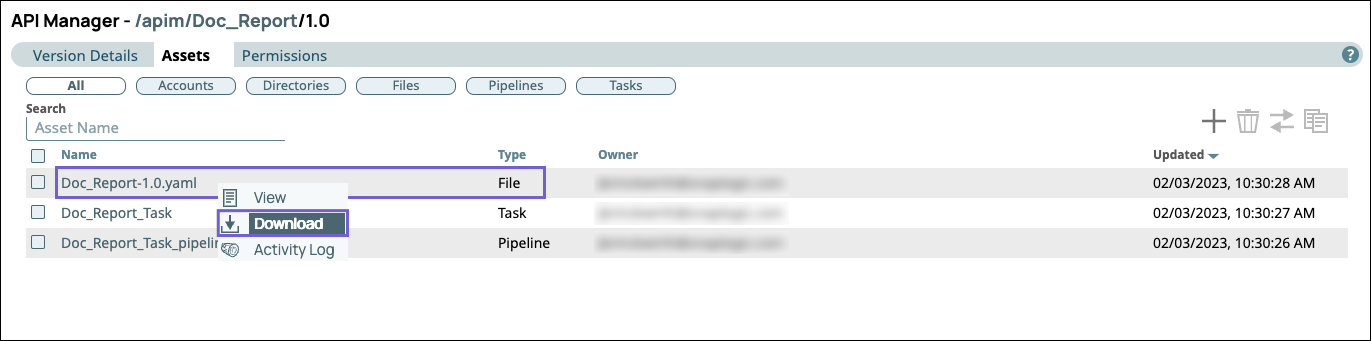
- Select Download.
APIM Asset Tracking with Git
When your environment is integrated with Git, you can access the same set of functionalities for APIM version assets, and the Version is treated as the Project folder.
Supported Git Operations with Versions
In the Versions tab, you can manage your Versions similarly to Projects in Project Manager.

The following GIT operations are supported in Versions:
- Checkout Git Repository: Allows you to check out repositories and branches/tags.
- Git Add Tag: Allows you to access Git tags for your Versions.
- Commit to Git: Allows you to commit your changes to an API Version in Git.
- Git Pull: Allows you to pull the changes made by other users into the API Version.
Supported Git Operations with Version Assets
In the Assets tab of your API Versions, you can manage Assets similarly to Project Assets in Project Manager. For example, APIM Assets are tracked by the Git repository and Git status, as shown in the following image.
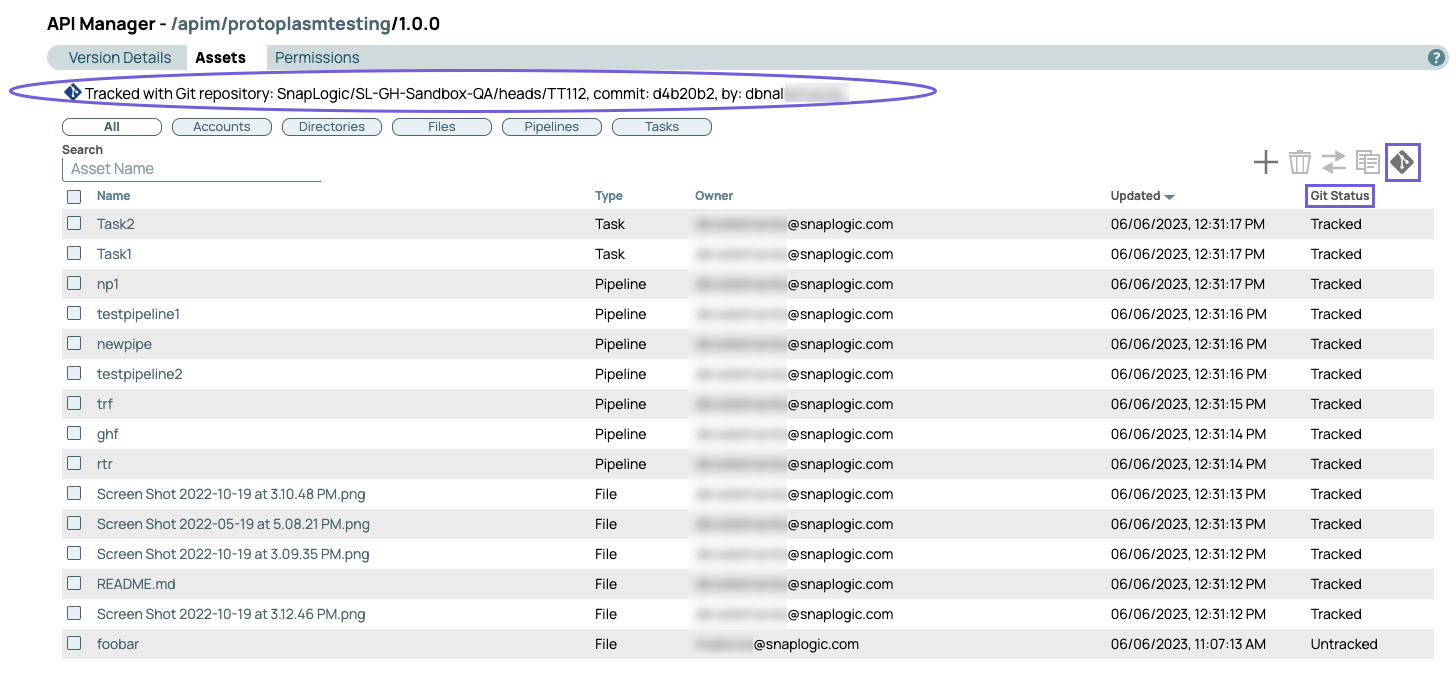
When you select an Asset or point and click on it, the Git options menu appears:
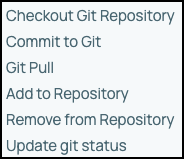
You can perform the following actions from this menu:
- Checkout Git Repository: Allows you to check out this Asset from its associated Git repository.
- Commit to Git: Allows you to commit your changes to a Version Asset in Git.
- Git Pull: Allows you to do a pull on the latest changes made to the Version Asset.
- Add to Repository: Allows you to add the Version Asset to the Git repository.
- Update git status: Allows you to update the Git status.