


ASB Producer
Overview
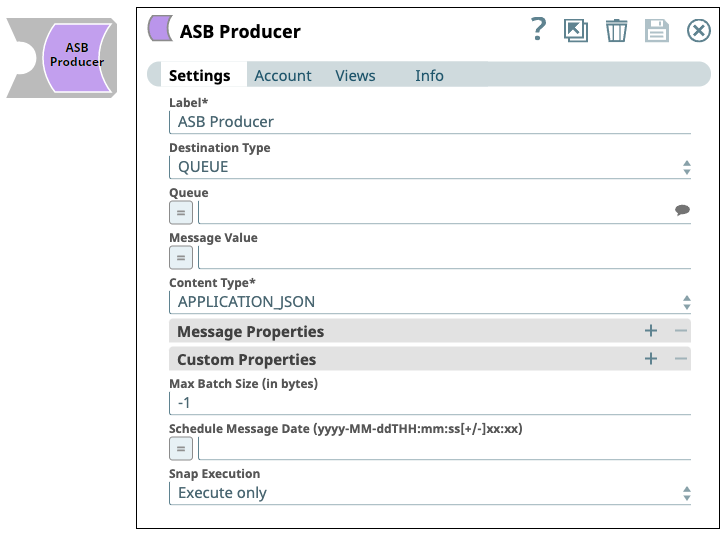
The ASB Producer Snap allows you to send messages to a queue in Azure Service Bus (ASB).
Supported Accounts
- This is a Write-type Snap.
 Works in Ultra Tasks
Prerequisites
- A valid Azure Service Bus account.
- Valid Namespace and SharedAccessKey in Azure Service Bus.
Snap views
| Type | Description | Examples of upstream and downstream Snaps |
|---|---|---|
| Input |
This Snap has at most one document input view. Expected input: A key-value pair for the message. |
|
| Output |
This Snap has at most one document output view. Expected output: Message records. Note: The Consumer Snap is decoupled from the Producer Snap.
|
|
| Learn more about Error handling. | ||
Snap settings
- Expression icon (
 ): Allows using
pipeline parameters to set field values dynamically (if enabled). SnapLogic Expressions
are not supported. If disabled, you can provide a static value.
): Allows using
pipeline parameters to set field values dynamically (if enabled). SnapLogic Expressions
are not supported. If disabled, you can provide a static value. - SnapGPT (
 ): Generates SnapLogic Expressions
based on natural language using SnapGPT. Learn
more.
): Generates SnapLogic Expressions
based on natural language using SnapGPT. Learn
more. - Suggestion icon (
 ): Populates a
list of values dynamically based on your Snap configuration. You can select only one
attribute at a time using the icon. Type into the field if it supports a comma-separated
list of values.
): Populates a
list of values dynamically based on your Snap configuration. You can select only one
attribute at a time using the icon. Type into the field if it supports a comma-separated
list of values. - Upload
 : Uploads files. Learn more.
| Field/Field set | Description |
|---|---|
Label
String |
Specify a unique name for the Snap. Modify this to be more appropriate, especially if more than one of the same Snaps is in the pipeline. Default value: ASB Producer |
Destination Type
Dropdown list |
Choose an option where the messages should be sent. Enables Queue and Topic fields. Available options are:
|
Queue
String/Expression |
Specify the name of the queue to which the message should be added. Alternatively, click the Suggestion icon to get the list of Queues corresponding to the Azure Service Bus account and select a Queue. Enabled on selecting QUEUE for Destination Type. Default value: N/A Example: |
Topic
String/Expression |
Specify the topic to which the message should be published or subscribed. Alternatively, click the Suggestion icon to fetch the list of Topics corresponding to the Azure Service Bus account and select a Topic. Enabled on selecting TOPIC for Destination Type. Default value: N/A Example: |
Message value
String/Expression |
Specify the message value (content of the message) to send. Default value: N/A Example: |
Content Type
Dropdown list |
Choose the content type for the message:
Note: You can overwrite the content type chosen here by providing advanced properties.
Default value: APPLICATION_JSON Example: PLAIN_TEXT |
| Message Properties |
Use this field set to define message properties. This field set contains the following fields:
|
Properties
Dropdown list |
Choose the type of the message property to route messages to particular destinations. Available options are:
Default value: Message ID Example: Subject |
Values
String/Expression |
Specify the value of the message property. Default value: N/A Example: |
| Custom Properties |
Use this field set to provide custom properties in key-value pairs. Click the Add icon to add key-value pairs. Enter each pair in a separate row.
|
Key
String/Expression |
Specify the key for the custom property. Default value: N/A Example: |
Values
String/Expression |
Specify a value for the key. Default value: N/A Example: |
Max Batch Size (in bytes)
Integer |
Specify the maximum size (in bytes) of a batch of messages to process. Maximum: 256kb for standard tier and 1MB for premium tier. Default value: -1 Example: |
Schedule Message Date (yyyy-MM-ddTHH:mm:ss[+/-]xx:xx)
String/Expression |
Specify the time and date at which the message should be sent to ASB. The time and date format must be in OFFSET_DATE_TIME format ( Default value: N/A Example: |
Snap execution
Dropdown list |
Choose one of the three modes in
which the Snap executes. Available options are:
|