


Salesforce Bulk Upsert
Overview
The Salesforce Bulk Upsert Snap updates or inserts object records in Salesforce Bulk API 2.0.
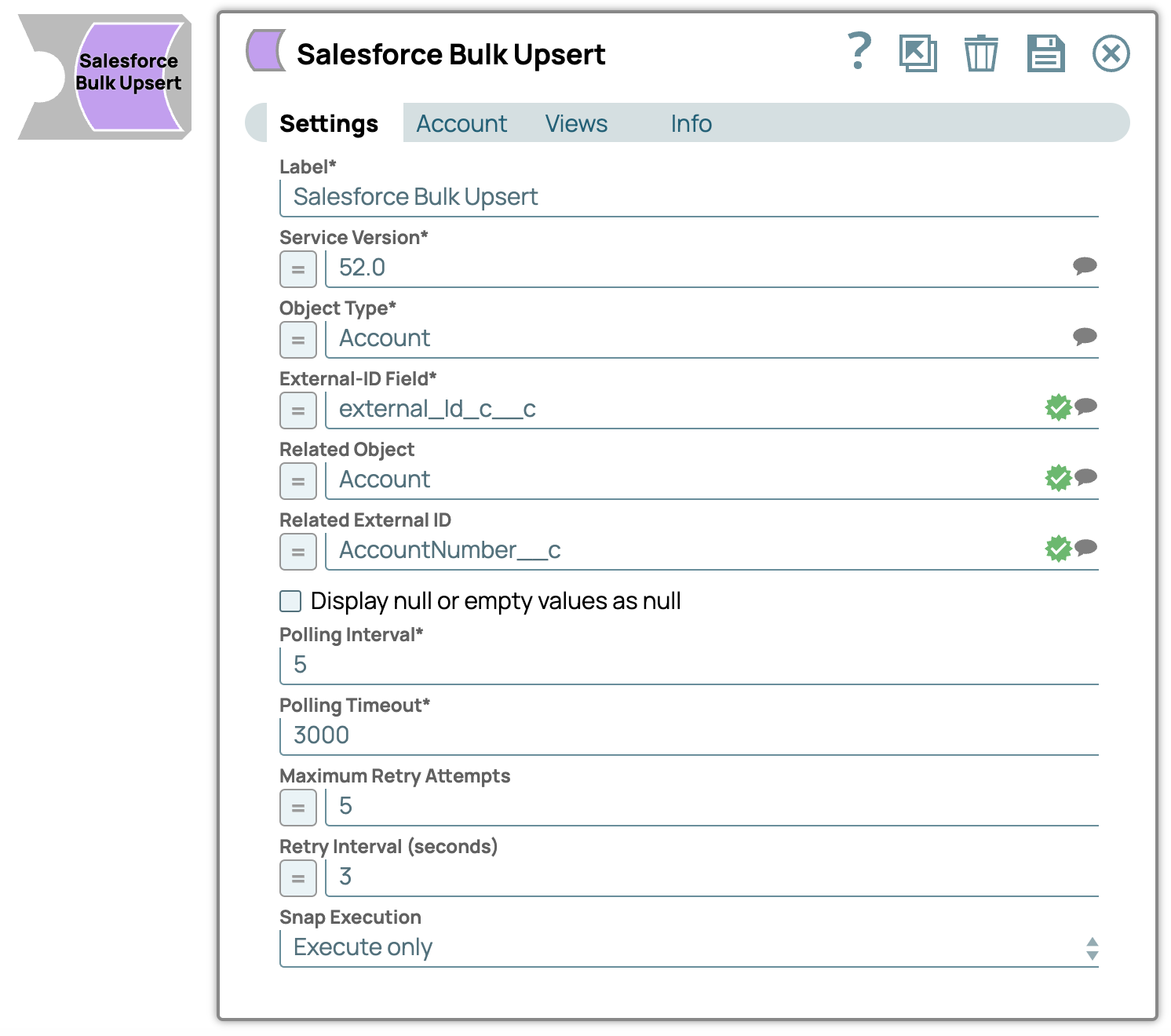
- This is a Write-type Snap.
 Works in Ultra Tasks
Supported Accounts
Limitations
- This Snap performs batch processing, that is, a batch of input documents are processed for each HTTP request sent to Salesforce. Values of all the expression-enabled fields must remain constant during the Snap execution or validation. Hence, all expression fields can support Pipeline parameters only when they are expression-enabled. The input data parameters are not supported for expression fields, for example,
$serviceVersion.
Snap views
| Type | Description | Examples of upstream and downstream Snaps |
|---|---|---|
| Input |
This Snap has exactly one input view and receives documents in the view. Each document contains Map data for a record ID and key-value pairs for fields to be updated or inserted. |
|
| Output |
This Snap has at most one output view and produces documents in the view. |
|
| Error |
This Snap has at most one document error view. Note: Because of the potentially large size of the error messages, the
Reason for the Salesforce error message in the error document field may be truncated. The complete error is available in the field full_error under the original object containing copies of the failed input records or in the logs. |
|
Snap settings
| Field/Field set | Description |
|---|---|
Label
String |
Required. Specify a unique name for the Snap instance.
Default value: Salesforce Bulk Upsert Example: Salesforce Bulk Upsert |
Service Version
String/Expression/ Suggestion |
Required. Specify the version number associated with the Salesforce service that you want to connect to. Alternatively, click the Suggestion icon to fetch the list of versions and select the desired version.
Default value: 52.0 Example: 41.0 |
Object Type
String |
Required. Specify the name of the Salesforce object or select one from the suggested list.
Note: This Snap does not support Net Zero Cloud Salesforce objects.
Default value: Account Example: Account |
External-ID Field
String |
Required. Specify the name for the External ID field. Use this field to define the unique externalized key of the object. The Snap operates exclusively on the external ID field, and not on the Salesforce-generated record ID. The external ID is useful when you want to synchronize an external system to Salesforce.com.
If a record for a given external ID exists, the record is updated with the input record data. If no record exists for a given external ID, create a new record with the input record data. Use the external ID as the unique record identifier from an external system. To create an external ID field for an Account object:
Default value: N/A Example: external_Id_c__c |
Related Object
String |
Enter or select a related parent object. This property does not affect the Snap operation on records in Salesforce. It is provided for the property suggestion and the input schema suggestion only.
Default value: N/A Example: Account |
Related External ID
String |
Enter or select an external ID of the related parent object. This property does not affect the Snap operation on records in Salesforce. It is provided for the property suggestion and the input schema suggestion only.
Default value: N/A Example: AccountNumber__c |
Display null or empty values as null
Checkbox |
This checkbox controls how empty strings or null data coming from Salesforce are displayed in the output preview.
When you select this checkbox, the empty strings or null data from Salesforce is displayed as When you deselect this checkbox, the Snap displays an empty string or null data as blank in the output preview. The null/empty-string values are always displayed as empty ('') string in the output preview. Note: The output in the Salesforce application remains unaffected. Whether the checkbox is selected or deselected, the Salesforce record and its corresponding output continues to appear empty.
Default value: Deselected |
Polling Interval
Integer |
Required. Define polling interval in seconds.
Default value: 5 Example: 5 |
Polling Timeout
Integer |
Required. Define the maximum time in seconds to wait for the query to complete.
Default value: 3000 Example: 300 |
Maximum Retry Attempts
Integer |
Define the maximum number of retries to attempt in case of connection failure.
Note:
This Snap retries all retryable HTTP status codes, including 401, 403, and 5XX, and connection-related errors. Default value: 5 Example: 5 |
Retry Interval (seconds)
Integer |
Define the interval between retries in seconds.
Default value: 3 Example: 3 |
Snap execution
Dropdown list |
Choose one of the three modes in
which the Snap executes. Available options are:
|