


Salesforce Read
Overview
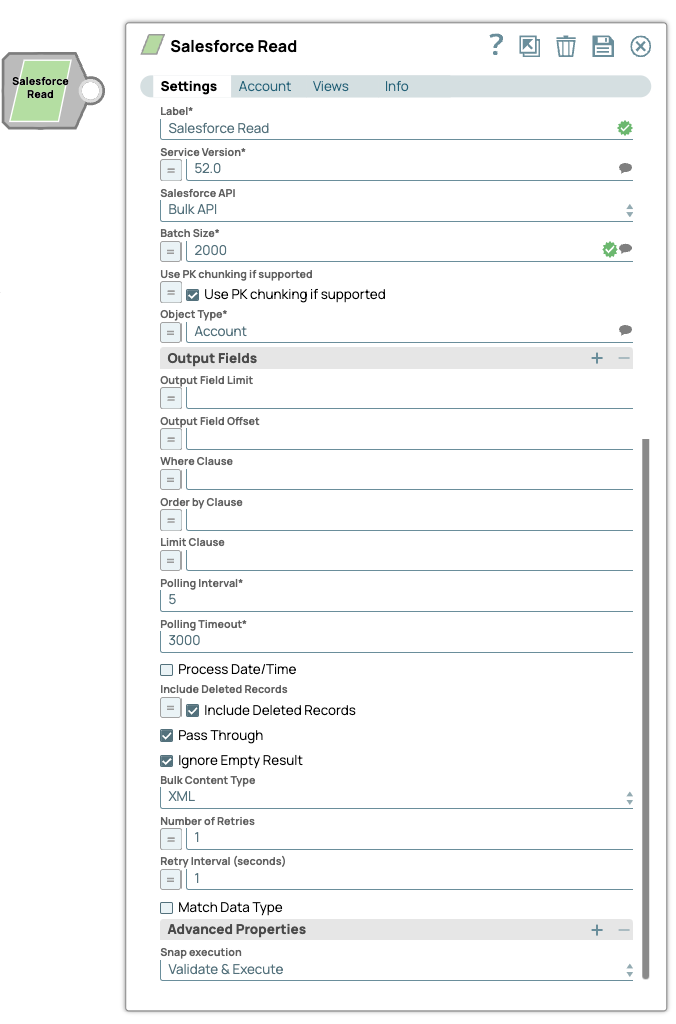
The Salesforce Read Snap retrieves all records for all fields of a Salesforce object from Salesforce.
- This is a Read-type Snap.
 Works in Ultra Tasks
Supported Accounts
Limitations
- When using Primary Key (PK) Chunking mode in this Snap, the output document schemas in preview mode and execution mode may differ. For more information, refer to the note in PK Chunking.
- When you run more than 10 Salesforce Snaps simultaneously, the following error is displayed: "
Cannot get input stream from next records URL" or "INVALID_QUERY_LOCATOR". We recommend that you not use more than 10 Salesforce Snaps simultaneously because this might lead to the opening of more than 10 query cursors in Salesforce. Refer to this Salesforce Knowledge Article for more information.
Snap views
| Type | Description | Examples of upstream and downstream Snaps |
|---|---|---|
| Input |
This Snap has at most one document input view. |
|
| Output |
This Snap has one to two document output views. The Snap allows you to add an optional second output view that exposes the schema of the target object as the output document. |
|
| Learn more about Error handling. | ||
Snap settings
- Expression icon (
 ): Allows using
pipeline parameters to set field values dynamically (if enabled). SnapLogic Expressions
are not supported. If disabled, you can provide a static value.
): Allows using
pipeline parameters to set field values dynamically (if enabled). SnapLogic Expressions
are not supported. If disabled, you can provide a static value. - SnapGPT (
 ): Generates SnapLogic Expressions
based on natural language using SnapGPT. Learn
more.
): Generates SnapLogic Expressions
based on natural language using SnapGPT. Learn
more. - Suggestion icon (
 ): Populates a
list of values dynamically based on your Snap configuration. You can select only one
attribute at a time using the icon. Type into the field if it supports a comma-separated
list of values.
): Populates a
list of values dynamically based on your Snap configuration. You can select only one
attribute at a time using the icon. Type into the field if it supports a comma-separated
list of values. - Upload
 : Uploads files. Learn more.
| Field/Field set | Description |
|---|---|
Label
String |
Specify a unique name for the Snap. Modify this to be more appropriate, especially if more than one of the same Snaps is in the pipeline. Default value: Salesforce Read Example: Salesforce Read |
Salesforce API
Dropdown list |
Required. Choose the Salesforce API mode to use during the pipeline execution. The available options are:
Note: We recommend you to set the Salesforce API mode to Bulk API if the table size of the Salesforce object referred to in the Object Type field is large (that is, 10,000 records or more) to prevent the time-out or connection error.
Default value: REST API Example: Bulk API |
Service Version
Dropdown list |
Required. Specify the version number associated with the Salesforce service that you want to connect to. Alternatively, click the Suggestion icon to fetch the list of versions and select the desired version.
Default value: 52.0 Example: 41.0 |
Batch Size
Dropdown list |
Required. Specify the size of the records to process in each batch for downloading large query results. Each batch read requires an API call against Salesforce to retrieve the set of records.
Note: The Snap validates using the Bulk API, even if you configure the Snap to use Bulk API with Primary Key (PK) Chunking.
Default value: 2000 Example: 2000 |
Use PK chunking if supported
Checkbox |
Appears when you select Bulk API from the Salesforce API dropdown. Select this checkbox to use PK chunking for the bulk API request if the object supports PK chunking.
If you select this checkbox, the value from Batch Size is used as the PK chunking batch size. Please note that the chunk size applies to the number of records in the queried table rather than the number of records in the query result. For example, if the queried table has 10 million records and 250,000 is selected for Batch Size, 40 batches are created to execute the bulk query job. One additional control batch is also created and it does not process any records. Learn more about PK Chunking. Note: You can enable expressions for this field in order to use input values from the pipeline parameters.
Pipeline parameters are strings, and any non-empty string is treated as Default value: Deselected |
Object Type
String/Expression/ Suggestion |
Required. Specify the name of the Salesforce object or select one from the suggested list.
Note: The Snap does not support Net Zero Cloud Salesforce objects.
Default value: Account Example: Account |
| Output Fields | Use this field set to enter a list of field names for the SOQL SELECT statement. If left empty, the Snap selects all fields. |
Output Fields
String/Expression/ Suggestion |
Enter output field for SOQL statement.
Default value: N/A Example: Id, Name, ShippingAddress |
Output Field Limit
String/Expression |
Specify the number of output fields to return from the Salesforce object.
Default value: N/A |
Output Field Offset
String/Expression |
Defines a starting field index for the output fields. This is where the result set should start.
Note: If you enter an offset value that is greater than 1, the first field "ID" is always returned, but the following fields start from the offset position. This is because the first field is the only unique identifier.
Default value: N/A |
Where Clause
String/Expression |
Enter the WHERE clause for the SOQL SELECT statement. Do not include the word WHERE.
Note: Using quotes in field names values
Default value: N/A Example: Id > '001i0000007FVjpAAG' |
Order By Clause
String/Expression |
Enter the ORDER BY clause that you want to use with your SOQL SELECT Query.
Note: PK Chunking does not support the ORDER BY clause.
Default value: N/A Example: LastName, FirstName |
Limit Clause
String/Expression |
Enter the LIMIT clause that you want to use with your SOQL SELECT Query.
Note: PK Chunking does not support the LIMIT clause.
Default value: N/A Example: 2000 |
Polling Interval
String |
Required. Define the polling interval in seconds for the Bulk API read execution. At each polling interval, the Snap checks the status of the Bulk API read batch processing. Maximum value: 60
Default value: 5 Example: 5 |
Polling Timeout
String |
Required. This property allows you to define the polling timeout in seconds for the Bulk API read batch execution. If the timeout occurs while waiting for the completion of the read batch execution, the Snap displays an exception.
Default value: 3000 Example: 300 |
Process Date/time
Checkbox |
All date/time fields from Salesforce.com are retrieved as string type.
Select this checkbox to allow the Snap to convert date/time fields to corresponding date/time types by accessing the metadata of the given SObject.
Deselect this checkbox to allow the Snap to send these date/time fields without any conversion. Default value: Deselected |
Include Deleted Records
Checkbox |
Select this checkbox to allow the Snap to include deleted records in the query. This feature is supported in REST API version 29.0 or later and Bulk API version 39.0 or later.
Note: You can enable expressions for this field in order to use input values from the pipeline parameters.
Pipeline parameters are strings, and any non-empty string is treated as Default value: Deselected |
Pass Through
Checkbox |
Select this checkbox to pass the input document to the output view under the key 'original'. This is applicable for REST and Bulk APIs.
Default value: Selected |
Ignore Empty Results
Checkbox |
Select this checkbox to ignore empty results; no document will be written to the output view when the operation does not produce any result. If this property is not selected and Pass Through is selected, the input document will be passed through to the output view.
If you do not select both the checkboxes, Ignore Empty Result and Pass Through, the Snap writes an empty output as below: Note: This property does not apply when you run the Snap in the Bulk API mode.
When you run the Snap in Bulk API mode, if the Salesforce result is empty, the Snap does not pass the input document to the output view even if the Pass Through checkbox is selected. Default value: Selected |
Bulk Content Type
Dropdown list |
Select the content type for Bulk API: JSON or XML.
Note: The numeric type field values will be read as numbers in JSON content type, and as strings in XML content type, in the output documents.
JSON content type for Bulk API is available in Salesforce API version 36.0 or higher. In REST API, the number-type field values will always be read as numbers. If the Bulk API has been selected along with 100,000/ 250,000 as batch size value, the content-type will always be CSV regardless of the value set in this property. Default value: XML Example: JSON |
Number Of Retries
String/Expression |
Specify the maximum number of retry attempts in case of a network failure.
Note:
This Snap retries all retryable HTTP status codes, including 401, 403, and 5XX, and connection-related errors. Note:
Minimum value: 0 Default value: 1 Example: 3 |
Retry Interval (seconds)
String/Expression |
Specify the minimum number of seconds for which the Snap must wait before attempting recovery from a network failure.
Minimum value: 0 Default value: 1 Example: 3 |
Match Data Type
Checkbox |
Select this checkbox to match the data types of the Bulk API results with the data types of the REST API. This property applies only when the content type is XML for Bulk API (it does not apply to JSON). If the Bulk content type is XML, Salesforce.com returns all values as strings. If Match data type is selected, the Snap attempts to convert string values to the corresponding data types if the original data type is one of the following: boolean, integer, double, currency, or percent.
This property is ignored in REST APIs or when the Bulk Content Type is JSON. For Bulk API, Salesforce.com does not return any value for null. This Snap does not honor the selection of the Match Data Type checkbox if the Use PK chunking if supported checkbox is also selected. Default value: Deselected |
| Advanced Properties | Use this field set to define additional advanced properties that you want to add to the Snap's settings. Additional advanced properties are not required by default, and the field-set represents an empty table property. |
Properties
Dropdown list |
You can use one or more of the following properties in this field:
Default value: N/A |
Values
String |
The value that you want to associate with the property selected in the corresponding Properties field.
Default value: N/A |
Snap execution
Dropdown list |
Choose one of the three modes in
which the Snap executes. Available options are:
|
Temporary files
During execution, data processing on Snaplex nodes occurs principally in-memory as streaming and is unencrypted. When processing larger datasets that exceed the available compute memory, the Snap writes unencrypted pipeline data to local storage to optimize the performance. These temporary files are deleted when the pipeline execution completes. You can configure the temporary data's location in the Global properties table of the Snaplex node properties, which can also help avoid pipeline errors because of the unavailability of space. Learn more about Temporary Folder in Configuration Options.
PK Chunking
PK chunking splits bulk queries on very large tables into chunks based on the record IDs, or primary keys, of the queried records. Each chunk is processed as a separate batch that counts toward your daily batch limit. PK chunking is supported for the following objects: Account, Campaign, CampaignMember, Case, Contact, Lead, LoginHistory, Opportunity, Task, User, and custom objects.
PK chunking works by adding record ID boundaries to the query with a WHERE clause, limiting the query results to a smaller chunk of the total results. The remaining results are fetched with additional queries that contain successive boundaries. The number of records within the ID boundaries of each chunk is referred to as the chunk size. The first query retrieves records between a specified starting ID and the starting ID plus the chunk size, the next query retrieves the next chunk of records, and so on. Since Salesforce.com appends a WHERE clause to the query in the PK Chunking mode, if SOQL Query has LIMIT clause in it, the Snap will submit a regular bulk query job without PK Chunking.
Learn more about the Salesforce PK Chunking Header.
If you select the Use PK chunking if supported checkbox, the value from Batch Size is used as the PK chunking batch size. Please note that the chunk size applies to the number of records in the queried table rather than the number of records in the query result. For example, if the queried table has 10 million records and 250,000 is selected for Batch Size, 40 batches are created to execute the bulk query job. One additional control batch is also created and it does not process any records. The status of the submitted bulk job and its batches can be monitored by logging in to your Salesforce.com account and going to Setup. From Setup, enter Bulk Data Load Jobs in the Quick Find box, then select Bulk Data Load Jobs.
PK Chunking requires Service Version 28.0 or later, cannot be used with Order By Clause or Limit Clause, and isn't available for all Salesforce objects. Therefore, if Bulk API and Use PK chunking if supported are selected but other settings in the Snap don't support PK chunking, the Snap will submit a regular bulk query job without PK chunking and display a warning that PK chunking was not used.
If your account doesn't support PK chunking and you're using the Bulk API, deselect the Use PK chunking if supported checkbox.