


Salesforce Upsert
Overview
The Salesforce Upsert Snap enables you to upsert (that is, a simple update or insert procedure) object records in Salesforce in Bulk API 1.0 or REST API mode.
The Snap in Bulk API mode submits a batch job and writes the batch job information to the output view, which should be passed to the Salesforce Poller Snap to check the result of the batch job. More specifically, the Salesforce Upsert Snap should not be thought of as the combination of the Salesforce Update and Salesforce Create Snaps.
The Salesforce Upsert Snap operates exclusively on the External ID field, not on the Salesforce-generated record ID. If a record for a given external ID exists, the record is updated with the input record data. If no record exists for a given external ID, a new record is created with the input record data. The external ID is used as the unique record identifier from an external system and can be useful when you want to synchronize an external system to Salesforce.com.
To create a new external ID field for an Account object:
- Log in to your Salesforce account.
- Go to App Setup > Customize > Account > Fields > New.
- Follow the instructions and create a new custom field.
- This is a Write-type Snap.
 Works in Ultra Tasks
Supported Accounts
Prerequisites
- A valid account with the required permissions.
Limitations
- This Snap performs batch processing, that is, a batch of input documents are processed for each HTTP request sent to Salesforce. Values of all the expression-enabled fields must remain constant during the Snap execution or validation. Hence, all expression fields can support Pipeline parameters only when they are expression-enabled. The input data parameters are not supported for expression fields, for example, $serviceVersion.
Snap views
| Type | Description | Examples of upstream and downstream Snaps |
|---|---|---|
| Input |
This Snap has exactly one document input view. Each document contains Map data for an external ID and records of field and value pairs. |
|
| Output |
This Snap has at most one document output view. Each document contains Map data that includes a Job ID, a Batch ID, a URL, and an array of records if it is in Bulk API mode. If it is executed in REST API mode, each document contains input data and a key-value pair of created:false for each successfully-updated record or created:true for each successfully-created record. If the Snap is executed in Bulk API mode and a new record is created, the ID field and its value is included in the output data. However, if the Snap is executed in REST API and a new record is created, the ID field is not included in the output data. |
|
| Learn more about Error handling. | ||
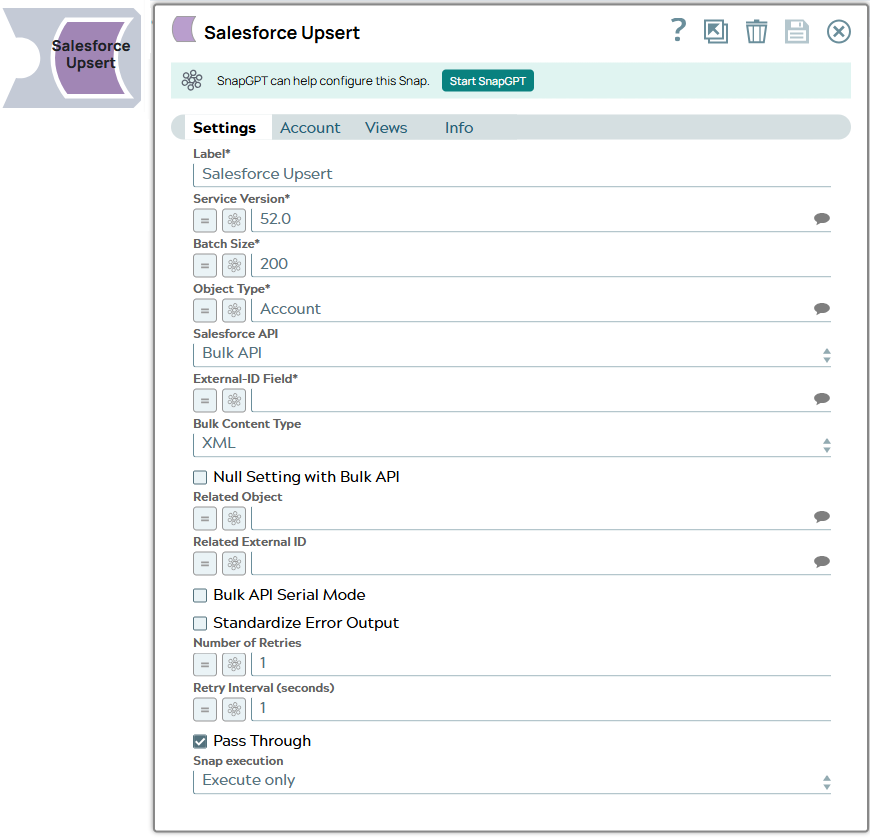
Snap settings
| Field/Field set | Description |
|---|---|
Label
String |
Required. Specify a unique name for the Snap. You can modify this to be more specific, especially if you have more than one of the same Snap in your Pipeline.
Default value: Salesforce Upsert Example: Salesforce Upsert |
Service Version
String/Expression/ Suggestion |
Required. Specify the version number associated with the Salesforce service that you want to connect to. Alternatively, click the Suggestion icon to fetch the list of versions and select the desired version.
Default value: 52.0 Example: 41.0 |
Batch Size
Integer/Expression |
Required. Specify the number of records to be processed
in a batch. Note: In Bulk API, this value is allowed to be from 1 through 10,000.
Each input document forms one Salesforce record to be upserted. The Snap stores
records in memory until the number of records reaches the batch size and sends the
request to SFDC in a single batch. Increasing the batch size increases the amount
of memory used during the data load. Decreasing the batch size increases the
number of API calls against Salesforce.
In REST API, the Snap can upsert only one record per each request regardless of the value you specify in the Batch Size field. Default value: 200 Example: 1000 |
Object Type
String/Expression/ Suggestion |
Required. Specify the name of the Salesforce object or
select one from the suggested list. Note:
Default value: Account Example: Account |
Salesforce API
Dropdown list |
Set the Salesforce API mode to Bulk API or REST API. The Snap in REST API mode
creates one record at a time and returns the results at the output. REST API can be
simpler and faster if the number of records to be created is small (a few). Default value: Bulk API Example: REST API |
External ID Field
String/Expression/ Suggestion |
Required. Specify the external ID field that represents the unique externalized key of the object.
Note: The external ID determines the locator of the object on the Salesforce object instead of using the ID field on the object.
Note:
Default value: N/A Example: employee_number__c |
Bulk Content Type
Dropdown list |
Select the content type to be used in Bulk API. Available options are:
Default value: XML Example: CSV |
Null Setting with Bulk API
Checkbox |
Select this checkbox to set the nullable fields to null in the Salesforce object if there are null values in the input document. This field works only if you select Bulk API mode in the Salesforce API field.
Default value: Deselected |
Related Object
String/Expression/ Suggestion |
Enter or select a related parent object. The value in this field does not affect the Snap operation on records in Salesforce. It is provided for the property suggest and the input schema suggest only.
Default value: N/A Example: Account |
Related External ID
String/Expression/ Suggestion |
Enter or select an external ID of the selected related parent object. The value in this field does not affect the Snap operation on records in Salesforce. It is provided for the property suggest and the input schema suggest only.
Default value: N/A Example: AccountNumber__c |
Apply active assignment rules
Checkbox |
Appears when you select REST API from the Salesforce API dropdown and when the Object Type is Account, Case, or Lead.
Select this checkbox to apply the active assignment rules for the selected object type (Account, Case, or Lead). If you deselect this checkbox, active assignment rules are not applied for the selected object type (Account, Case, or Lead). Default value: Selected |
Bulk API Serial mode
Checkbox |
Select this checkbox to enable the Bulk API to run in Serial mode. Deselect this checkbox to enable the Bulk API to run in Parallel mode. This is only relevant to Bulk API.
Default value: Deselected |
Standardize Error Output
Checkbox |
Select this checkbox to enable the Snap to produce error output with Reason, Original, Stack trace and Resolution. If you deselect this checkbox, the output view displays the input document along with the error message.
Default value: Deselected |
Number Of Retries
String/Expression |
Specify the maximum number of retry attempts in case of connection failures.
Note:
This Snap retries all retryable HTTP status codes, including 401, 403, and 5XX, and connection-related errors. Minimum value: 0 Default value: 1 Example: 3 |
Retry Interval (seconds)
String/Expression |
Specify the minimum number of seconds for which the Snap must wait before
attempting recovery from a network failure. Minimum value: 0 Default value: 1 Example: 3 |
Pass Through
Checkbox |
Select this checkbox to pass the input document to the output view under the key original.
If you deselect this checkbox, the input document is not passed and there is no Note: For Bulk APIs, if you select this checkbox and if the Batch size is equal to 1, the input document is passed to the output view under the key
original. If the Batch size is greater than 1, the list of input documents is displayed under Records and the input document is not included under the original key.Default value: Selected |
Snap execution
Dropdown list |
Choose one of the three modes in
which the Snap executes. Available options are:
|
If you want to get the resulting status for each record to be upserted in Bulk API mode, you must connect a Salesforce Poller Snap after the Salesforce Upsert Snap.