


ASB Consumer
Overview
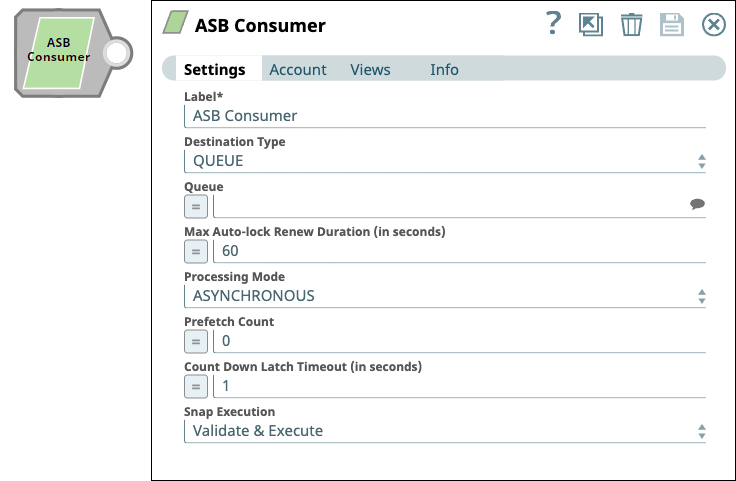
The ASB Consumer Snap reads messages from Azure Service Bus (ASB).
Supported Accounts
- This is a Read-type Snap.
 Works in Ultra Tasks
Prerequisites
- A valid Azure Service Bus Account.
- Valid Namespace and SharedAccessKey in ASB.
Snap views
| Type | Description | Examples of upstream and downstream Snaps |
|---|---|---|
| Input |
This Snap has at most one document input view. Expected input: A document containing a message or topic. |
|
| Output |
This Snap has exactly one document output view. Expected output: The message data with key or value parameters and metadata. |
|
| Learn more about Error handling. | ||
Snap settings
- Expression icon (
 ): Allows using
pipeline parameters to set field values dynamically (if enabled). SnapLogic Expressions
are not supported. If disabled, you can provide a static value.
): Allows using
pipeline parameters to set field values dynamically (if enabled). SnapLogic Expressions
are not supported. If disabled, you can provide a static value. - SnapGPT (
 ): Generates SnapLogic Expressions
based on natural language using SnapGPT. Learn
more.
): Generates SnapLogic Expressions
based on natural language using SnapGPT. Learn
more. - Suggestion icon (
 ): Populates a
list of values dynamically based on your Snap configuration. You can select only one
attribute at a time using the icon. Type into the field if it supports a comma-separated
list of values.
): Populates a
list of values dynamically based on your Snap configuration. You can select only one
attribute at a time using the icon. Type into the field if it supports a comma-separated
list of values. - Upload
 : Uploads files. Learn more.
| Field/Field set | Description |
|---|---|
Label
String |
Specify a unique name for the Snap. Modify this to be more appropriate, especially if more than one of the same Snaps is in the pipeline. Default value: ASB Consumer Example: ASB Consumer |
Destination Type
Dropdown list |
Choose the destination type to which the message must be sent. Available options are:
Default value: QUEUE Example: TOPIC |
Queue
String/Expression/ Suggestion |
Specify the queue from which the message should be consumed in ASB. Alternatively, click the Suggestion icon to fetch the list of queues corresponding to the Azure Service Bus account and select a queue. To retrieve messages from a dead-letter queue (DLQ), you must concatenate Appears when you select QUEUE for Destination Type. Default value: N/A Example: customers_queue |
Topic
String/Expression/ Suggestion |
Specify the topic from which the message should be consumed in ASB. Alternatively, click the Suggestion icon to fetch the list of topics corresponding to the Azure Service Bus account and select a topic. To retrieve messages from a dead-letter queue (DLQ), you must concatenate Appears when you select TOPIC for Destination Type. Default value: N/A Example: XYZ |
Subscription
String/Expression/ Suggestion |
Specify the subscription for the topic. Alternatively, click the Suggestion icon to fetch the list of Subscriptions for the topic corresponding to the Azure Service Bus account and select a Subscription. Appears when you select TOPIC for Destination Type. Default value: N/A Example: XYZ |
Processing Mode
Dropdown list |
Select the processing mode to make calls to the Azure Service Bus service. The available options are:
Note:
When you use the ASB Acknowledge Snap in the pipeline, you need to use SYNCHRONOUS Processing mode. Otherwise, we recommend that you use ASYNCHRONOUS mode for better performance. Appears when you select QUEUE for Destination Type. Default value: ASYNCHRONOUS Example: SYNCHRONOUS |
Prefetch Count
Integer/Expression |
Specify the number of messages to be read into the buffer before the Snap begins processing. If the field is left empty, the Snap sets it to 0. Incrementing the prefetch count improves the overall performance of the ASB Consumer Snap. The prefetch count can be from 0 (disabled) to 5. If you enter a value that exceeds the recommended limit of 5, a Lint warning is displayed in the pipeline statistics. 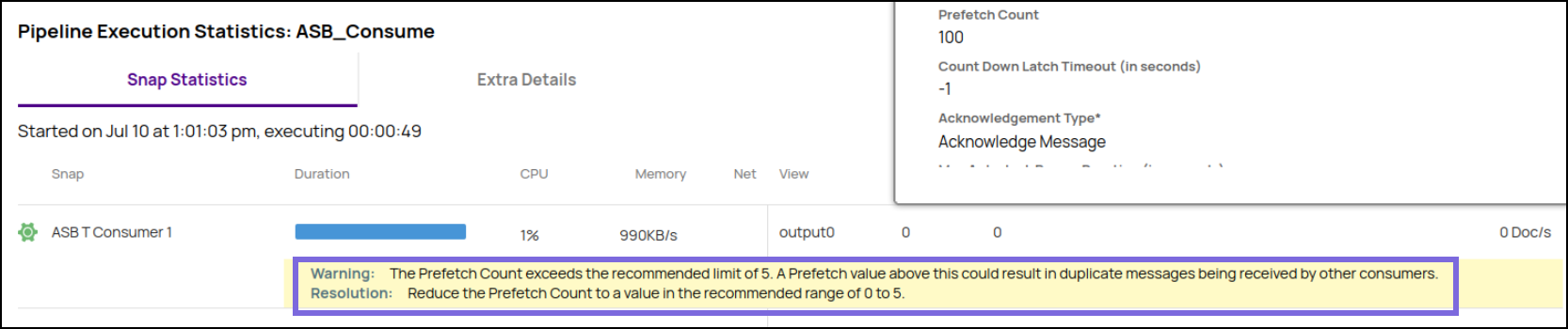 Appears when you select ASYNCHRONOUS for Processing Mode. Default value: 0 Example: 10 |
Count Down Latch Timeout (in seconds)
Integer/Expression |
Specify the time interval in seconds to receive the messages. To read messages constantly from ASB in Asynchronous mode, you must set the Count Down Latch Timeout (in seconds) to 0 or -1. Appears when you select ASYNCHRONOUS for Processing Mode. Default value: 1 Example: 5 |
Acknowledgment Type
Dropdown list |
Select an option for the Acknowledgement type to determine the action on the received messages. The available options are:
Appears when you select ASYNCHRONOUS for Processing Mode. Default value: Acknowledge Message Example: Defer Message |
Max Message Count
Integer/Expression |
Specify the maximum number of messages to read before the Consumer stops. If you provide a negative value, the Snap continuously reads messages. Appears when you select SYNCHRONOUS for Processing Mode. Default value: -1 Example: 5 |
Max Idle Time (in seconds)
Integer/Expression |
Specify the maximum idle time (in seconds) before the Snap stops to wait for messages. Appears when you select SYNCHRONOUS for Processing Mode. Default value: 120 Example: 100 |
Batch Pooling
Checkbox |
Select this checkbox to pool multiple messages in a batch. Appears when you select SYNCHRONOUS for Processing Mode. Default value: Deselected |
Max Messages (per poll)
Integer/Expression |
Specify the maximum number of messages to read for each poll. Appears when you select Batch Pooling. Default value: 1 Example: 12 |
Polling Interval (in milli seconds)
Integer/Expression |
Specify the time (in milliseconds) to wait between polls for messages. We recommend you to leave this field empty. Appears when you select Batch Pooling. Default value: N/A Example: 250 |
Message Acknowledge Mode
Dropdown list |
Choose the mode for acknowledging messages in non-transaction sessions.
Appears when you select SYNCHRONOUS for Processing Mode. Default value: AUTO_ACKNOWLEDGE |
Acknowledgement wait time (in milliseconds)
Integer |
Specify the duration for which the Snap should wait to receive acknowledgments from the ASB Acknowledge Snap. We recommend you to leave this field empty to ensure accurate acknowledgment of every message. Appears when you select PIPELINE_CONTROL for Message Acknowledge Mode. Default value: 10 Example: 5000 |
Max Auto-lock Renew Duration (in seconds)
Integer/Expression |
Specify the maximum time (in seconds) to renew the message lock's expiration. The maximum time should be in sync with the message lock duration in the queue/topic. By default, this is set to 60 seconds. We recommend that you set the maximum time to a value slightly greater than the message lock duration for the queue/topic because even after the message lock duration is exhausted, you can still renew the lock to process the message. Appears when you select QUEUE for Destination Type. Default value: 60 Example: 70 |
Snap execution
Dropdown list |
Choose one of the three modes in
which the Snap executes. Available options are:
|
Troubleshooting
| Error | Reason | Resolution |
|---|---|---|
| Exception occurred while processing the message. | Cannot configure more than one Consumer Snap within the same Pipeline with Message acknowledge mode as PIPELINE_CONTROL. | Verify the connection settings and provide values for the input properties. |