


Workday Dynamic Account
Overview
You can configure your accounts in SnapLogic using the Designer or Manager. Use the Workday Dynamic Account type to connect Workday Snaps with data sources that use Workday Dynamic Accounts.
Expression-enabled authentication fields, such as Username, Password, and Client Secret, support Secrets Management, a SnapLogic add-on that allows you to store endpoint credentials in a third-party secrets manager, such as AWS Secrets Manager, Azure Key Vault, or HashiCorp Vault. During validation and execution, pipelines obtain the credentials directly from the secrets manager. Learn more: Secrets Management, Configure Accounts to use secrets.
Prerequisites
- Write permissions for the Project for which you are creating the Account.
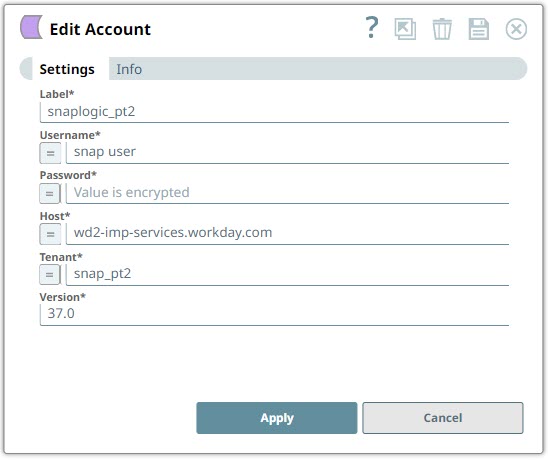
- Valid Username, Password, Tenant, Host, and Version received from Workday for using the Account.
You can get the Host, Version, and Tenant by following any of these methods:
- Contact your Workday Security Administrator or your Implementation Partner.
- If you have access to your Workday Customer Portal, you can get information from there.
- If you have access to the Workday Community, you can access the Workday Data Centers page from where its three data centers are listed (Ashburn, Portland, and Dublin). You need Workday Community access for this.
- Another easy way of finding this is through a RAAS (Report As A Service):
- Create an Advanced Report that is Web Service Enabled.
- From the Related Actions for the Report, click Web Services > View URLs.
- Copy the Workday XML URL. It contains the host-prefix, tenant name, user
name and follows the syntax:
https://<host-prefix>.workday.com/ccx/service/customreport2/<tenant_name>/<username>/CR_RAAS_SNAPLOGIC_READ_DEMO.
- Latest Version can be found from the Public Workday Web Services (WWS).
Limitations and known issues
None.
Account settings
- Expression icon (
 ): Allows using
JavaScript syntax to access SnapLogic Expressions to set field values dynamically (if
enabled). If disabled, you can provide a static value. Learn more.
): Allows using
JavaScript syntax to access SnapLogic Expressions to set field values dynamically (if
enabled). If disabled, you can provide a static value. Learn more. - SnapGPT (
 ): Generates SnapLogic Expressions
based on natural language using SnapGPT. Learn
more.
): Generates SnapLogic Expressions
based on natural language using SnapGPT. Learn
more. - Suggestion icon (
 ): Populates a
list of values dynamically based on your Snap configuration. You can select only one
attribute at a time using the icon. Type into the field if it supports a comma-separated
list of values.
): Populates a
list of values dynamically based on your Snap configuration. You can select only one
attribute at a time using the icon. Type into the field if it supports a comma-separated
list of values. - Upload
 : Uploads files. Learn more.
| Field/Field set | Description |
|---|---|
Label*
String |
Required. Enter a unique name to identify the account
instance.
Default value: N/A Example: Workday_Account_01 |
Username
String/Expression |
Required. Provide the username received as part of
access permissions from Workday.
Default value: N/A Example: snaplogic |
Password
String/Expression |
Required. Provide the Pipeline parameter key
(_Parameter) as an Expression in this field. This key must
correspond to the password required for accessing the Workday instance.
Default value: N/A Example: p2@s091 |
Host
String/Expression |
Required. Provide the Pipeline parameter key
(_Parameter) as an Expression in this field. This key must
correspond to the hostname required for accessing the Workday Implementation
(Sandbox) or Production tenant.
Note: The host supports the path in a non-HTTP format (for example,
wd-imp-services.workday.com).Default value: N/A Example: wd-imp-services.workday.com |
Tenant
String/Expression |
Required. Provide the Pipeline parameter key
(_Parameter) as an Expression in this field. This key must
correspond to the Workday tenant.
Default value: N/A Example: Tenant_name |
Version
String/Expression |
Required. Provide the version of the Workday instance.
The Snap supports the versions from 21 through 29.
Default value: N/A Example: 29.2 |
Pipeline Parameters
Configure Pipeline parameters to pass authentication credentials dynamically:
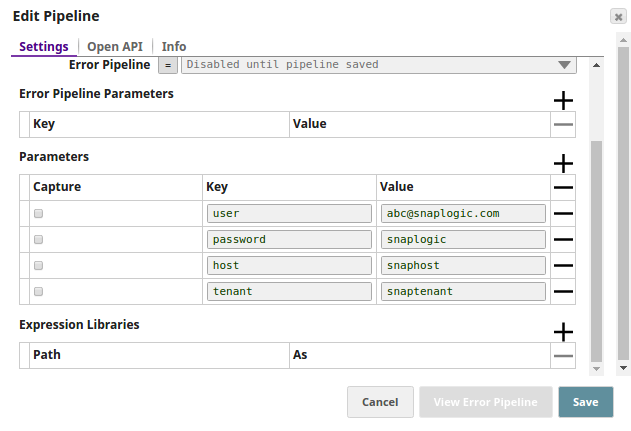
Workday Dynamic Account Settings
After configuring the Pipeline parameters, reference them in your account settings:
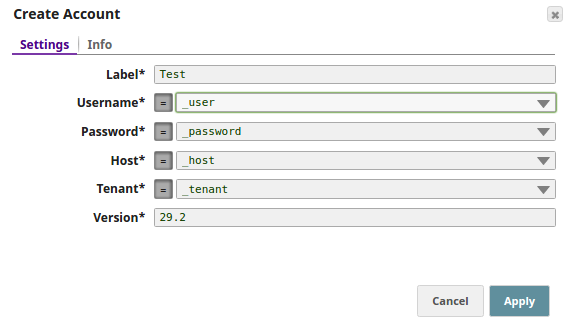
Account encryption
| Standard Encryption | If you are using Standard Encryption, the account uses High sensitivity settings under Enhanced Encryption for transmitting information. |
| Enhanced Encryption | If you have the Enhanced Account Encryption feature, the following describes
which fields are encrypted for each sensitivity level selected per each account:
|
Troubleshooting
| Error | Cause | Resolution |
|---|---|---|
| Failed to validate Account: Soap fault | Either the user name and/or password entered is invalid. | Recheck the user credentials and pass valid user name and/or password. |
| Failed to validate Account: Unable to read URL (500 Internal Server Error) | Path validation failed. The value for Tenant does not resolve to a valid Workday instance. | Ensure the value passed in the Tenant field forms a proper/valid URL that points to the Workday instance. |
| Failed to validate Account: Unable to read URL | Path validation failed. The Host does not resolve to a valid destination. | Ensure the values passed in the Host field forms a proper/valid URL that points to the Workday instance. |
| Failed to validate Account: Error parsing WSDL document | Version does not follow the required pattern for Workday versions: XX.X. | Update the Version values to follow the pattern XX.X.
For example, 28.2, 34.0,
33.2. |