


Use Twin Inputs to Define Schema While Creating Tables in Redshift
Overview
This example demonstrates how to use the second input view of the Redshift Bulk Load Snap to define the schema for creating a non-existent table in Redshift. By connecting two inputs—one for the table schema and another for the data rows—you can create tables dynamically with the exact schema you need.
Prerequisites
- Amazon Redshift cluster with appropriate access
- S3 bucket configured in Redshift account
- Understanding of table schema structure and metadata
- Valid Redshift account configured in SnapLogic
Pipeline overview
The pipeline uses two JSON Generator Snaps:
- Input 1 (First input view): Passes the data rows to be inserted
- Input 2 (Second input view): Passes the table schema definition (metadata)
The Redshift Bulk Load Snap uses the schema from the second input to create the table if it doesn't exist, then loads the data from the first input.
Pipeline
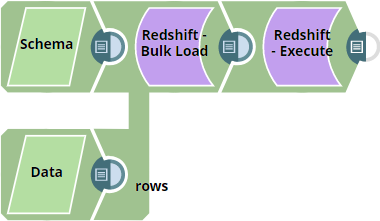
Snap Configuration
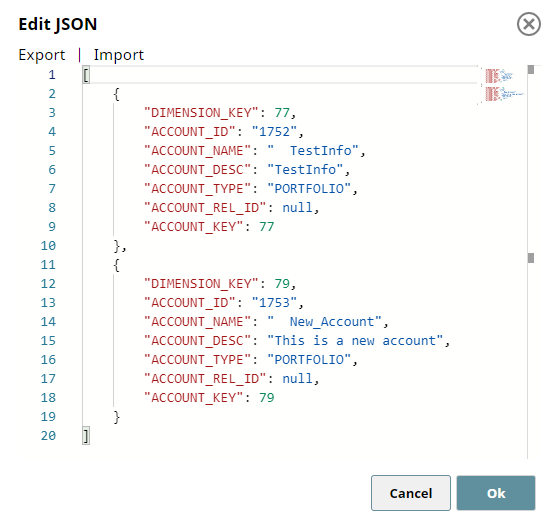
JSON Generator 1 - Data Rows:
This Snap generates the actual data to be inserted into the table.
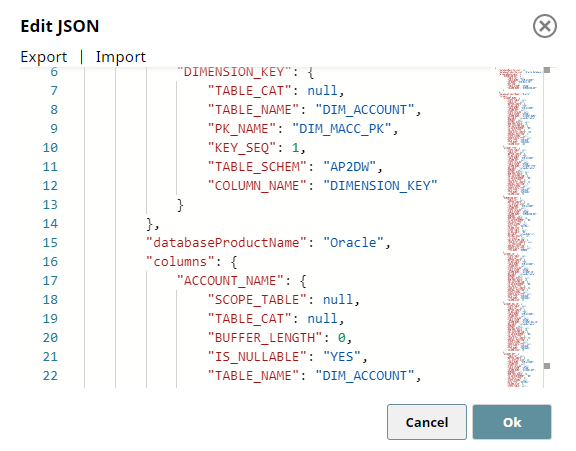
JSON Generator 2 - Table Schema:
This Snap generates the schema definition (metadata) for table creation.
Redshift Bulk Load Snap - Settings:
- Create table if not present: Selected
- Data Source: Input view
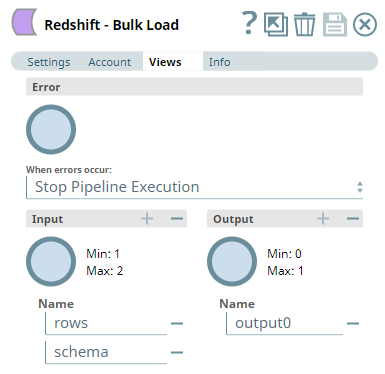
- First input view receives data rows
- Second input view receives schema metadata

Redshift Bulk Load Snap - Views Configuration:
Pipeline Execution
When the pipeline executes:
- The Redshift Bulk Load Snap receives schema metadata from the second input view
- If the table doesn't exist, it creates the table using the provided schema
- Data rows from the first input view are staged to S3
- The COPY command loads data from S3 into the Redshift table
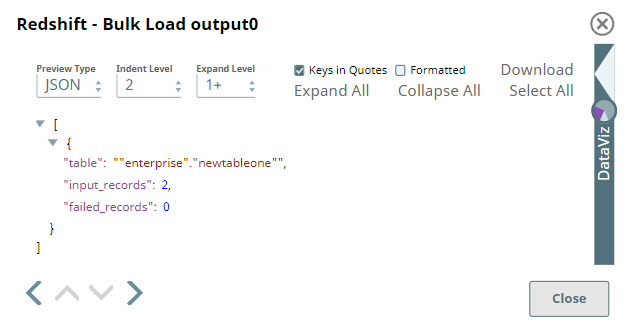
Output
The Snap outputs a document showing:
- Successful bulk load operation status
- Number of records inserted
- Table creation confirmation (if applicable)
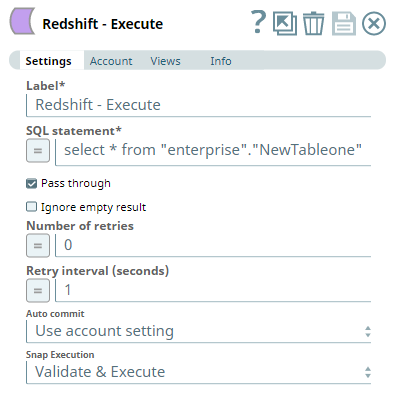
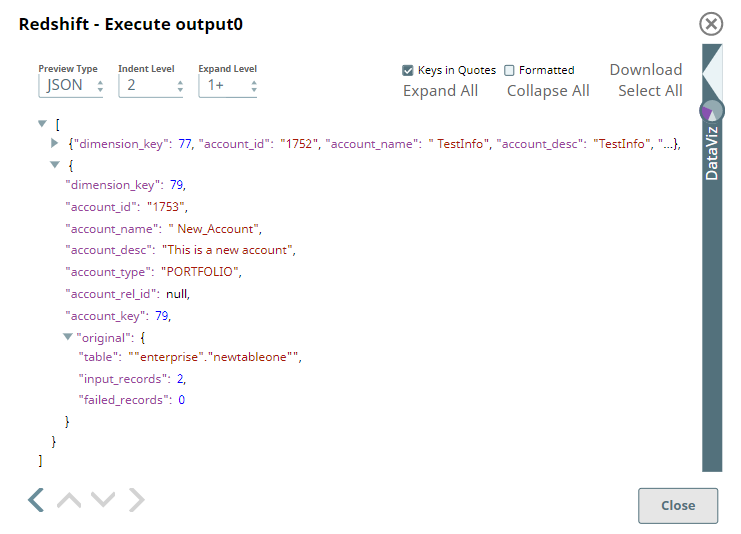
You can verify the data using a Redshift Execute Snap:
Best Practices
- Ensure the schema metadata matches the expected Redshift data types
- Use the second input view only when creating tables dynamically
- For cross-database migrations, verify data type compatibility
- Test schema definitions before bulk loading large datasets