


Move Email
Overview
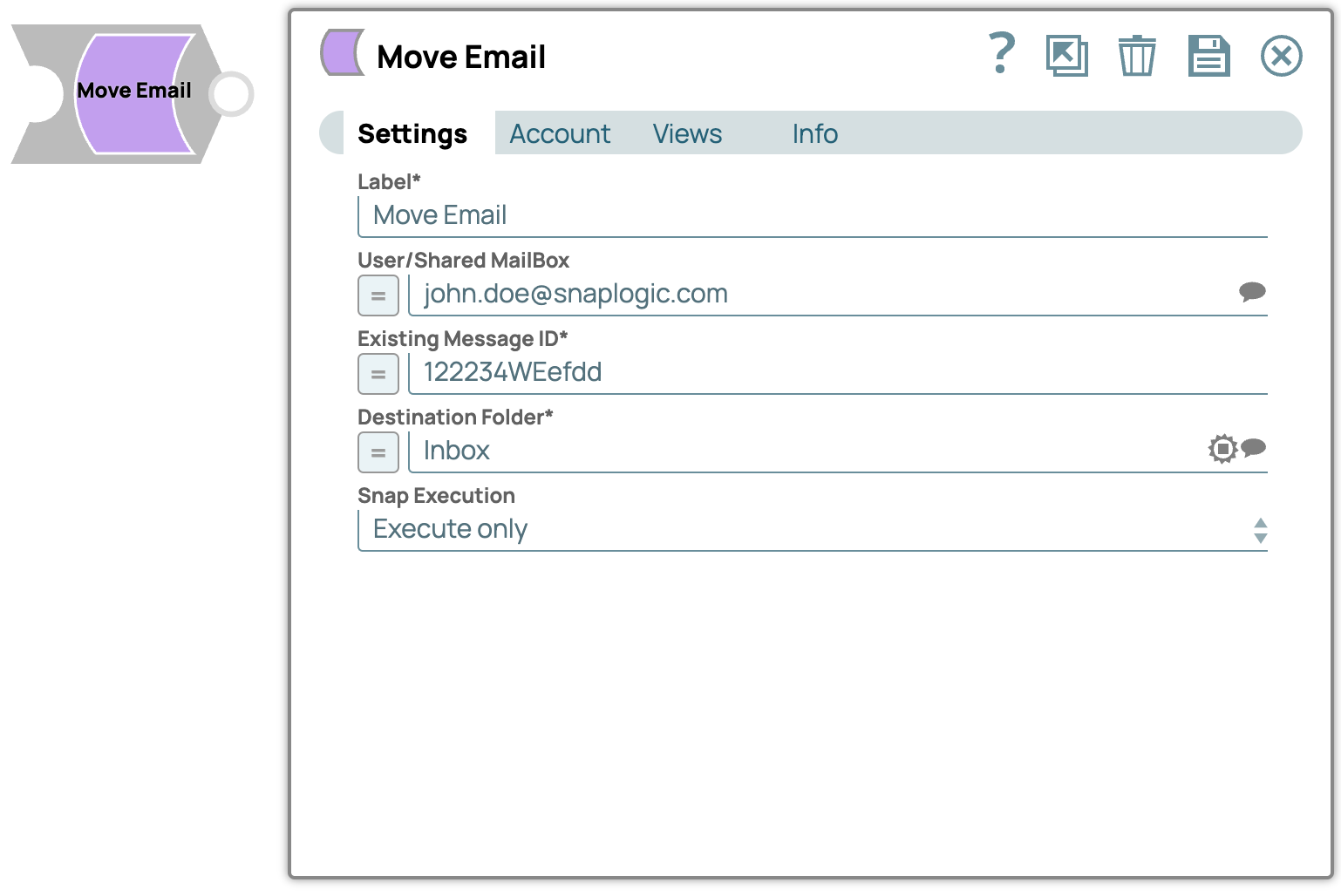
The Move Email Snap moves an email to another folder.
- This is a Write-type Snap.
 Works in Ultra Tasks when the Batch size is set to 1.
Supported Accounts
Prerequisites
- Valid Exchange Online tenant.
- Valid OAuth2 application in Azure Active Directory with all the required API permissions.
- A valid account with the required permissions.
Snap views
| Type | Description | Examples of upstream and downstream Snaps |
|---|---|---|
| Input |
This Snap has at most one document input view. Requires Existing User/Shared Email Id and Destination Folder name to move the email. |
|
| Output |
This Snap has at most one document output view. Desired email moved to opted mailbox. |
|
| Learn more about Error handling. | ||
Snap settings
| Field/Field set | Description |
|---|---|
Label*
String |
Specify a unique name for the Snap. Modify this to be more appropriate, especially if more than one of the same Snaps is in the pipeline. Default value: Move Email |
User/Shared MailBox
String/Expression |
Specify the mailbox from which you want to configure auto reply for emails received. If not provided, then the mailbox specified in the account settings is used. Default value: N/A Example: [email protected] |
Existing Message ID*
String/Expression |
Specify the ID of an existing message to mark it as read. Default value: N/A Example: 122234WEefdd |
Destination Folder*
String/Expression |
Specify the name of the folder where you want to move the email. Default value: N/A Example: Inbox |
Snap execution
Dropdown list |
Choose one of the three modes in
which the Snap executes. Available options are:
|
Troubleshooting
| Error | Cause | Resolution |
|---|---|---|
| Destination Folder is required field for performing operation | Missing Destination Folder field. | Enter the folder name where you want to move the file. |